NineBox, Critical Roles and Succession Plans
In this section, you will learn how to mark critical roles, organize succession plans, and strategically use the NineBox matrix for your organization.
Talent NineBox Matrix
How to create a NineBox matrix in Nala?
Go to 9-box Matrix in the talent and succession module
If you have previously created a 9box, you can select this button to start.

If this is your first time creating a 9box in Nala, you won’t see the "create new 9box" button; you must scroll down and select “Start now”
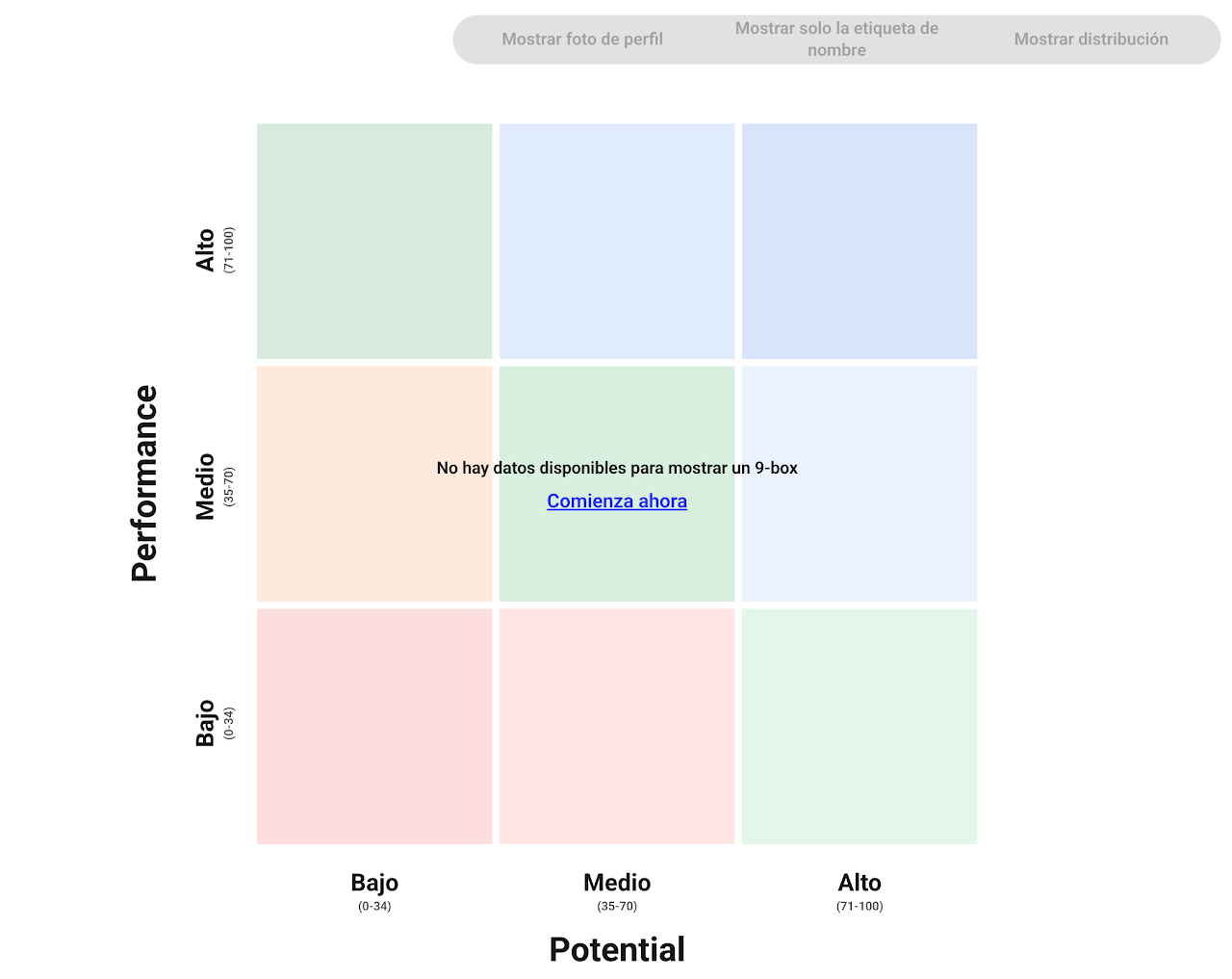
Nala offers two options for creating a NineBox: the first is uploading the two matrix coordinate data from an Excel format or feeding the matrix with processes completed in Nala (you can select performance or potential processes).
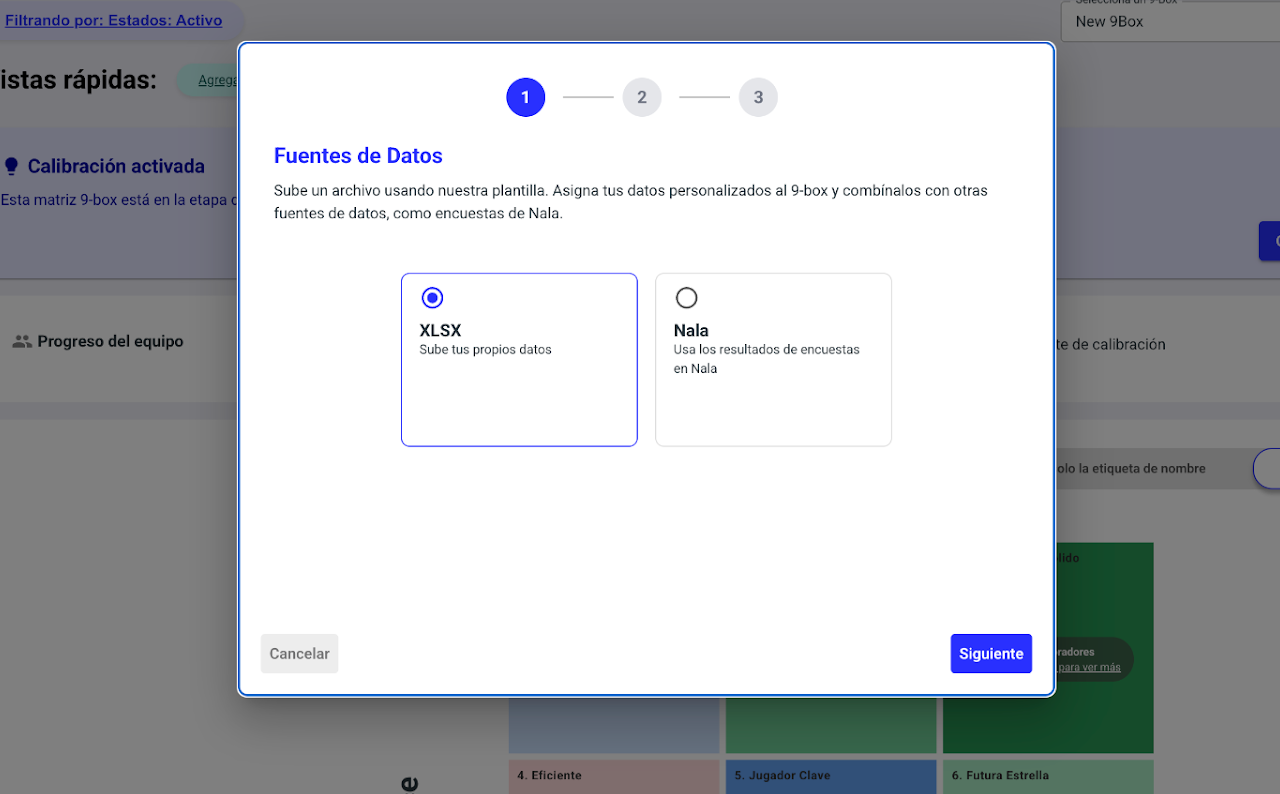
Option 1: Upload from an Excel file
If you choose to upload an Excel format, you must use the template provided on the platform and complete it with the data corresponding to each axis.
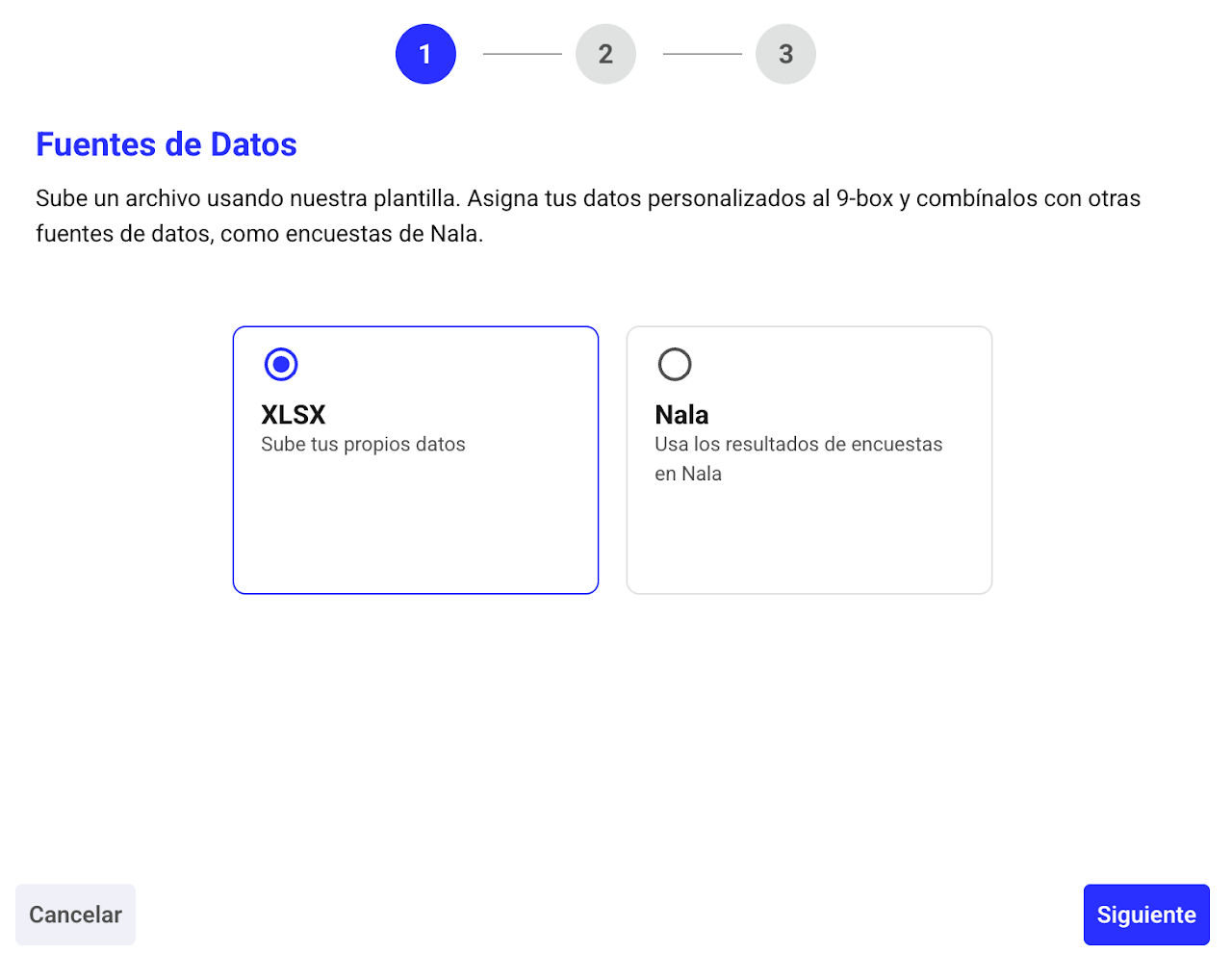
1️⃣ Select XLSX.
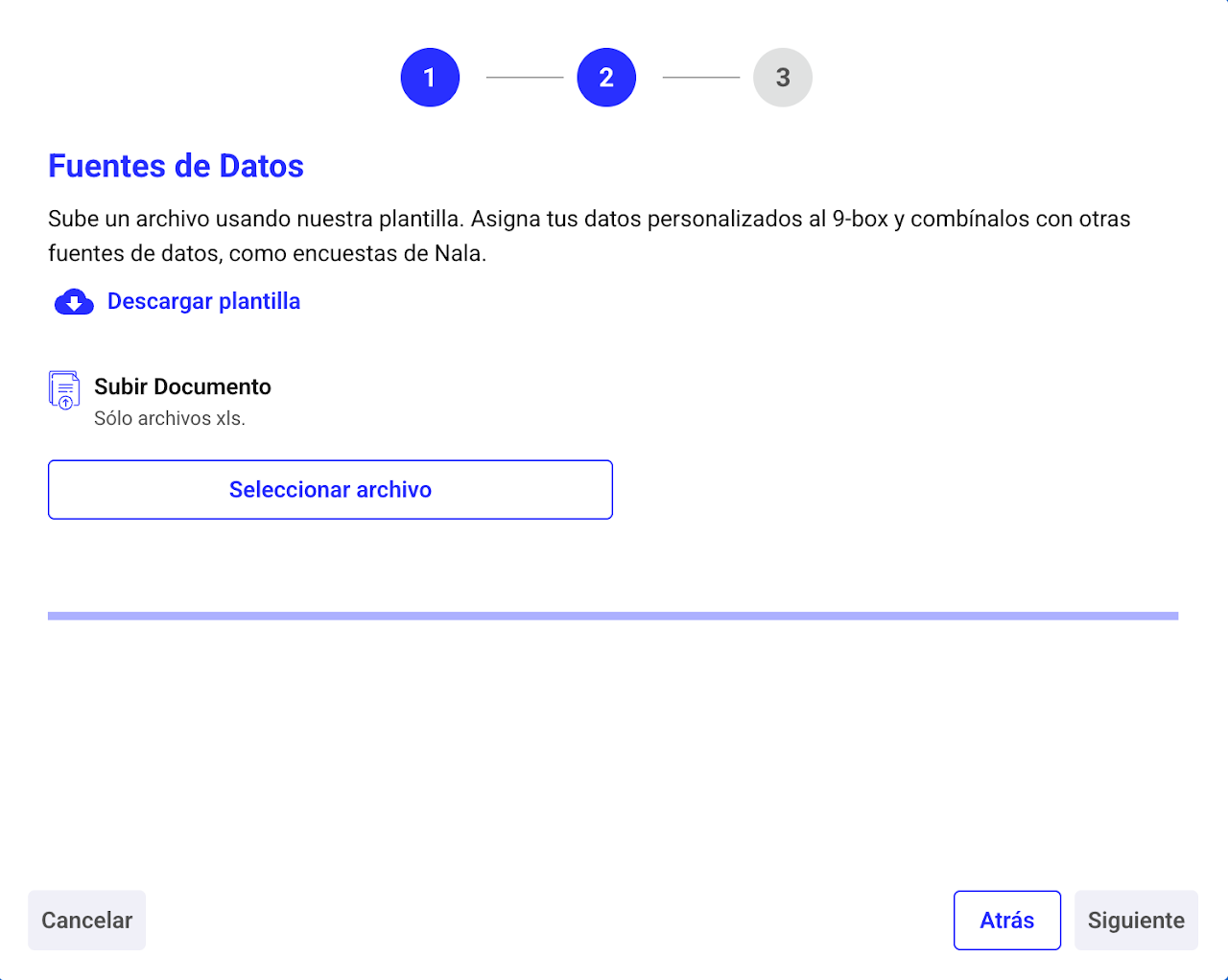
2️⃣ Download the template and fill in the information.
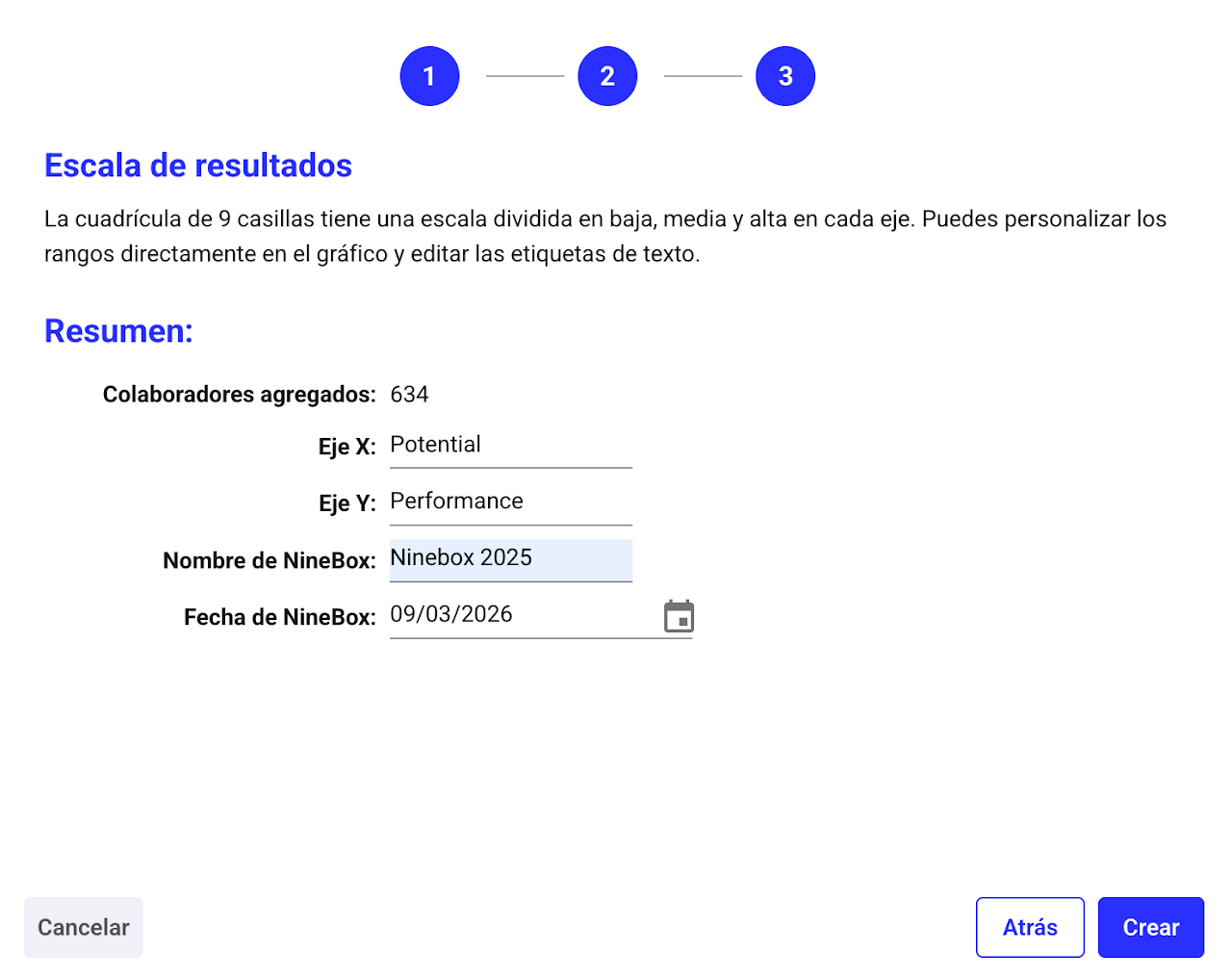
3️⃣ Complete the axis names, title, and modify the date if uploading a historical file.
Important: the title and date cannot be edited once created
Option 2: Use processes created in Nala
If you choose to use processes launched from Nala, you will be asked to select which process to assign to each matrix axis (X,Y) and choose which of the historical processes in Nala you want to use.
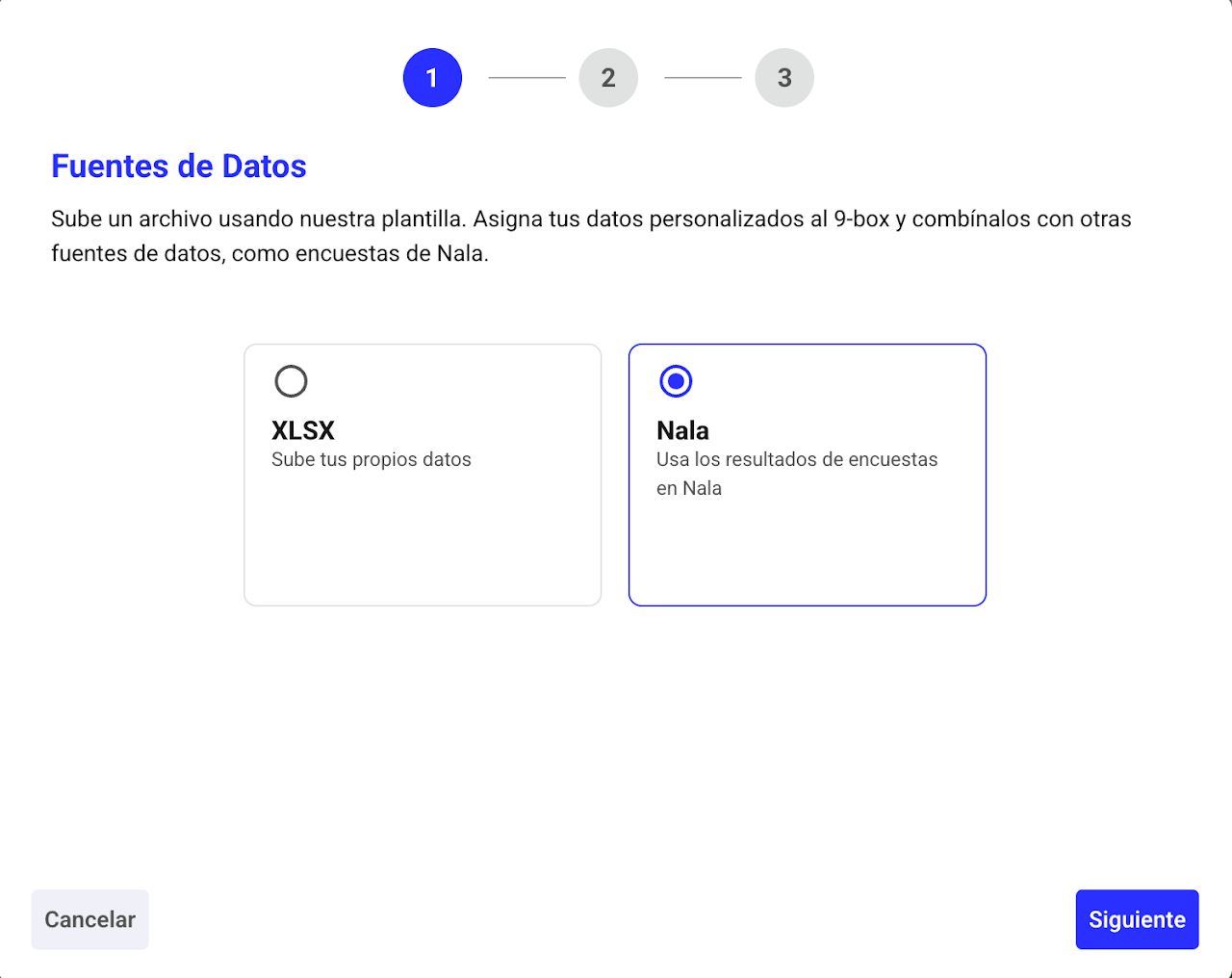
Select Nala
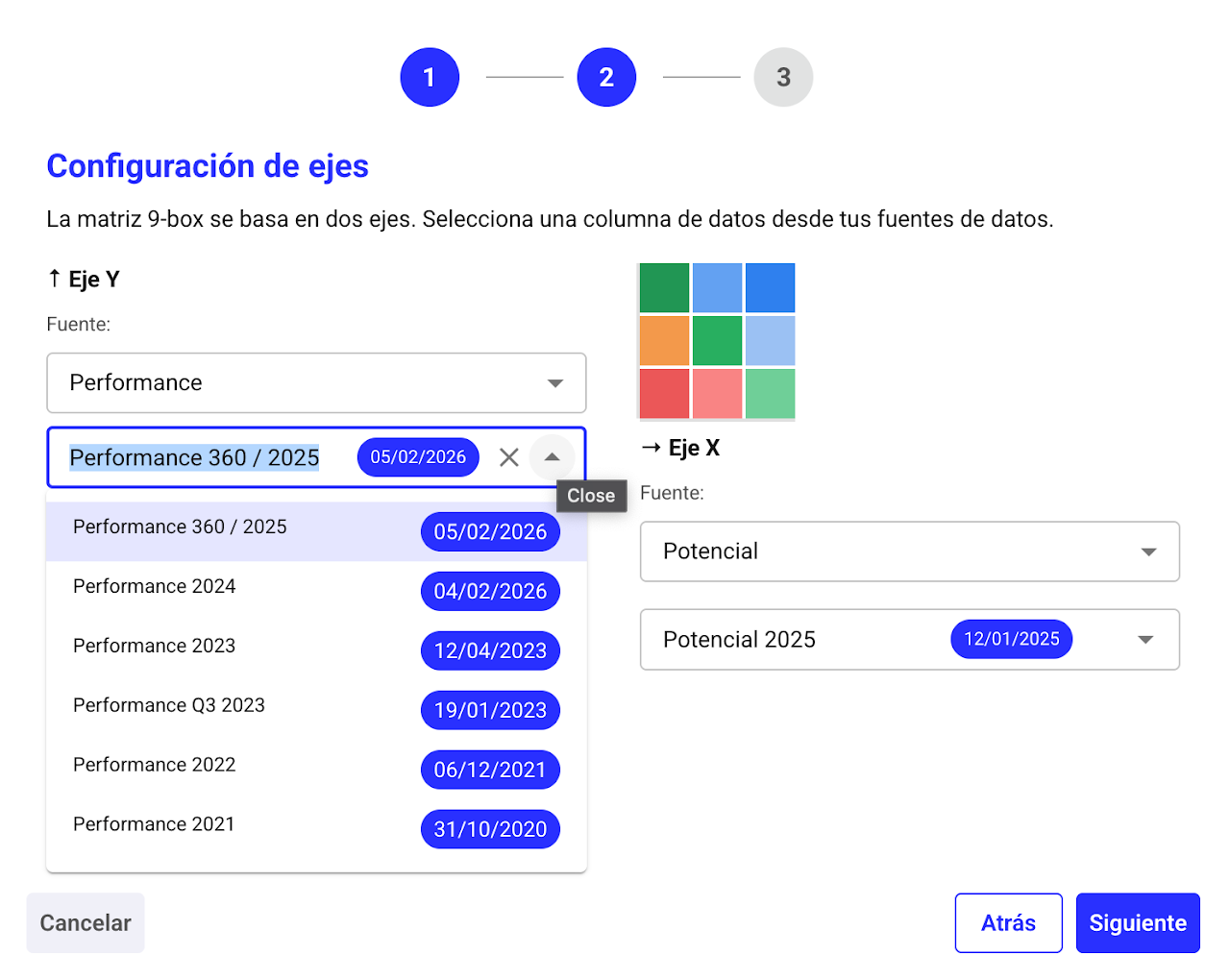
Select the process type you want to pull in and choose the corresponding evaluation.
Complete the axis names, title, and modify the date if uploading a historical file.
Important: the title and date cannot be edited once created
How do I fill out the 9box upload template?

On the X and Y axes, you can upload any information you want, values, potential, performance, cultural fit, etc. Just remember where you uploaded each and then change the axis names in the third phase of the upload.
For the X and Y axes, the scale ranges from 0 to 100, so you must use a proportion to convert the score.
Some considerations:
Yellow columns are mandatory.
To upload loss risk and impact, use the labels: high, medium, and low, as appropriate.
To upload badges, use the values found in the badge guide in settings.
Strengths, opportunities, and next steps MUST NOT exceed 500 characters including spaces.
How do I customize my NineBox in Nala?
Select the settings gear to customize your 9box.
Nala’s NineBox matrix is highly customizable; by clicking the settings gear at the top right corner of the section, you can access the menu to personalize:
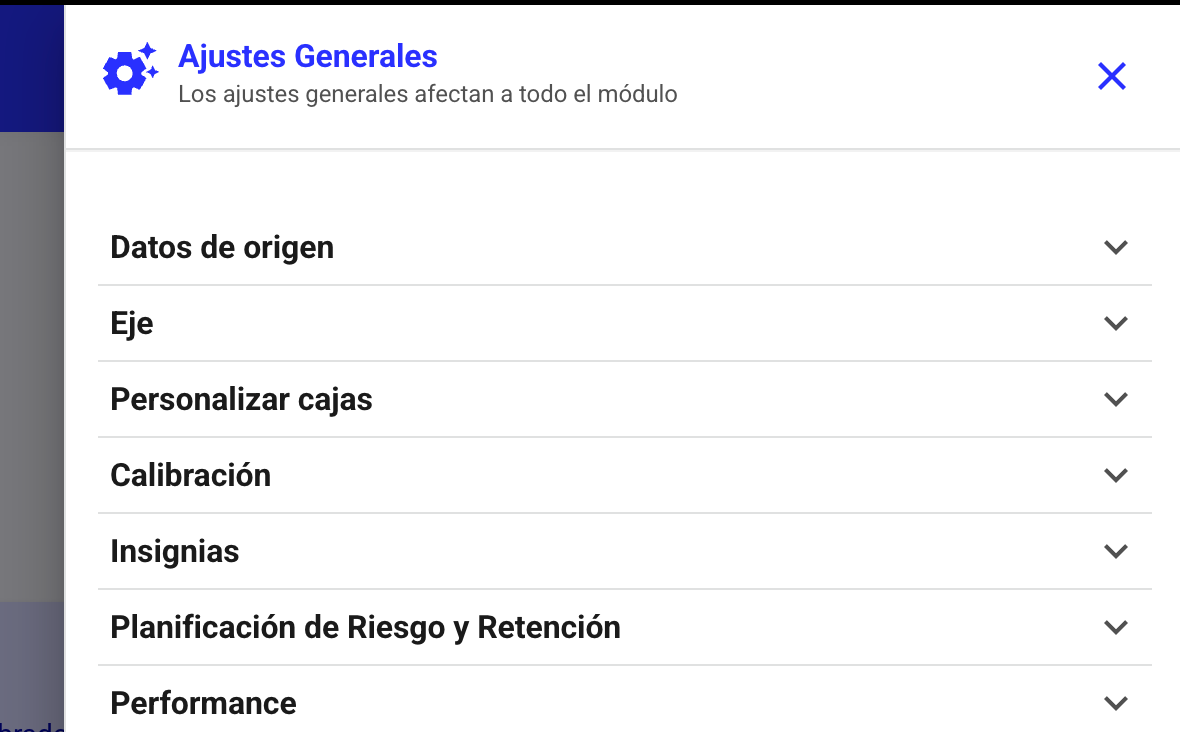
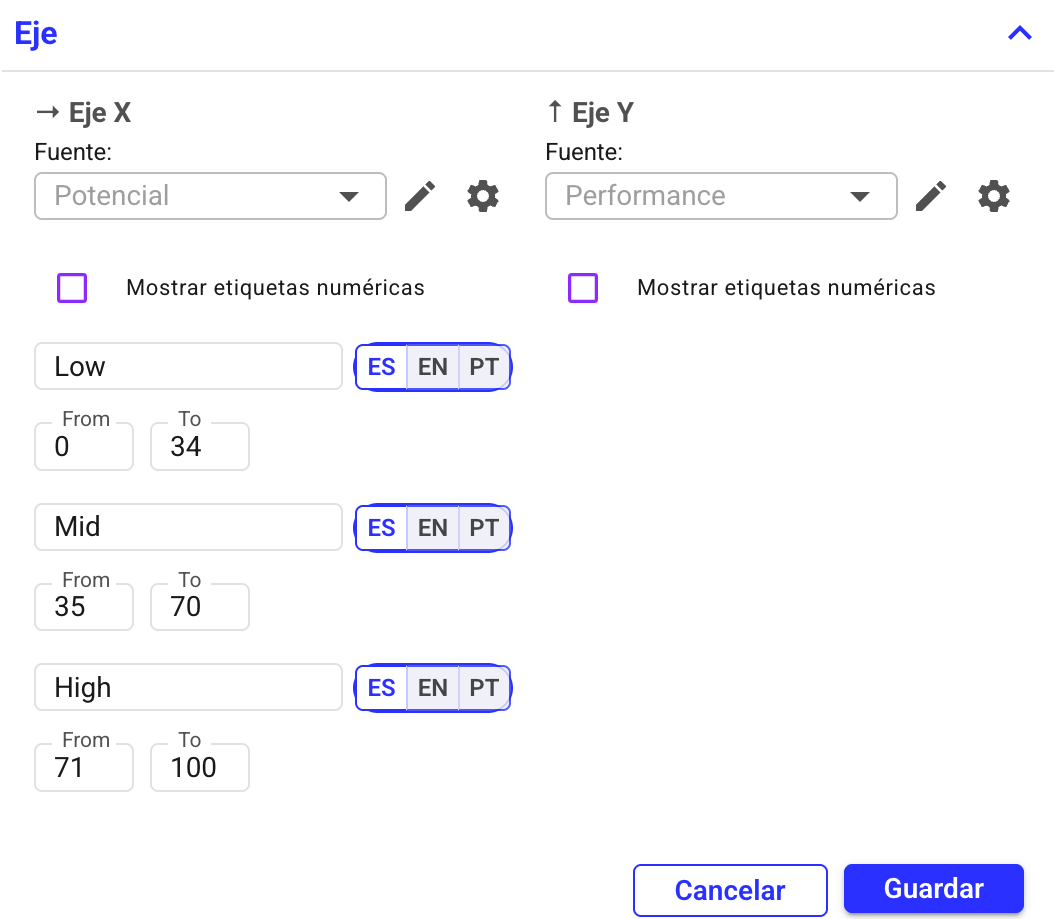
Name of each Axis
Select the pencil to edit the axis name.
Use the gear to configure each range’s parameters and define the names.
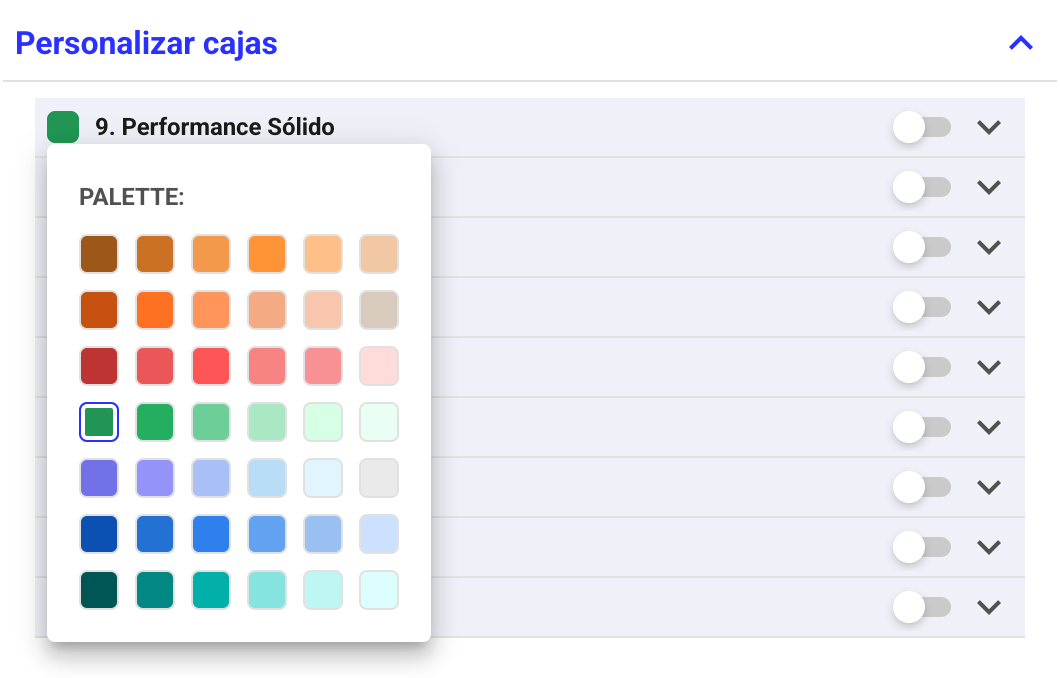
Customize NineBox boxes
You can change the labels (names), colors, and fade certain quadrants if you wish.
This helps maintain focus on calibrations where you want to review specific quadrants. Just toggle the switch.
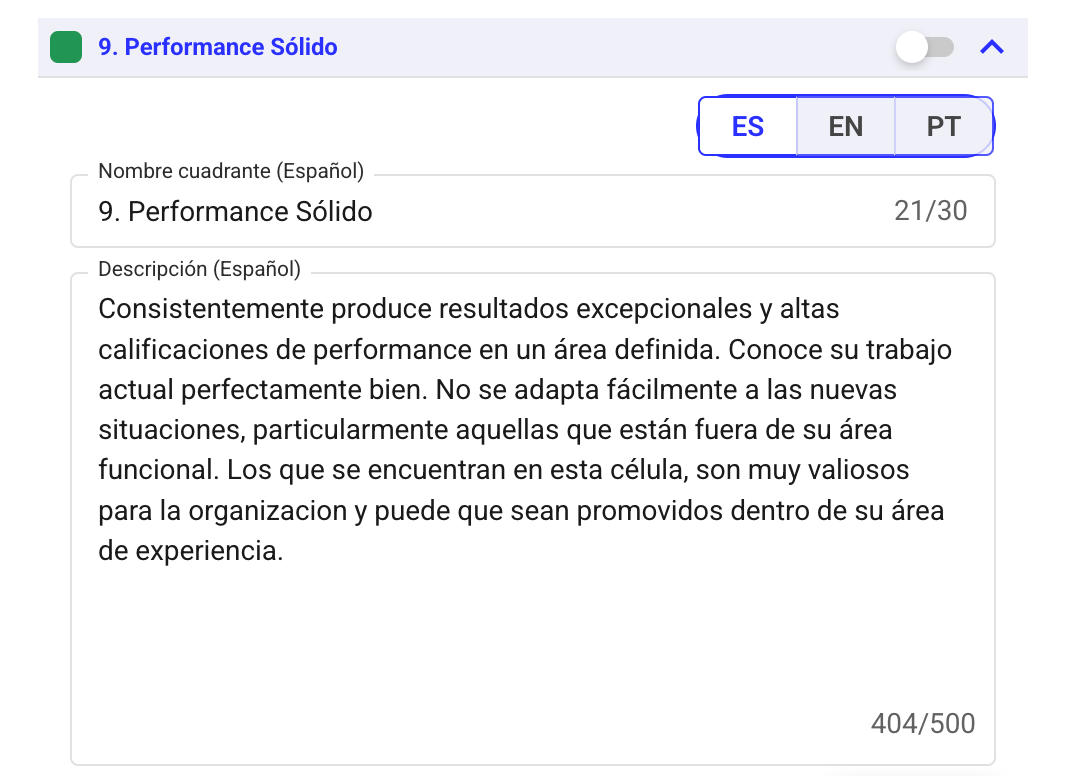
You can also edit the quadrant numbers and descriptions. Remember to save.
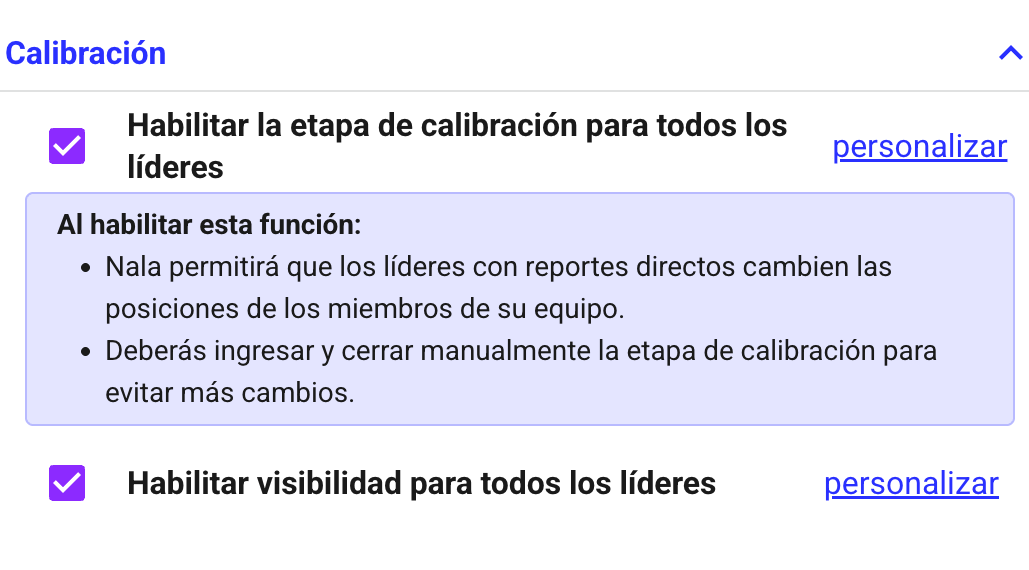
Toggle visibility and calibration for leaders
Once ready, enable visibility and calibration for leaders.
Before this, only administrators and Talent Managers can see the 9box.
You don’t need to enable visibility or calibration for all leaders.
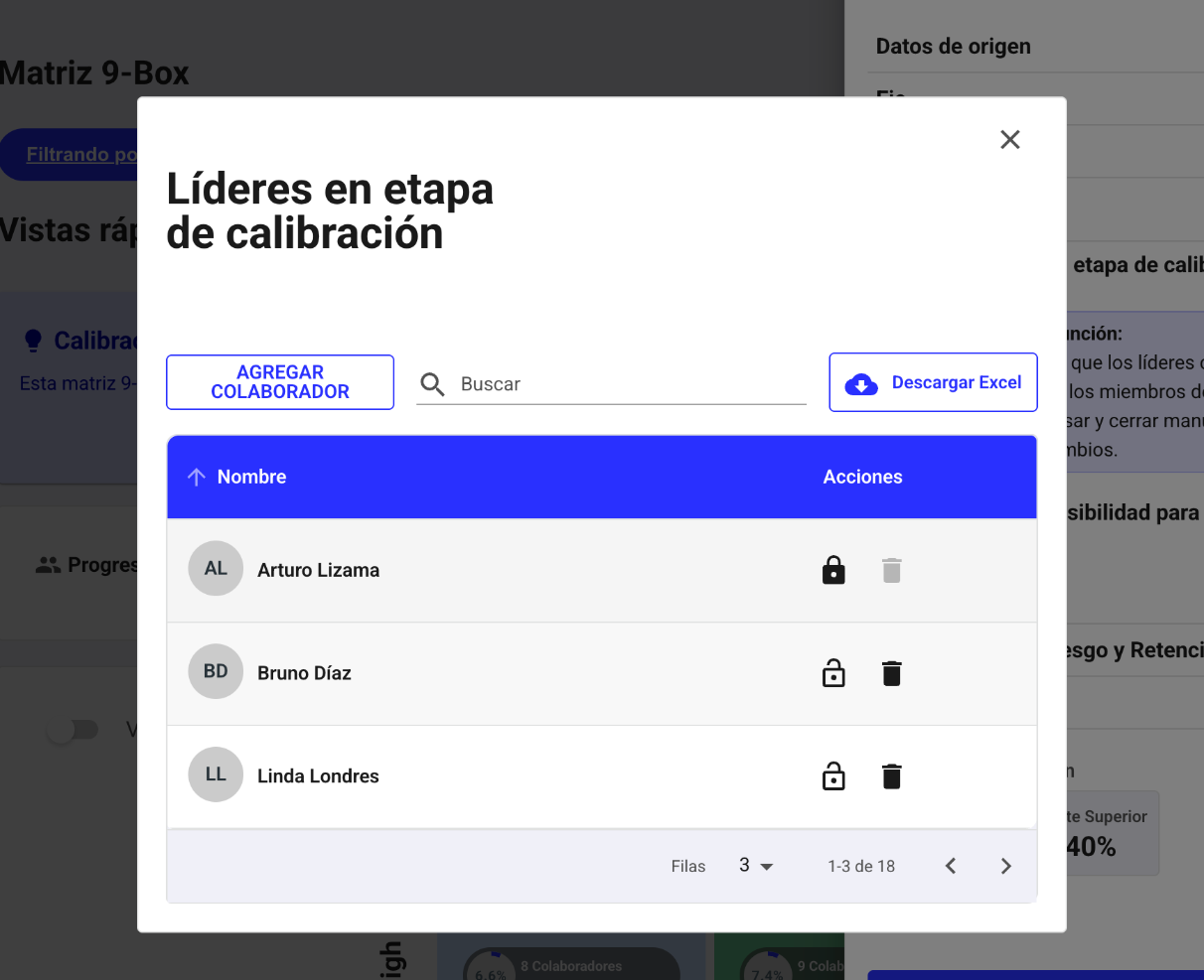
You can delete 🗑️ leaders who you don’t want to see it, then enable calibration or visibility. You can also add them back by selecting "Add employee".
If you need to reopen calibration for a leader who already closed it: unlock 🔓 by clicking this section.
Badges
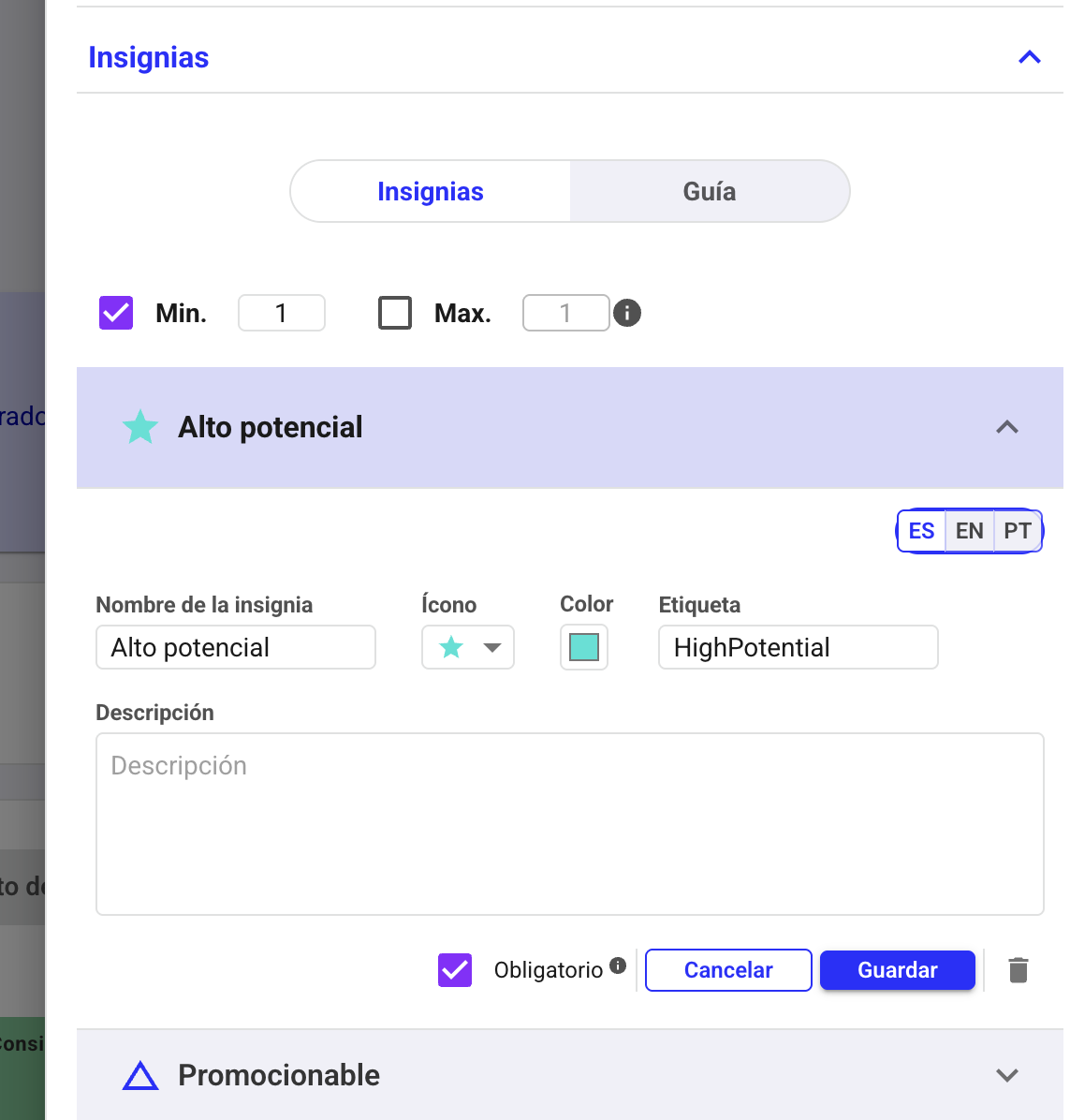
These badges allow you to assign categories to employees and later use them as filters.
You can define minimum and/or maximum badges that leaders must assign during calibration.
You can also modify the names, icons, and descriptions of the badges.
Finally, you can specify if they are mandatory or optional badges to ensure careful assignment.
Risk and Retention Planning
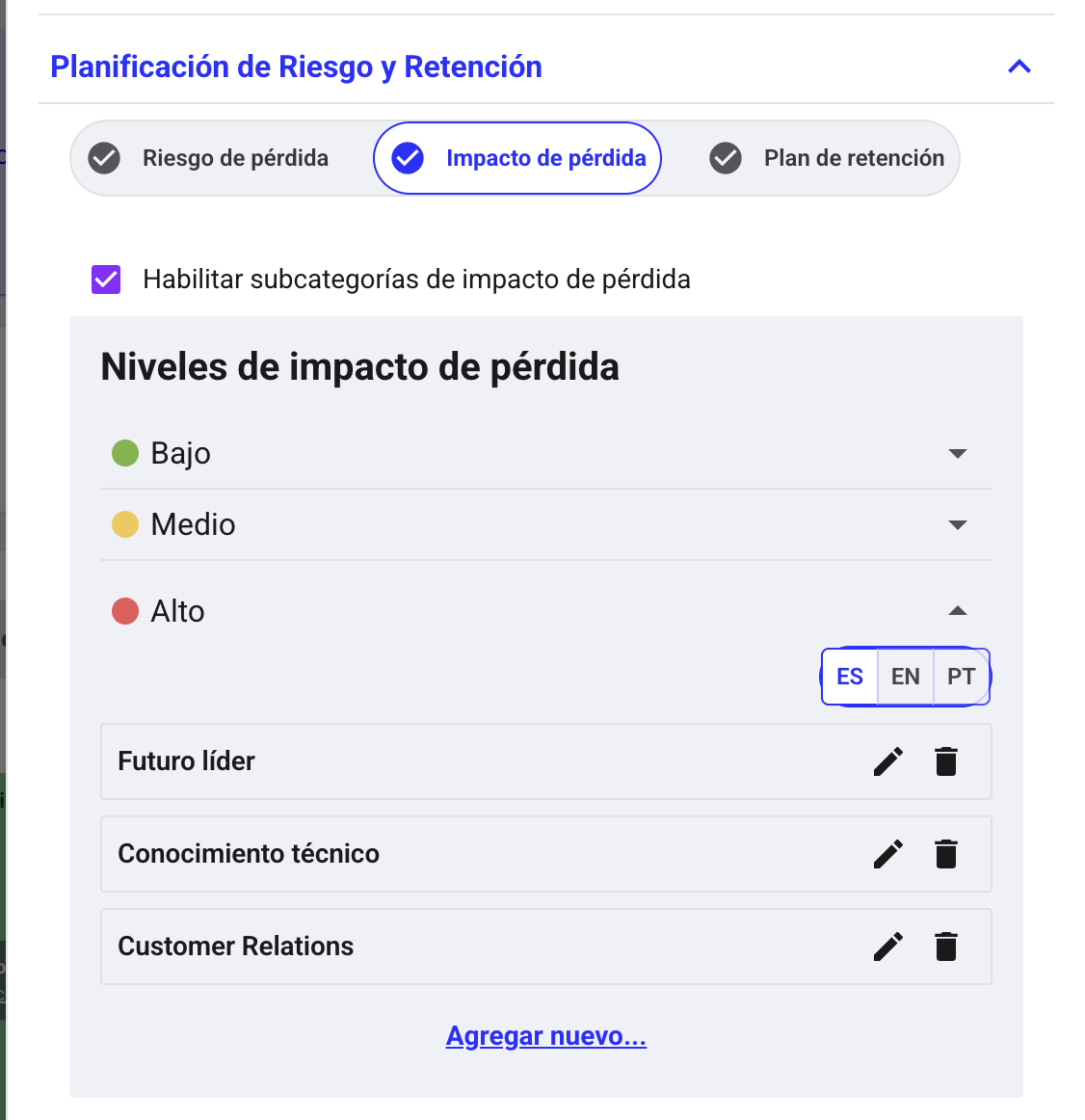
You can enable or disable risk and loss impact features and retention plan options by selecting the power icon.
You can also enable subcategories. Define them before calibration so leaders can select these fields. They are not mandatory during calibration.
Performance
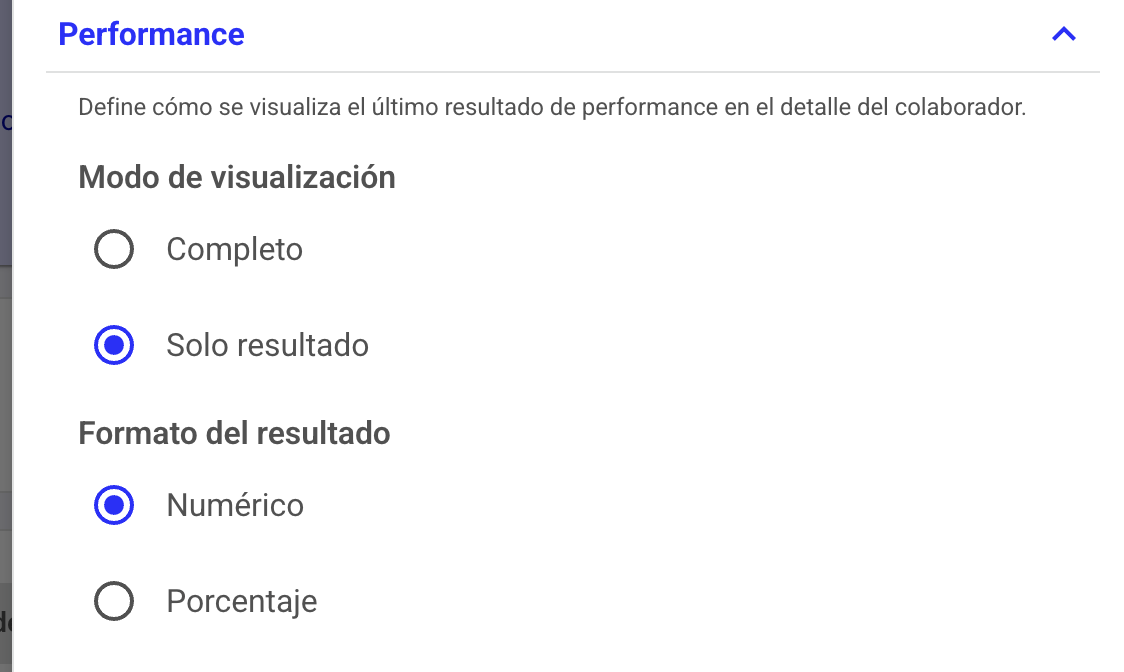
The employee's last performance result in Nala will be shown.
You can choose whether to show the scale or just the result, and whether to display it numerically or as a percentage.
Critical positions and succession plans
How to Define Critical Positions in Nala?
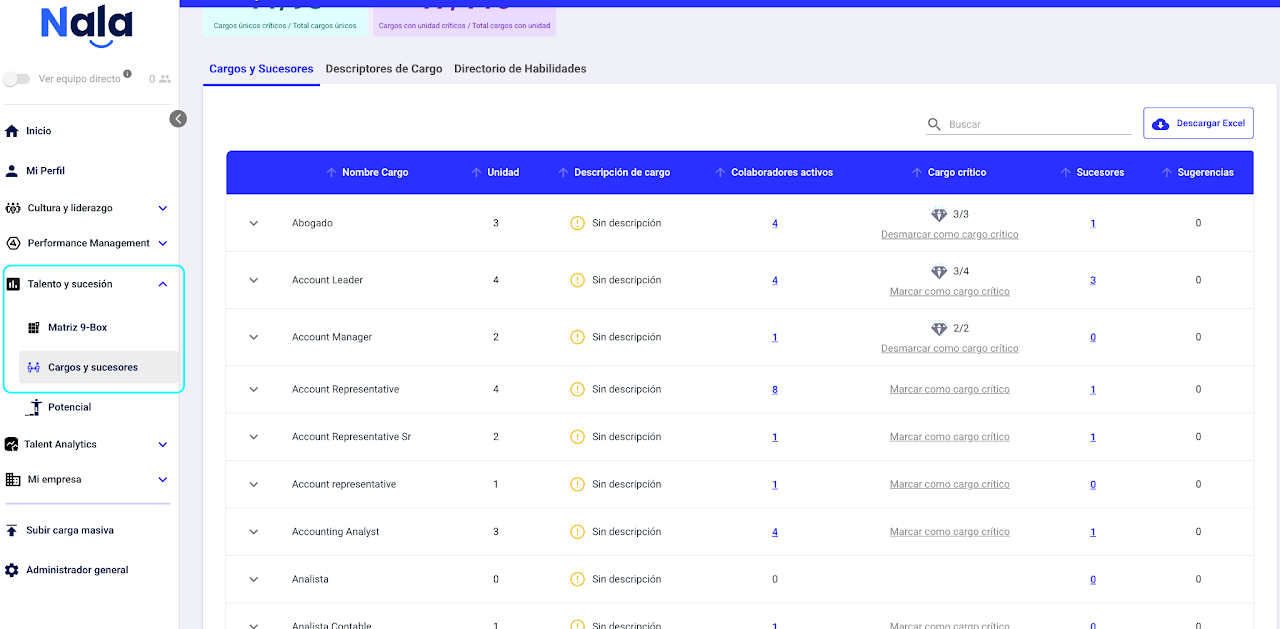
In the Talent and Succession module, you will find the "Positions and Successors" option. On the first tab, you can define which positions within your organization are critical.
To mark a position as critical, just click the "Mark as Critical Position" option.
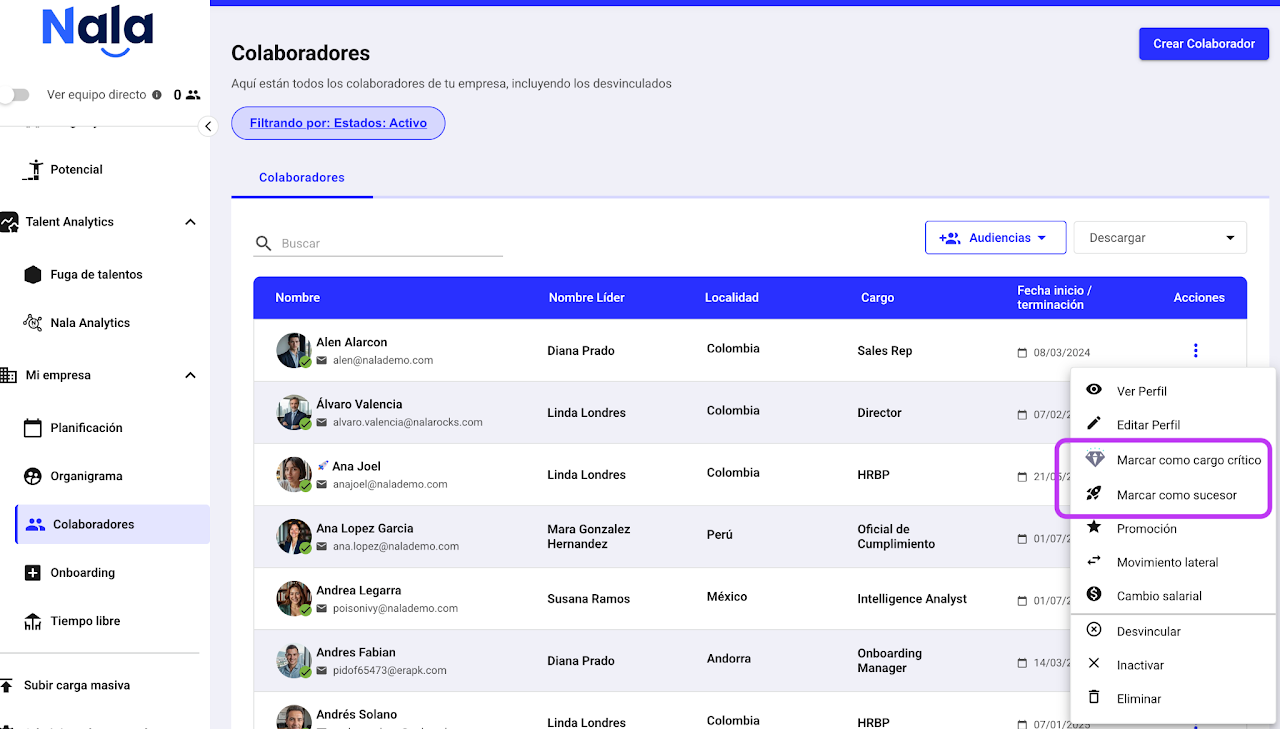
You can also go to the employee table and find those who hold a critical position, then select the three dots and click "Mark as Critical Position". This will automatically define that position as critical and mark each employee with the same position name with a diamond 💎.
How to Assign Successors?
Option 1
From the employee table, select the three dots and click "Mark as Successor".
Option 2
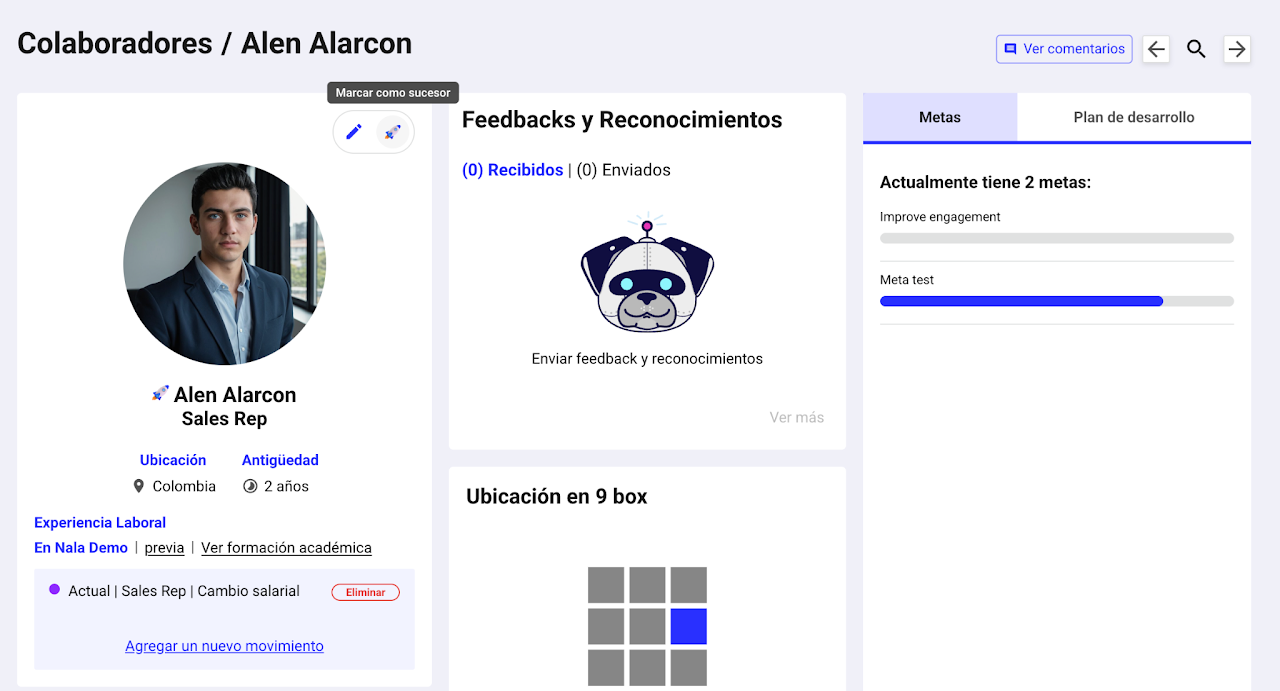
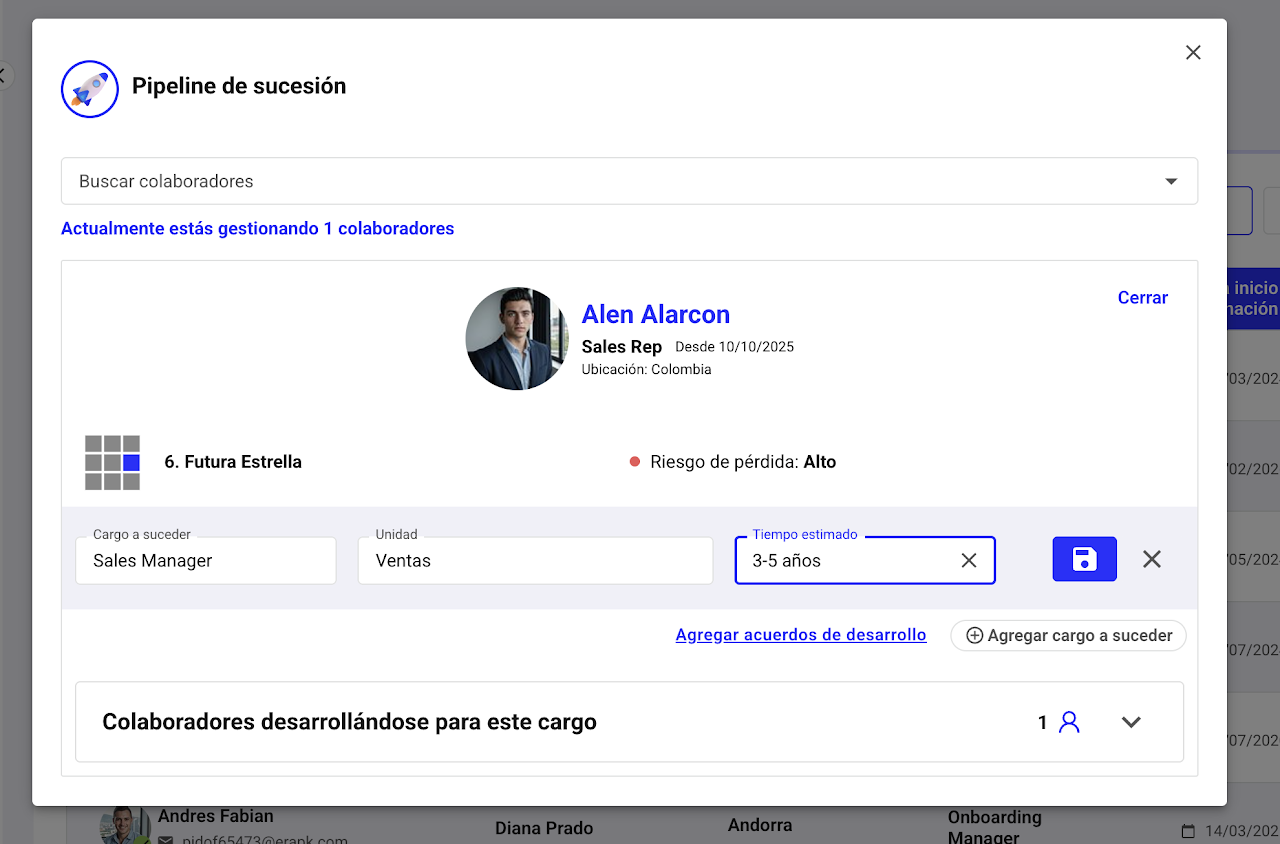
From the employee profile, select the rocket icon 🚀 “Mark as successor.”
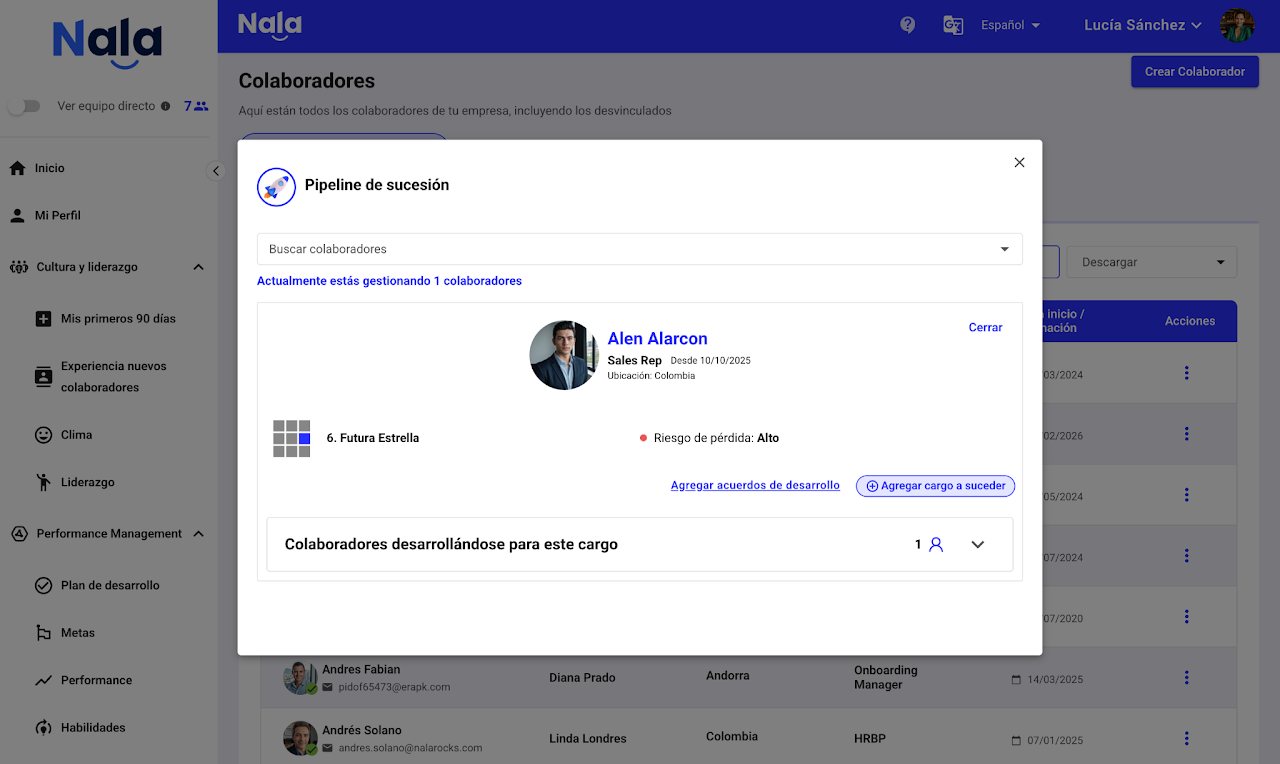
A modal will appear where you must select "Add Position to Succeed." Then, under "Employees Developing for this Position," you can see who is preparing for the employee’s position in question.
After selecting “Add position to succeed” search for the position, associate it with the unit, and define the estimated preparation or readiness time for the employee to assume the role, then select save 💾.
9box Analytics
Use an Administrator profile and confirm that 9-Box Analytics is enabled for your company.
01 · Cycle follow-up
Cycle follow-up is the operational summary of the selected 9Box. It brings together calibration progress, development-plan and talent-risk coverage, and actions that need follow-up. Use it to identify what is complete and where work remains.
As Administrator, review the company scope before coordinating leader follow-up. The closed-leader percentage does not mean the matrix has been published.
How to use it
Choose the cycle to review
Go to Talent and succession → 9-Box Analytics → Cycle follow-up. Choose a process in Select a 9-Box, then select Direct team, Matrix reports or All, according to the options available to your account.
The three indicators appear at the top. Below them, the tabs group pending plans, successors, retention plans and adjustments. Their counts reflect the selected scope.
All keeps your authorized scope. Your company needs NBox enabled and 9-Box Analytics enabled separately.
Narrow the review with filters
Open Filtering by, choose the relevant criteria and select Apply filters. For example, focus on a unit, leader or specific quadrants.
The panel shows the filters available for the selected cycle, together with the controls for applying or discarding changes.
Cancel discards panel changes. Clear filters lets you start again. Available options depend on data and permissions.
Check calibration progress
Select the Calibration indicator. Review how many leaders closed calibration and the detail states: Closed, Completed but not closed, In progress and Not started.
In this example, 1 of 1 leaders closed calibration, so progress is 100%. The detail identifies leaders who need follow-up when there are pending cases.
The percentage measures leaders who closed calibration, not employees calibrated, and does not confirm that the matrix is published. Download Excel is available in the detail.
Review development-plan coverage
Open the Development plans indicator. Review leaders with all suggested plans assigned and employees still awaiting a plan.
The detail separates low-performance, Top Talent and successor coverage. The screenshot shows 3 employees awaiting plans and 0 of 1 leaders with all plans assigned.
The overall indicator and population breakdowns have different denominators. N/D can appear when no employees apply; always review the counts.
Check talent-risk coverage
Open Talent-risk coverage. Review critical roles with successors and coverage for successors, Top Talent and employees with high impact at risk.
Cards display each population’s count and coverage. The lists below identify pending cases when applicable.
The populations in this screenshot have counts of 0/0. N.A. or N/D indicates no applicable population; do not read this as 0% coverage.
02 · Talent evolution
Talent evolution shows how the distribution of employees changes between 9Box cycles. It includes movements between quadrants, trends in results and behaviors, and two matrices side by side. Use it to prepare discussions with the context of each population and configuration.
Use comparisons to prepare talent discussions. First check the population and configuration of both cycles to avoid conclusions based only on colors or quadrant names.
How to use it
Explore movements between quadrants
Open Talent evolution → Changes between quadrants with Click to explore. Choose the starting and ending Nine Box cycles. Select one or more quadrants, keeping at least one selected.
The chart connects the initial and final populations: employees who left the company, those outside the cycle, positive or negative movements, and employees new to the cycle. Quadrant 9 in this example goes from 19 to 2 employees.
New to the cycle does not mean a new hire. Outside the cycle does not mean the employee left the company. Close view returns to the cards.
Read the evolution of the axes
In Evolution of the axes, choose the quadrants to review. Read the results and behaviors lines together with participant counts for each process.
Lines show cycle averages; bars below show how many employees participated. Read both before making comparisons.
Averages may describe different populations. Cycles with no participants show 0.0 on this screen: do not interpret this as deterioration. Close view returns to the cards.
Compare two matrices using the same reading criteria
Open Comparison between cycles and choose the first and second Nine Box. Switch between all employees and active employees, and between distribution and employee views.
Both matrices appear together. Review the population and distribution of each one and confirm the cycles in the controls above.
Each matrix retains its names, colors and ranges. Configuration changes can change placement without proving improvement or decline. Close view returns to the cards.
03 · Turnover and departure risk
Turnover and departure risk brings together departures by year and quadrant and signals that warrant attention to retain key talent. It combines turnover information with a prioritized list of employees. These signals guide follow-up and do not predict an individual departure.
Prioritize retention discussions with the responsible people. Signals and priority order require context and are not an individual departure forecast.
How to use it
Choose the departure year and type
Open Turnover and departure risk. Under Departures by quadrant, choose the departure year and switch between Voluntary and Involuntary. Review departures and high-impact cases by quadrant.
Year and departure-type controls are above the matrix. Below it, Key talent loss risk starts with the total identified and the associated reasons.
Check the selected year and type before interpreting the figures. Risk signals require context and are not an individual forecast.
Review employees to prioritize
Under Key talent loss risk, review the total and the Employees to prioritize list. Read each employee’s reasons and priority to prepare follow-up.
The screenshot shows six employees from a larger total. Each row includes the signals explaining inclusion and provides context for the priority.
Up to six employees appear at once. Priority is not a departure probability. Being over 55 does not confirm retirement. Succession relationships are current, not a complete historical reconstruction.
Combine reasons to focus the review
Select the reasons to combine: upper-right Ninebox, Critical role, High impact, Assigned successor, or Key talent retirement risk (>55). Remove reasons to broaden the list.
Critical role and High impact are selected in this example, with no matches. An employee must meet all selected reasons, and each employee appears only once.
Download Excel lets you work with the scope being reviewed. Keep reasons selected for matching cases, or remove them to review the complete list.
04 · Act on pending items
Pending items in Analytics link directly to development, succession, retention and adjustment workflows. Each action opens another tab with the relevant employee or role. The steps below show four alternative workflows: choose the one that matches your pending item.
Verify the employee, role and destination process before saving. Use the relevant permissions for each action; Analytics access alone does not expand editing permissions.
How to use it
Create a plan from a development pending item
In Cycle follow-up → Plans to assign, select Create action plan on the employee’s row. Another tab opens Individual Development Plan and New Agreement.
The employee is already selected. Complete the title, dates, category, description and other required fields. Review visibility before saving.
Opening the form does not create an agreement. Save when appropriate or select Cancel to leave without creating it.
Open the role that needs successors
In Successors to define, select Add successors. Another tab opens the 9-Box Matrix and the relevant role details.
The screenshot shows the role, unit, current role holders and employees developing for it. Review that context and select Add employee to continue.
Check the role and unit before assigning anyone. Opening the details does not register a successor.
Find the employee without a retention plan
Return to Cycle follow-up and open Retention plans to assign. Find the employee’s row and select Assign plan.
The tab displays pending counts and an action on each row. The action leads to the employee’s record without searching again in the matrix.
Another tab opens the 9-Box Matrix with the employee filtered and the retention editor on the employee’s row.
Choose the plan in the matrix editor
In the new tab, verify the employee and review Retention plan. Choose the appropriate option and save when appropriate, or cancel to discard.
The example offers Improve benefits, Increase salary and Career movement. The editor is within the matrix row.
Options are those available for the record. Analytics access does not expand editing permissions.
Open an adjustment for review
Return to Analytics and open Adjustments to resolve. Check the employee and select Open 9-Box on the row.
The list groups adjustments pending within the selected scope. Carlos Díaz’s row in the example shows the link to his record.
Another tab opens the corresponding process. Check that it is the cycle you want to review before continuing.
Review the employee panel
In the destination matrix, review the employee panel: strengths, opportunities, next steps and other available fields. Confirm the employee and process before continuing.
The screenshot shows Carlos Díaz’s panel next to the matrix. Process context and employee information remain visible during the review.
If the destination has no records or is unavailable, return to Analytics and review the pending item. Opening the panel does not confirm or save an adjustment.
05 · 9-Box Matrix: filters and succession decisions
The 9-Box Matrix supports population reviews using filters and management of succession suggestions. You can decide individually or for a selection, consult decision history and, as Administrator, configure leader approvals per process. These are independent workflows within the matrix.
As Administrator, review and decide on pending suggestions and configure whether new leader suggestions require approval in each 9Box.
How to use it
Segment the matrix with combined filters
Go to Talent and succession → 9-Box Matrix, choose the process and open Filtering by. Combine Matrix leader, Loss risk, Loss impact, Retention plan and multiple quadrants when available.
The screenshot shows risk, impact and retention filters for Ninebox 2024. Reopening a filter preserves selections while you add or remove options. Select Apply filters.
A filter can be absent when no data exists for it. Matrix leader requires existing assignments. Cancel discards temporary changes; the clear control removes selections.
Select the suggestions to resolve
Open Successor suggestions. Review the employee, proposed role, proposer and date. Use Approve or Reject on a row for an individual decision, or select pending suggestions and check the count for a bulk decision.
Four pending suggestions are selected in the screenshot. The header checkbox selects the current page. Approve and Reject act on the selection; Clear removes it.
If more pages exist and selecting all results is offered, check that the total represents filtered pending suggestions before continuing.
Verify the count before confirming
Select Approve or Reject and review the confirmation. Check that the action and count match the selected set.
The example confirms four suggestions. No, cancel returns to the table without executing the decision. Confirm only when the set is correct.
The screen warns that the action cannot be undone.
Configure leader approvals for this 9Box
With the process selected, open the gear icon and General Settings → Successor approval. Review Approval of successor suggestions by leaders.
Enabled: leader suggestions require Administrator or Talent Manager approval. Disabled: new leader selections of successors and career movements are recorded directly.
An Administrator changes this setting independently per 9Box. Disabling it does not automatically approve earlier pending suggestions.
Review the decision history
Under Successor suggestions, review decisions for this 9Box. Check status, the person who resolved each suggestion and the date when available.
The screenshot shows approved and rejected suggestions with the decision maker and date, so you can review the decision recorded in that process.
A pending suggestion can appear in several processes under calibration. Once resolved, it is no longer pending and its decision history remains in the 9Box where the decision occurred.
Find the role to succeed through an employee
In Overview, open the employee’s Possible career movements and review the succession pipeline. Select Add role to succeed.
Use Person to succeed (optional) to fill the current role and unit, or choose Role to succeed and Unit directly. Complete Estimated time and review before saving.
Succession is linked to the role and unit. Searching for a person helps find them; it does not create a permanent relationship with that person.