Filters and succession decisions
05 · 9-Box Matrix: filters and succession decisions
The 9-Box Matrix supports population reviews using filters and management of succession suggestions. You can decide individually or for a selection, consult decision history and, as Administrator, configure leader approvals per process. These are independent workflows within the matrix.
How to use it
Segment the matrix with combined filters
Go to Talent and succession → 9-Box Matrix, choose the process and open Filtering by. Combine Matrix leader, Loss risk, Loss impact, Retention plan and multiple quadrants when available.
The screenshot shows risk, impact and retention filters for Ninebox 2024. Reopening a filter preserves selections while you add or remove options. Select Apply filters.
A filter can be absent when no data exists for it. Matrix leader requires existing assignments. Cancel discards temporary changes; the clear control removes selections.
Select the suggestions to resolve
Open Successor suggestions. Review the employee, proposed role, proposer and date. Use Approve or Reject on a row for an individual decision, or select pending suggestions and check the count for a bulk decision.
Four pending suggestions are selected in the screenshot. The header checkbox selects the current page. Approve and Reject act on the selection; Clear removes it.
If more pages exist and selecting all results is offered, check that the total represents filtered pending suggestions before continuing.
Verify the count before confirming
Select Approve or Reject and review the confirmation. Check that the action and count match the selected set.
The example confirms four suggestions. No, cancel returns to the table without executing the decision. Confirm only when the set is correct.
The screen warns that the action cannot be undone.
Configure leader approvals for this 9Box
With the process selected, open the gear icon and General Settings → Successor approval. Review Approval of successor suggestions by leaders.
Enabled: leader suggestions require Administrator or Talent Manager approval. Disabled: new leader selections of successors and career movements are recorded directly.
An Administrator changes this setting independently per 9Box. Disabling it does not automatically approve earlier pending suggestions.
Review the decision history
Under Successor suggestions, review decisions for this 9Box. Check status, the person who resolved each suggestion and the date when available.
The screenshot shows approved and rejected suggestions with the decision maker and date, so you can review the decision recorded in that process.
A pending suggestion can appear in several processes under calibration. Once resolved, it is no longer pending and its decision history remains in the 9Box where the decision occurred.
Find the role to succeed through an employee
In Overview, open the employee’s Possible career movements and review the succession pipeline. Select Add role to succeed.
Use Person to succeed (optional) to fill the current role and unit, or choose Role to succeed and Unit directly. Complete Estimated time and review before saving.
Succession is linked to the role and unit. Searching for a person helps find them; it does not create a permanent relationship with that person.
9-Box Matrix
9box Configuration
How to create a NineBox matrix in Nala?
Go to 9-box Matrix in the talent and succession module
If you have previously created a 9box, you can select this button to start.

If this is your first time creating a 9box in Nala, you won’t see the "create new 9box" button; you must scroll down and select “Start now”
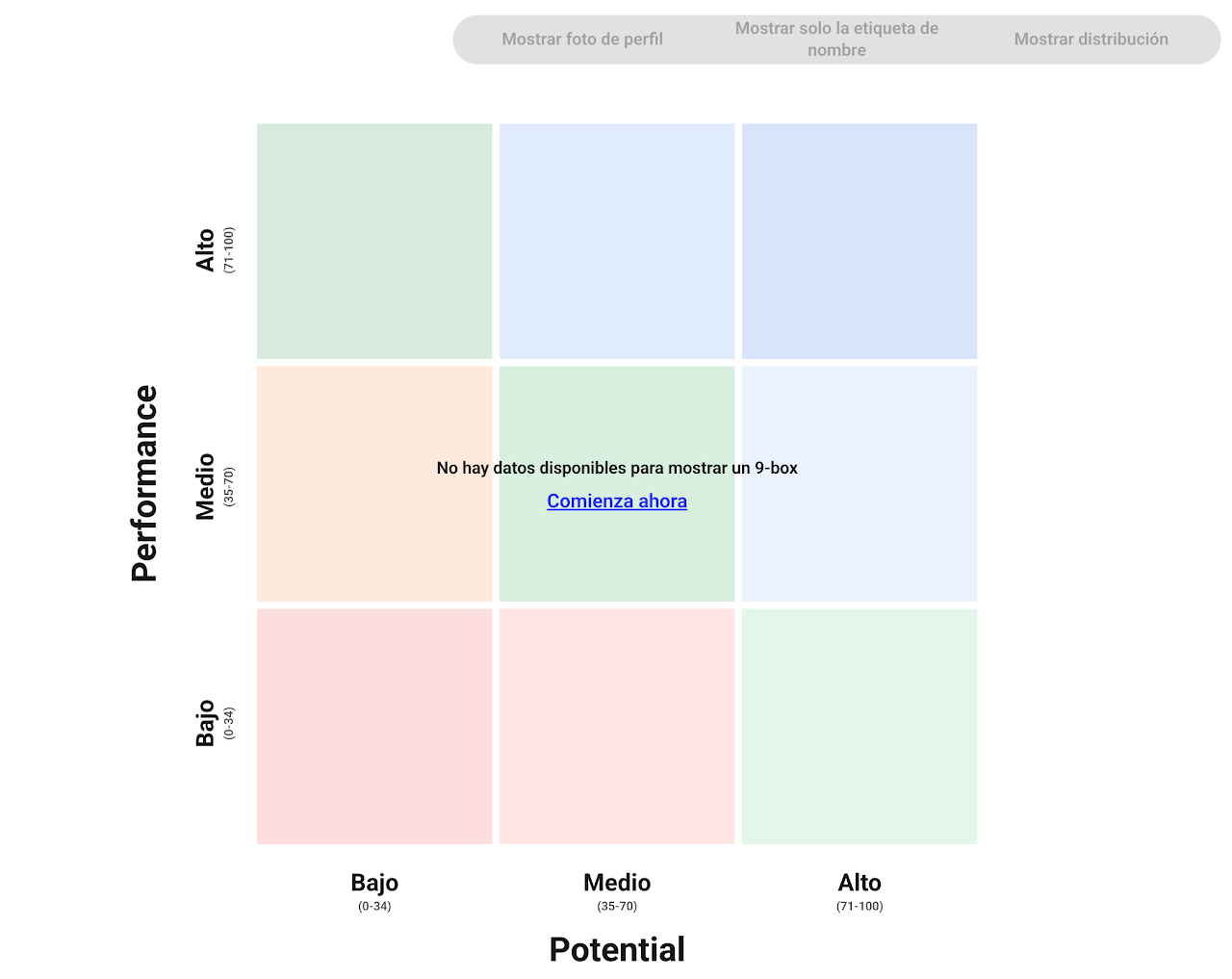
Nala offers two options for creating a NineBox: the first is uploading the two matrix coordinate data from an Excel format or feeding the matrix with processes completed in Nala (you can select performance or potential processes).
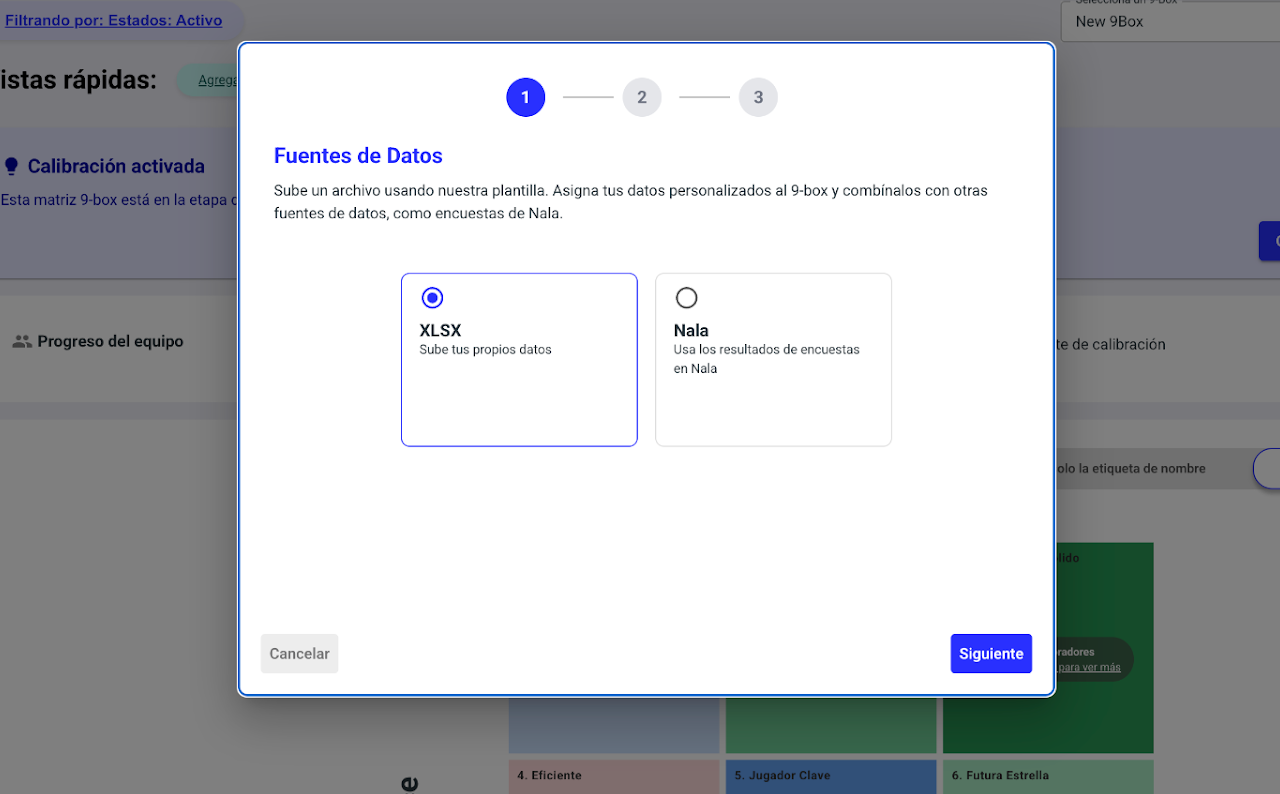
Option 1: Upload from an Excel file
If you choose to upload an Excel format, you must use the template provided on the platform and complete it with the data corresponding to each axis.
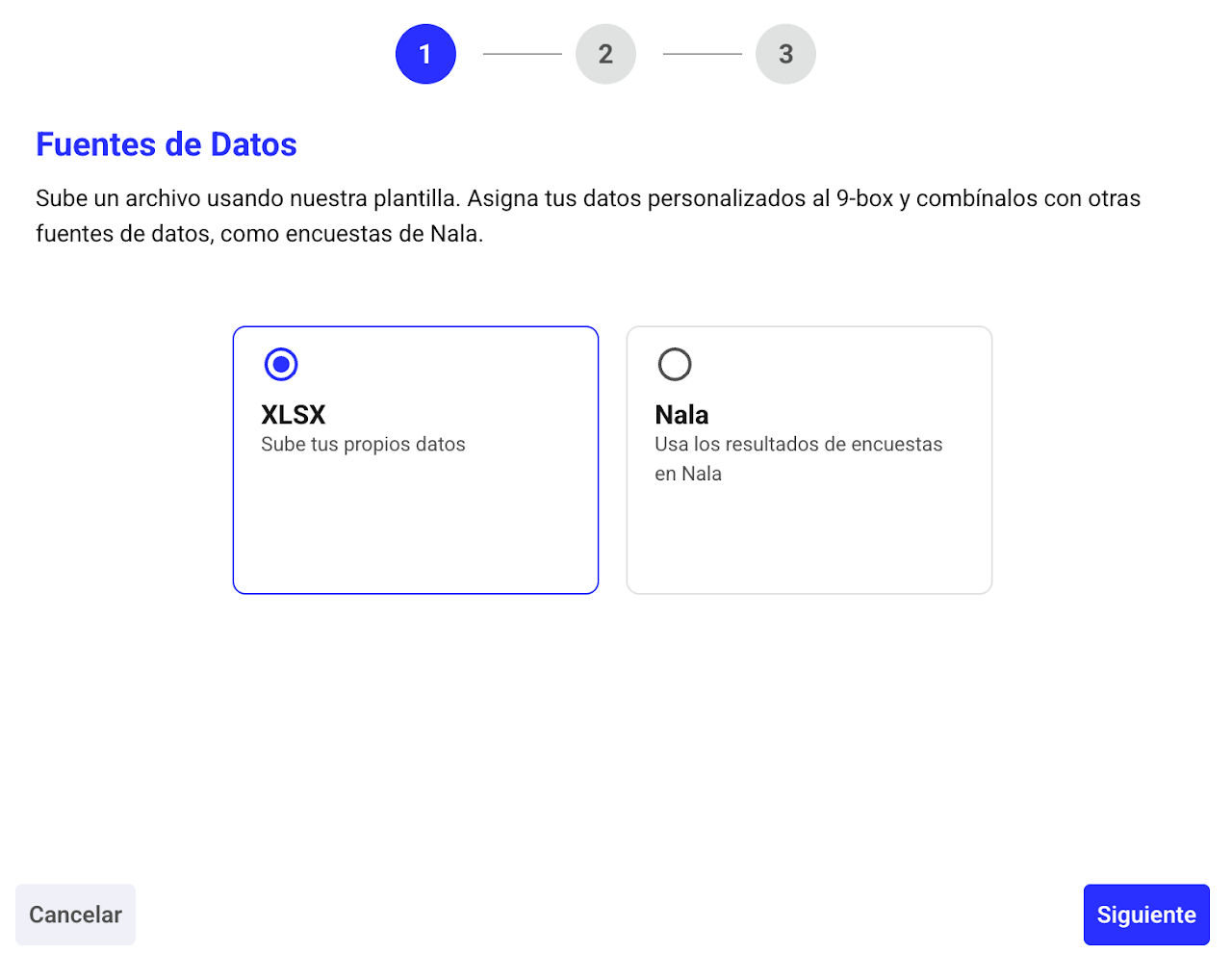
1️⃣ Select XLSX.
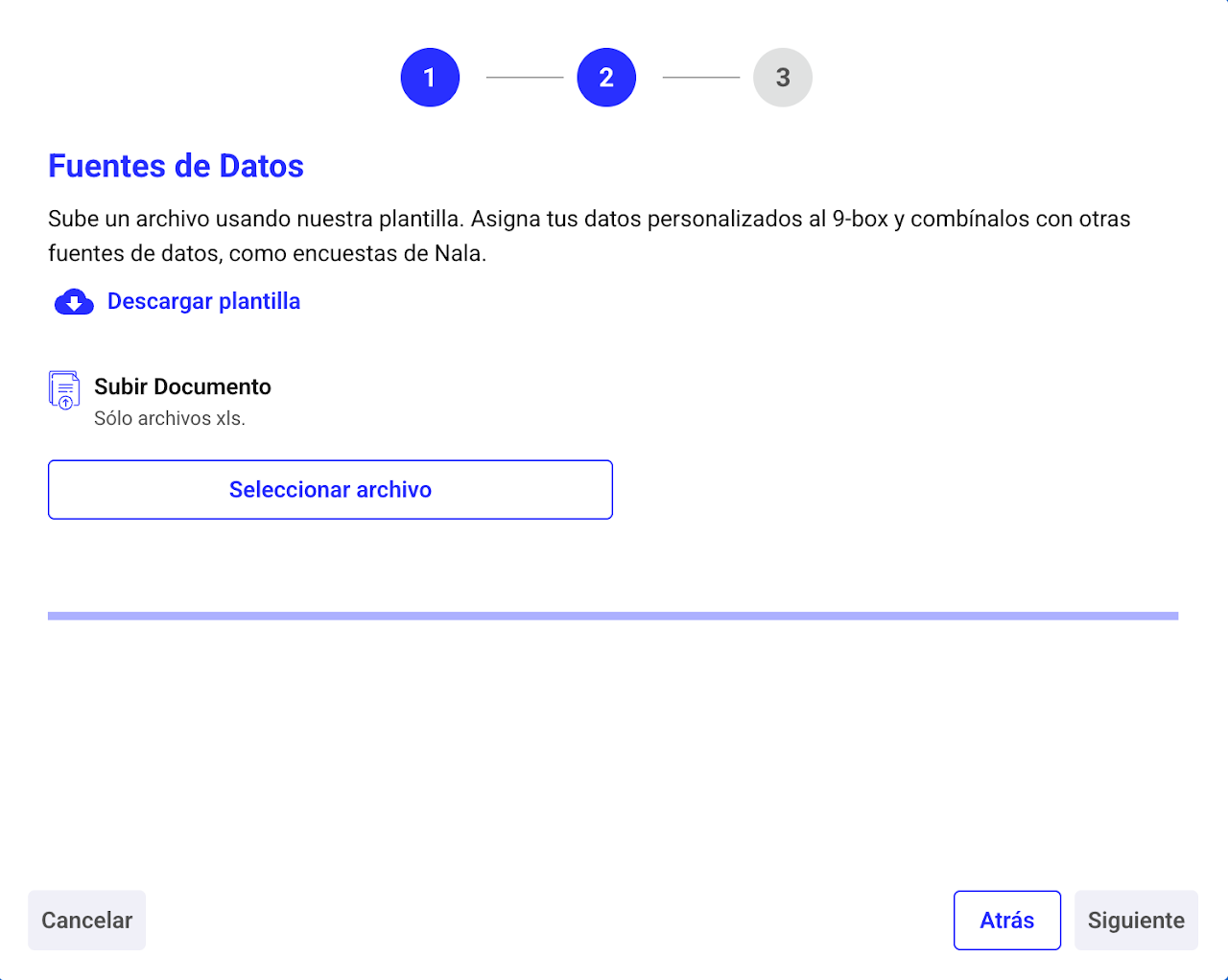
2️⃣ Download the template and fill in the information.
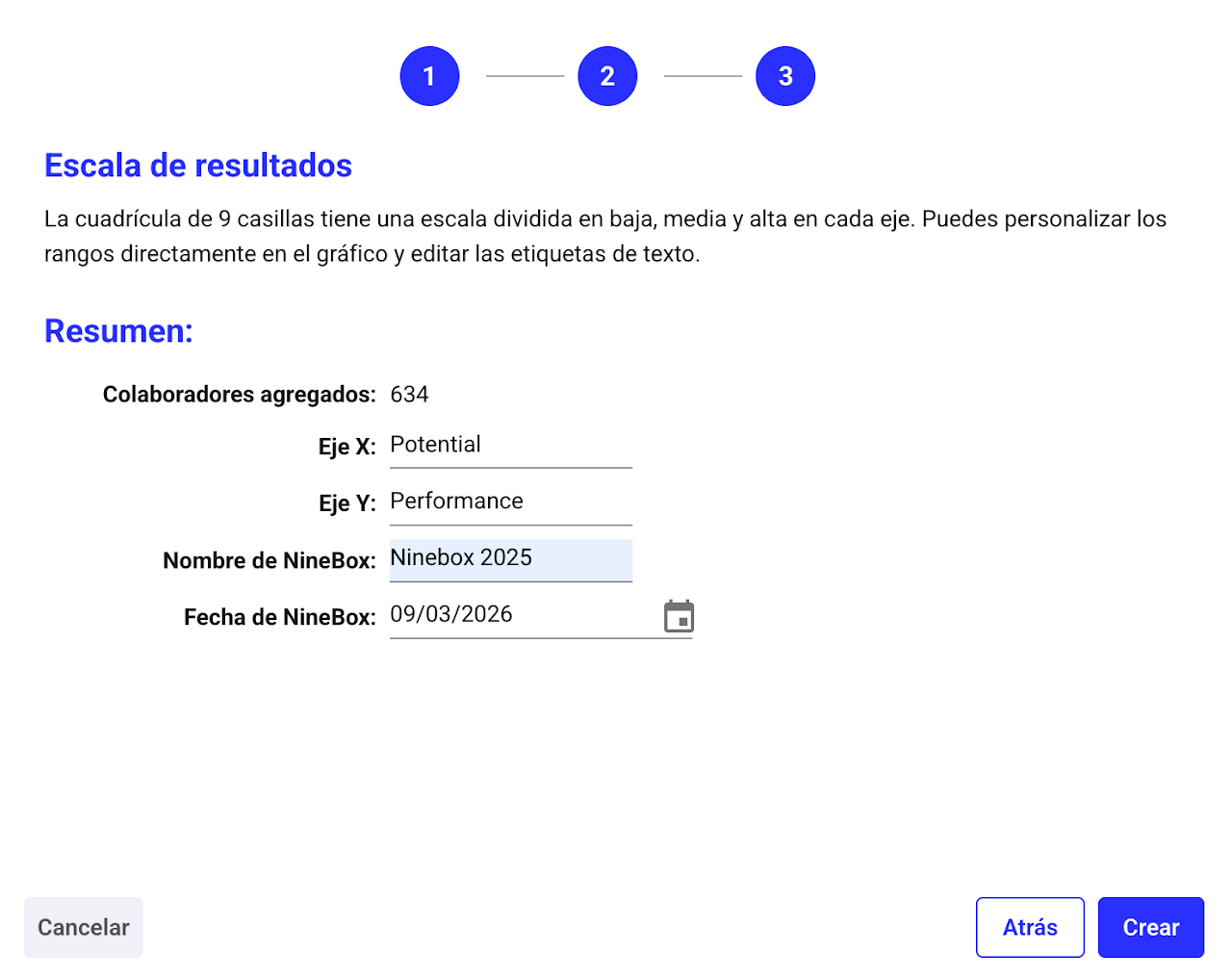
3️⃣ Complete the axis names, title, and modify the date if uploading a historical file.
Important: the title and date cannot be edited once created
Option 2: Use processes created in Nala
If you choose to use processes launched from Nala, you will be asked to select which process to assign to each matrix axis (X,Y) and choose which of the historical processes in Nala you want to use.
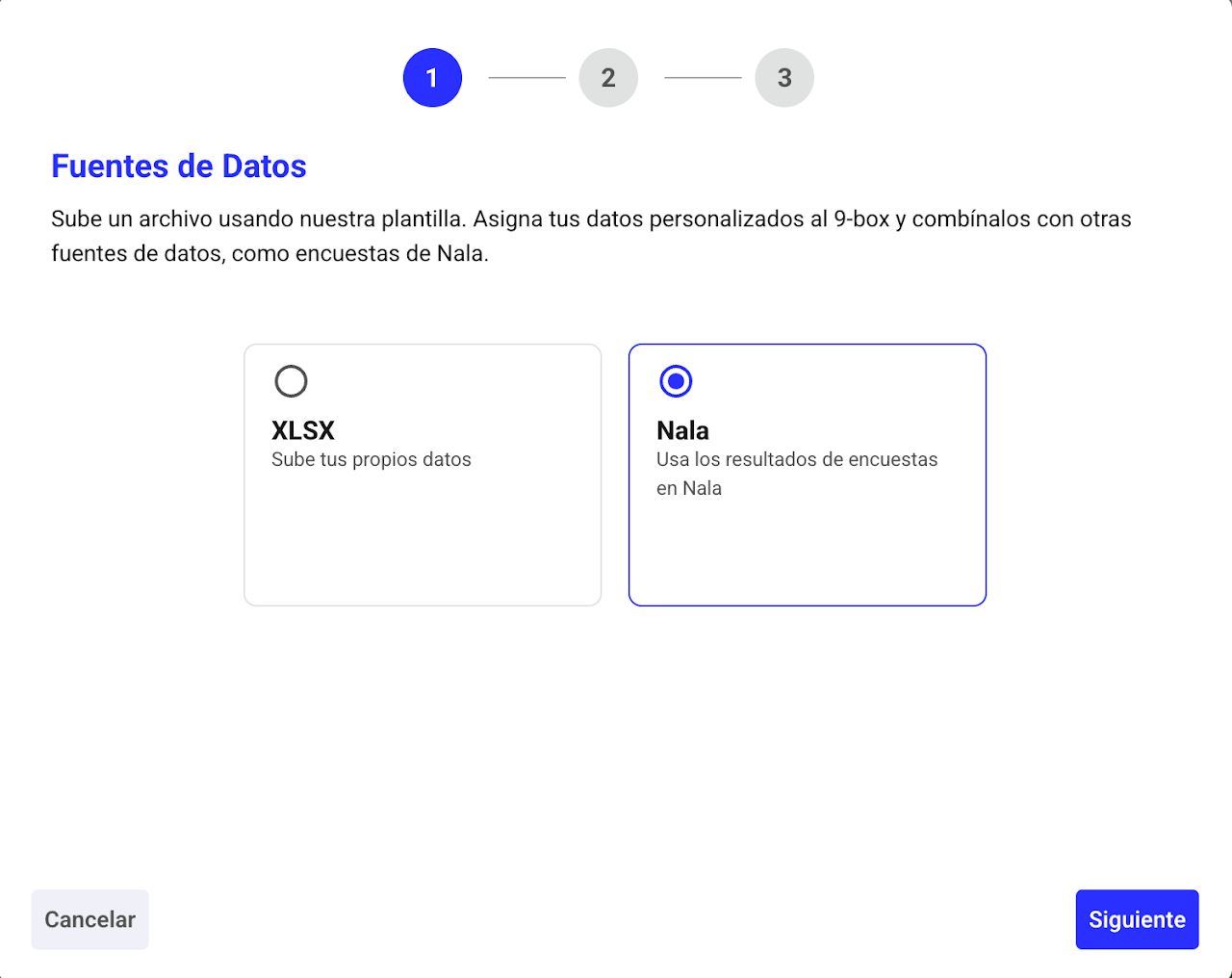
Select Nala
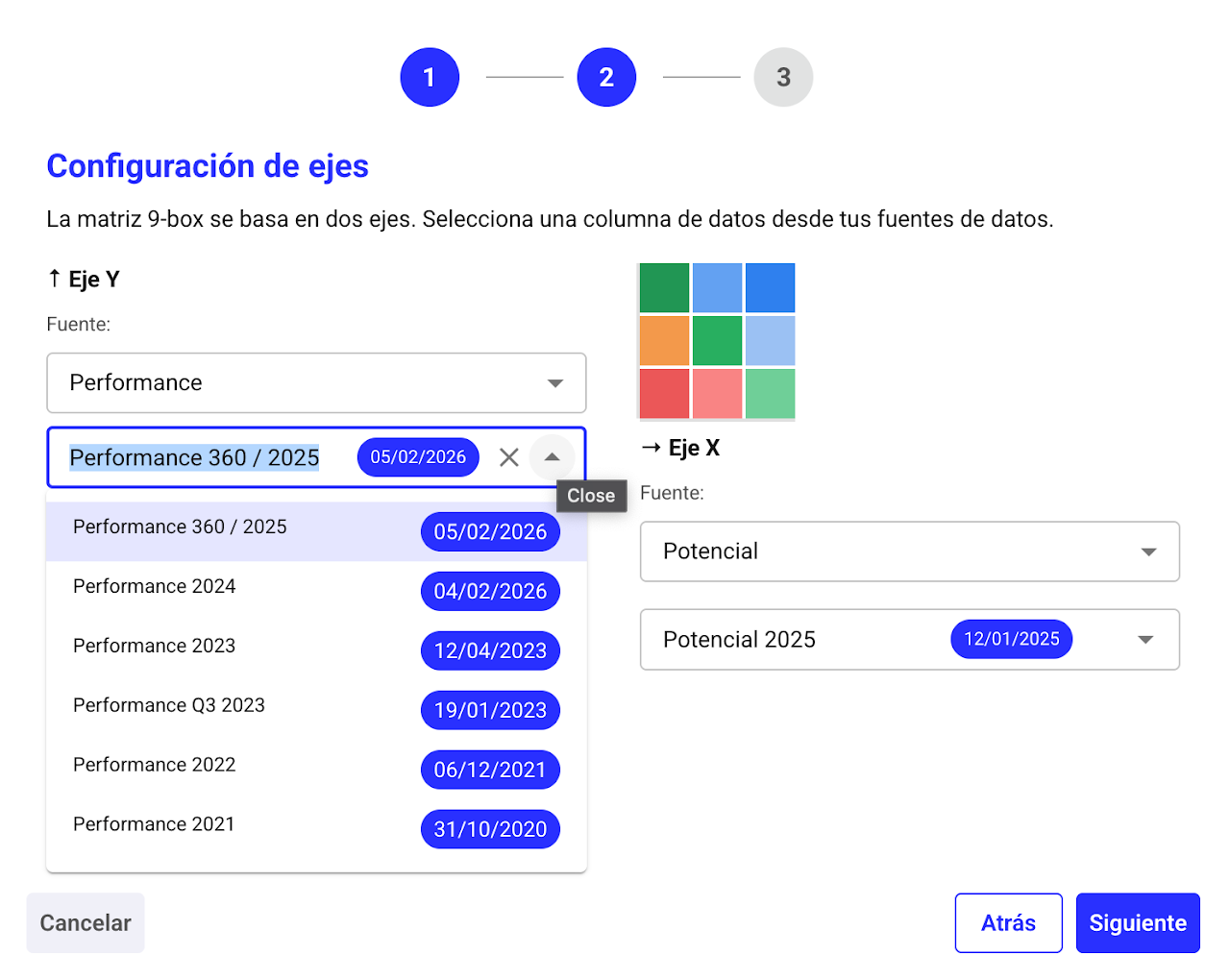
Select the process type you want to pull in and choose the corresponding evaluation.
Complete the axis names, title, and modify the date if uploading a historical file.
Important: the title and date cannot be edited once created
How do I fill out the 9box upload template?

On the X and Y axes, you can upload any information you want, values, potential, performance, cultural fit, etc. Just remember where you uploaded each and then change the axis names in the third phase of the upload.
For the X and Y axes, the scale ranges from 0 to 100, so you must use a proportion to convert the score.
Some considerations:
Yellow columns are mandatory.
To upload loss risk and impact, use the labels: high, medium, and low, as appropriate.
To upload badges, use the values found in the badge guide in settings.
Strengths, opportunities, and next steps MUST NOT exceed 500 characters including spaces.
How do I customize my NineBox in Nala?
Select the settings gear to customize your 9box.
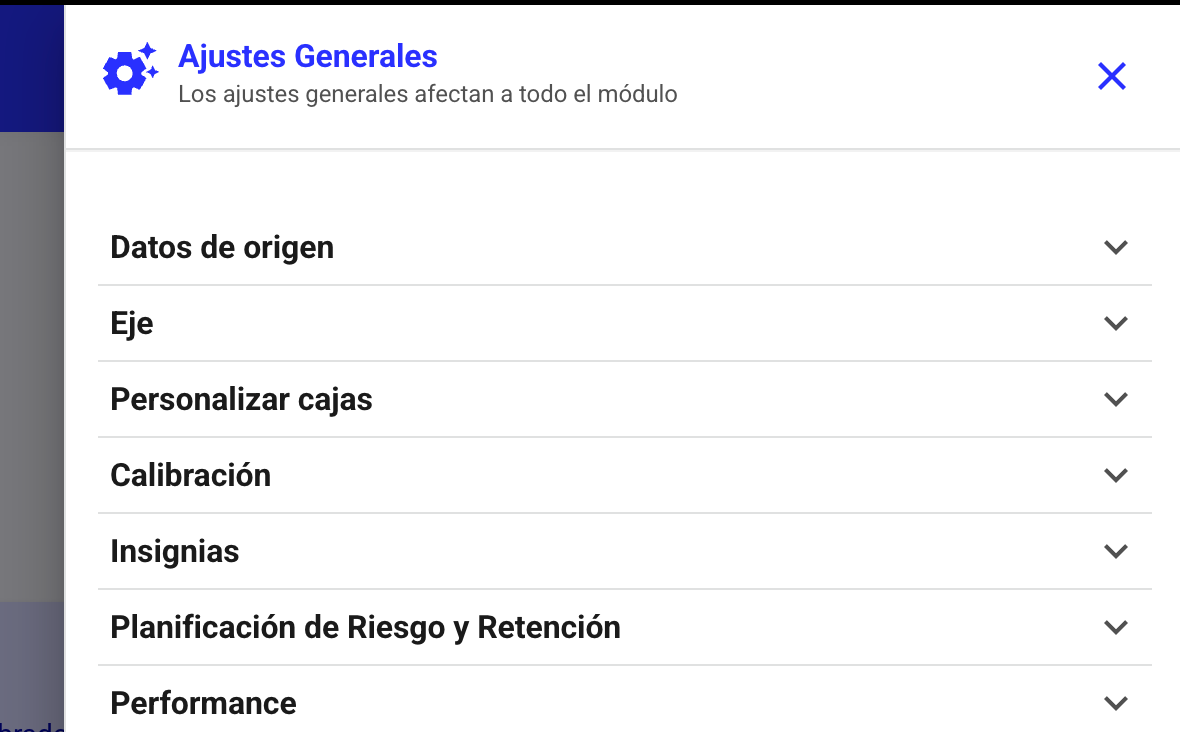
Nala’s NineBox matrix is highly customizable; by clicking the settings gear at the top right corner of the section, you can access the menu to personalize:
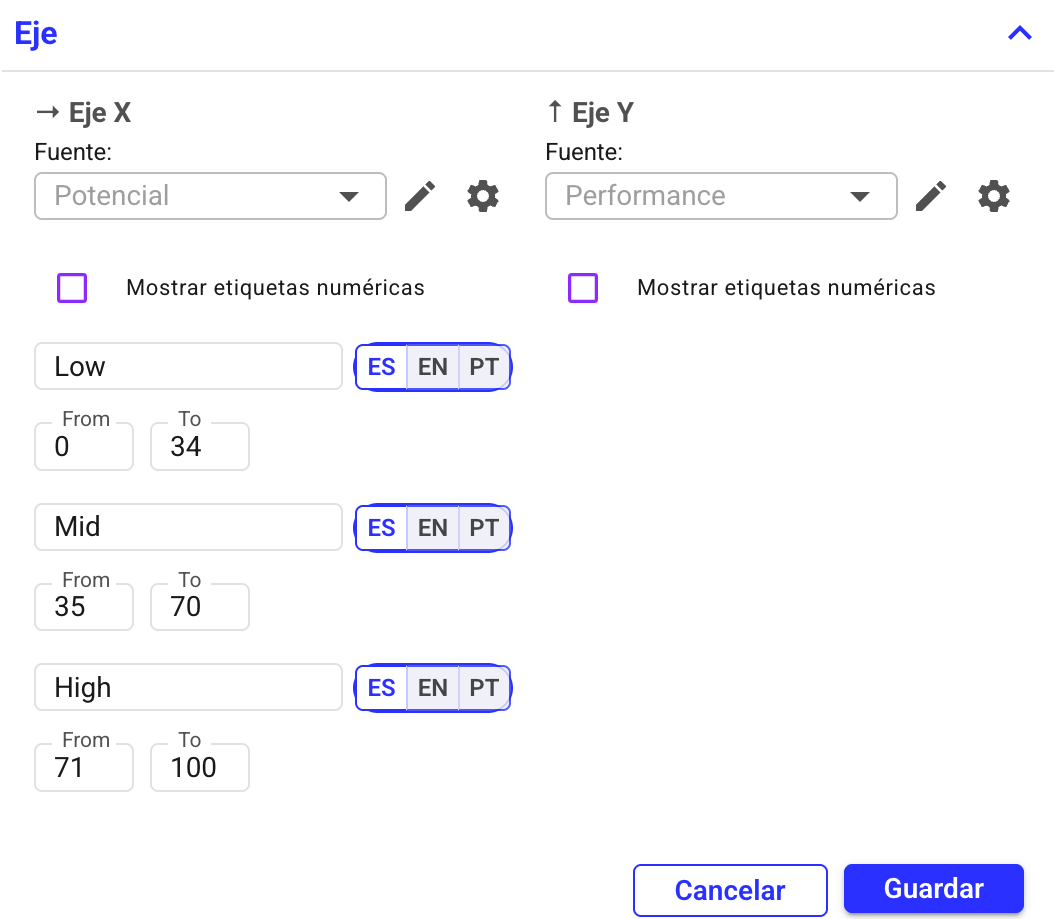
Name of each Axis
Select the pencil to edit the axis name.
Use the gear to configure each range’s parameters and define the names.
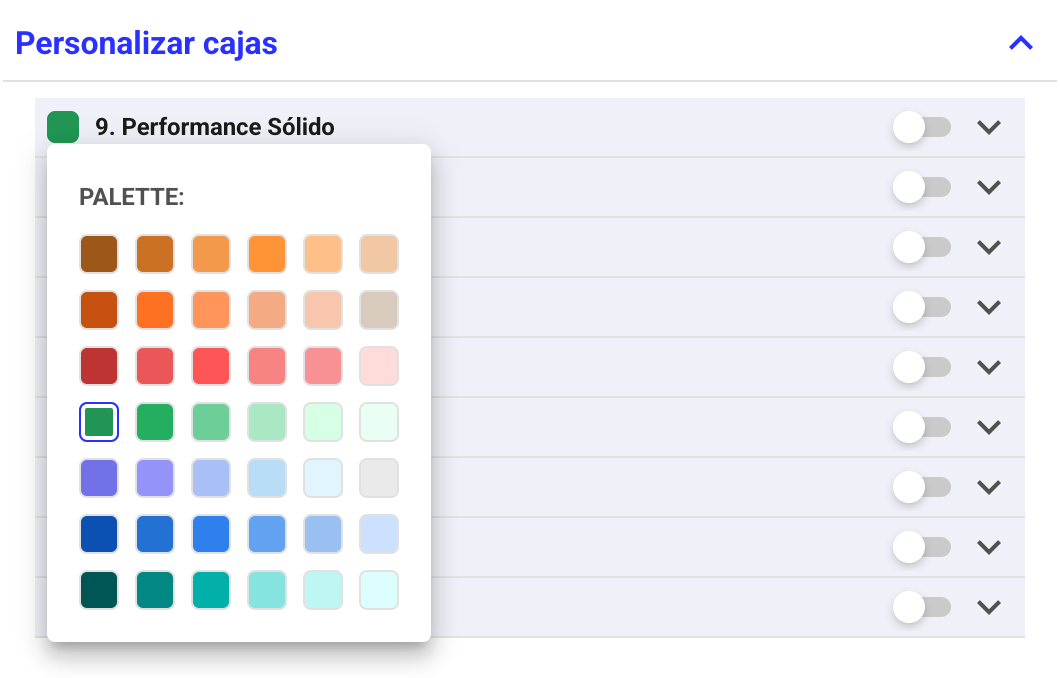
Customize NineBox boxes
You can change the labels (names), colors, and fade certain quadrants if you wish.
This helps maintain focus on calibrations where you want to review specific quadrants. Just toggle the switch.
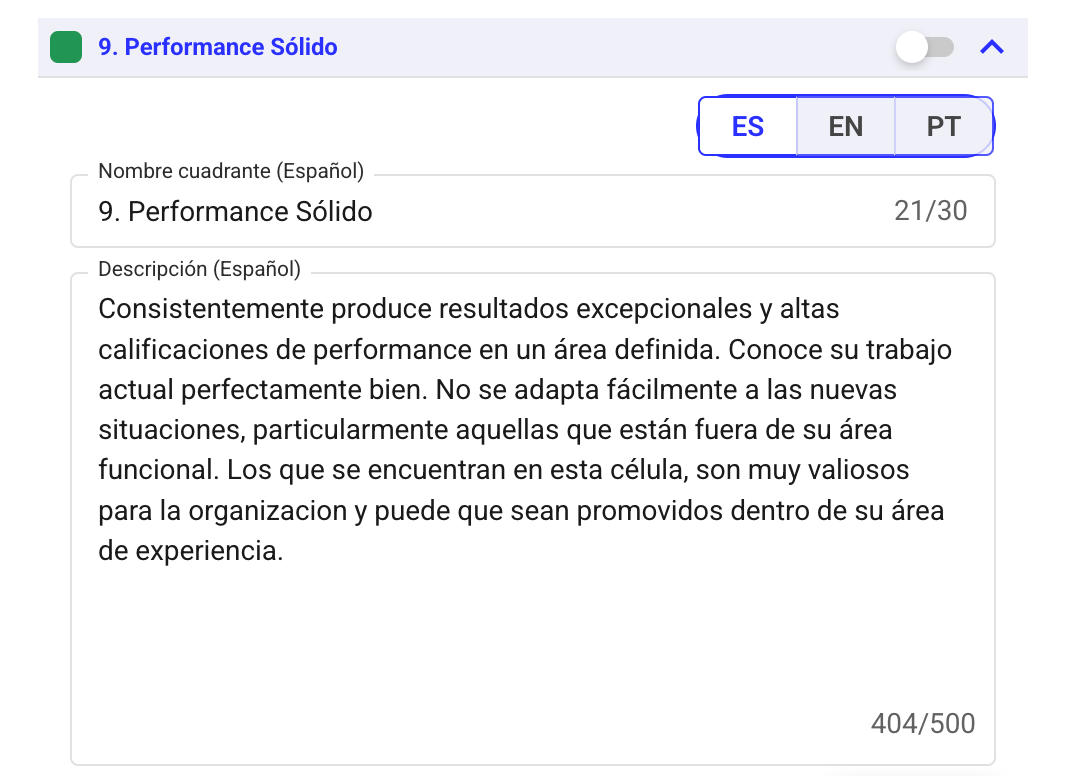
You can also edit the quadrant numbers and descriptions. Remember to save.
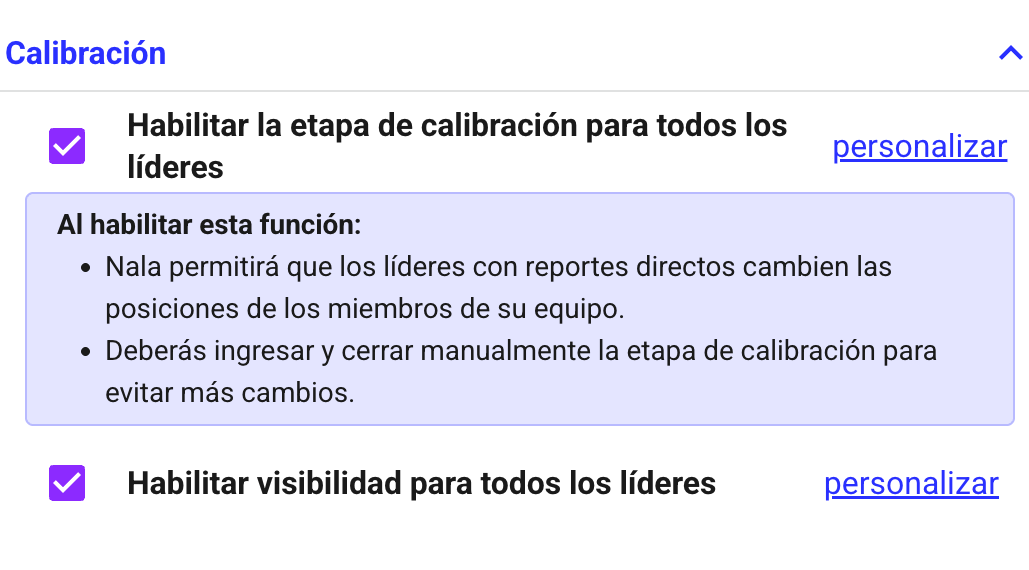
Toggle visibility and calibration for leaders
Once ready, enable visibility and calibration for leaders.
Before this, only administrators and Talent Managers can see the 9box.
You don’t need to enable visibility or calibration for all leaders.
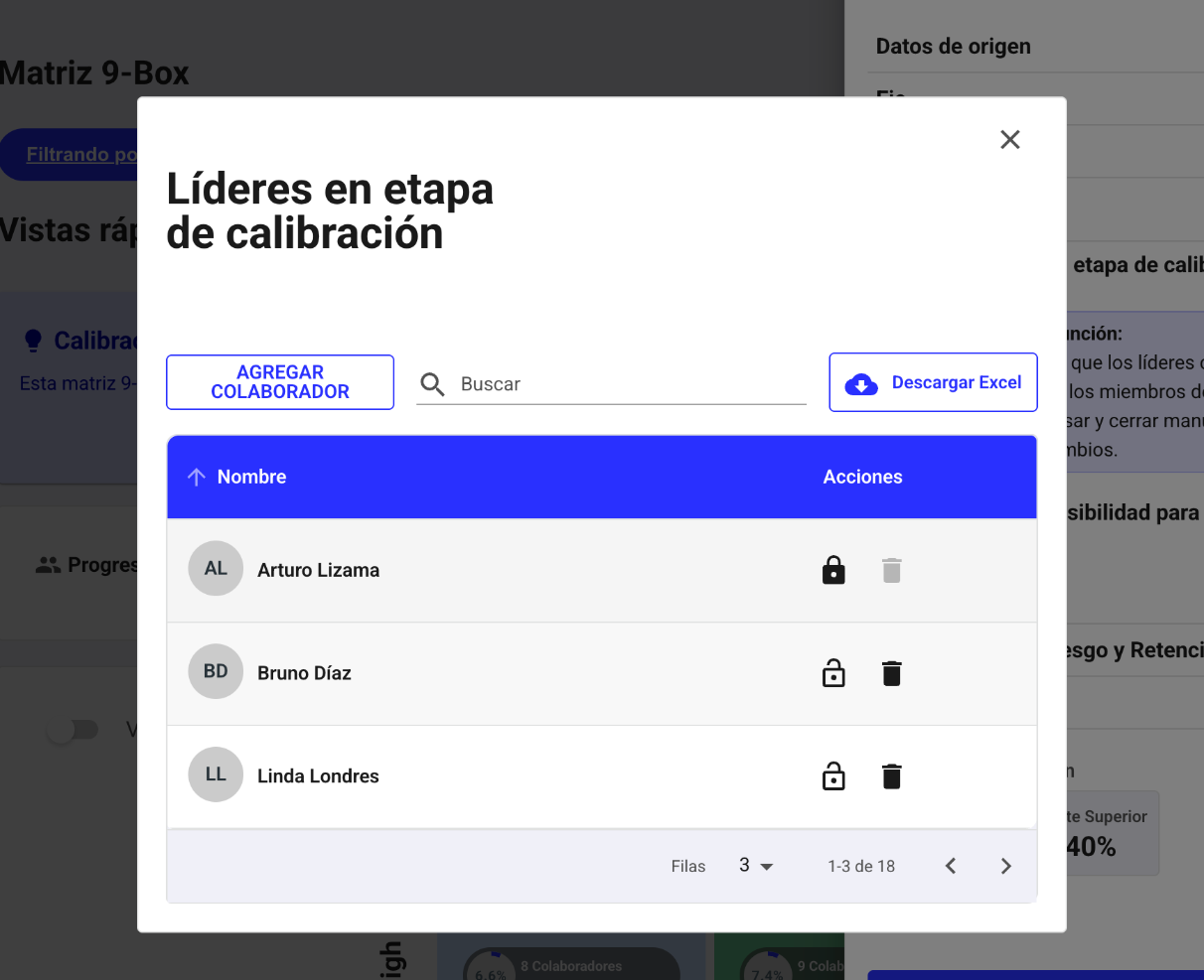
You can delete 🗑️ leaders who you don’t want to see it, then enable calibration or visibility. You can also add them back by selecting "Add employee".
If you need to reopen calibration for a leader who already closed it: unlock 🔓 by clicking this section.
Badges
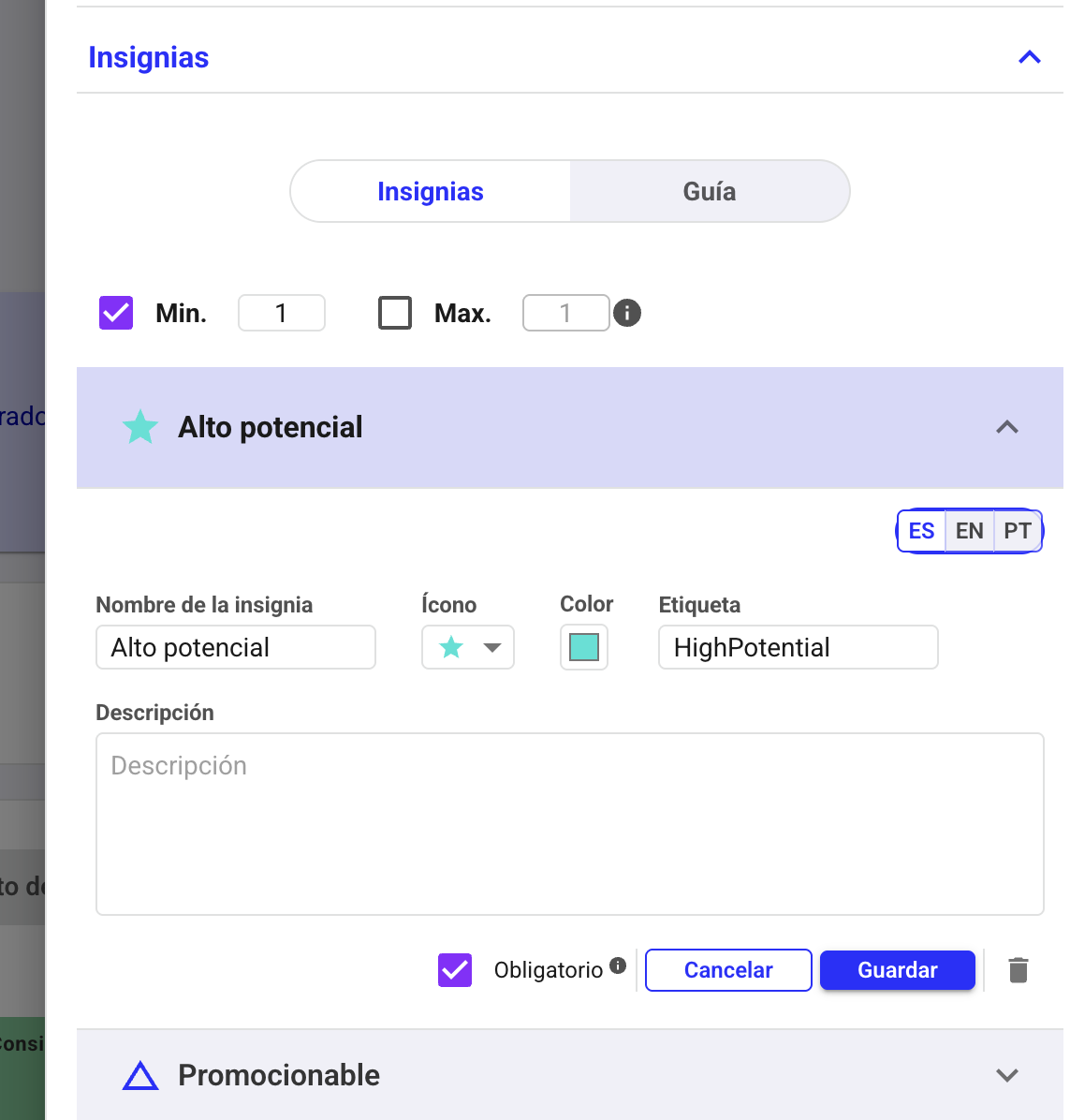
These badges allow you to assign categories to employees and later use them as filters.
You can define minimum and/or maximum badges that leaders must assign during calibration.
You can also modify the names, icons, and descriptions of the badges.
Finally, you can specify if they are mandatory or optional badges to ensure careful assignment.
Risk and Retention Planning
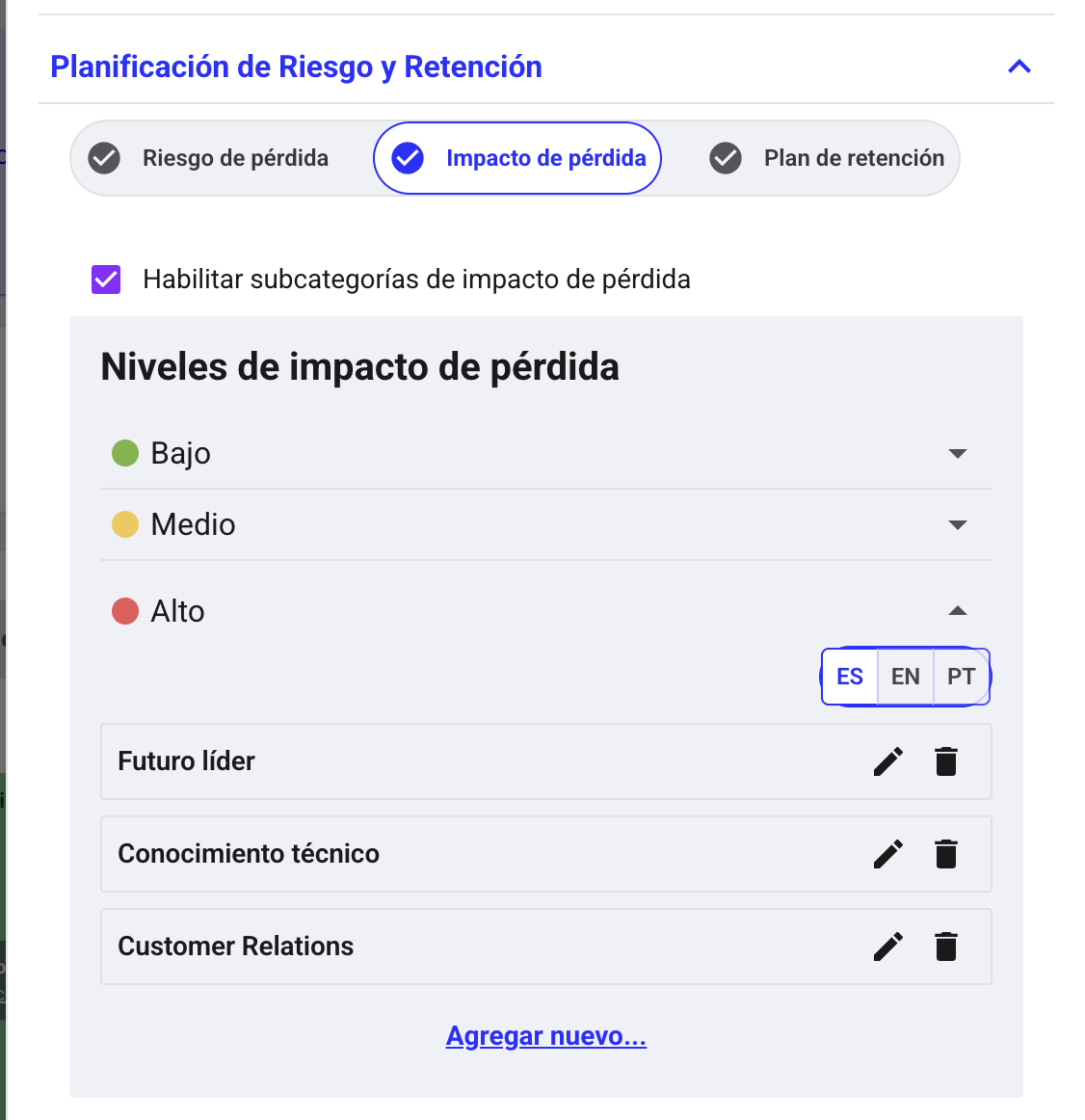
You can enable or disable risk and turnover impact features and retention plan options by selecting the power icon.
You can also enable subcategories. Define them before calibration so leaders can select these fields. They are not mandatory during calibration.
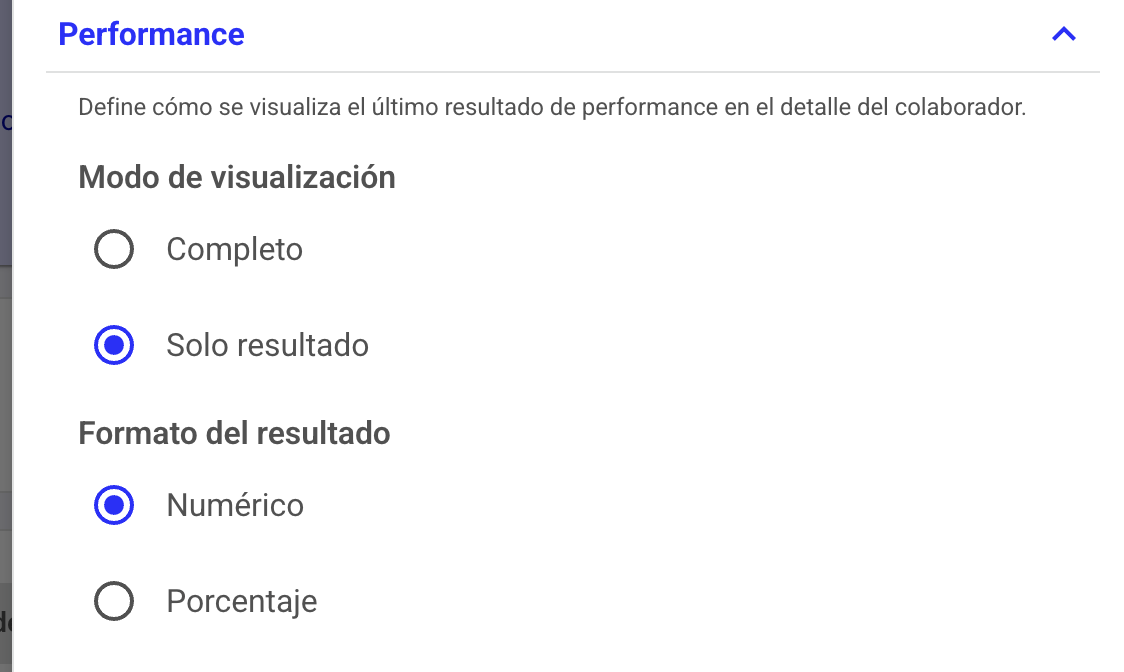
Performance
The employee's last performance result in Nala will be shown.
You can choose whether to show the scale or just the result, and whether to display it numerically or as a percentage.
Calibration Process
How to Calibrate the NineBox
As a leader, talent manager or administrator, after logging in, go to “Talent Analytics” in the sidebar and click “9-Box Matrix” to get started.
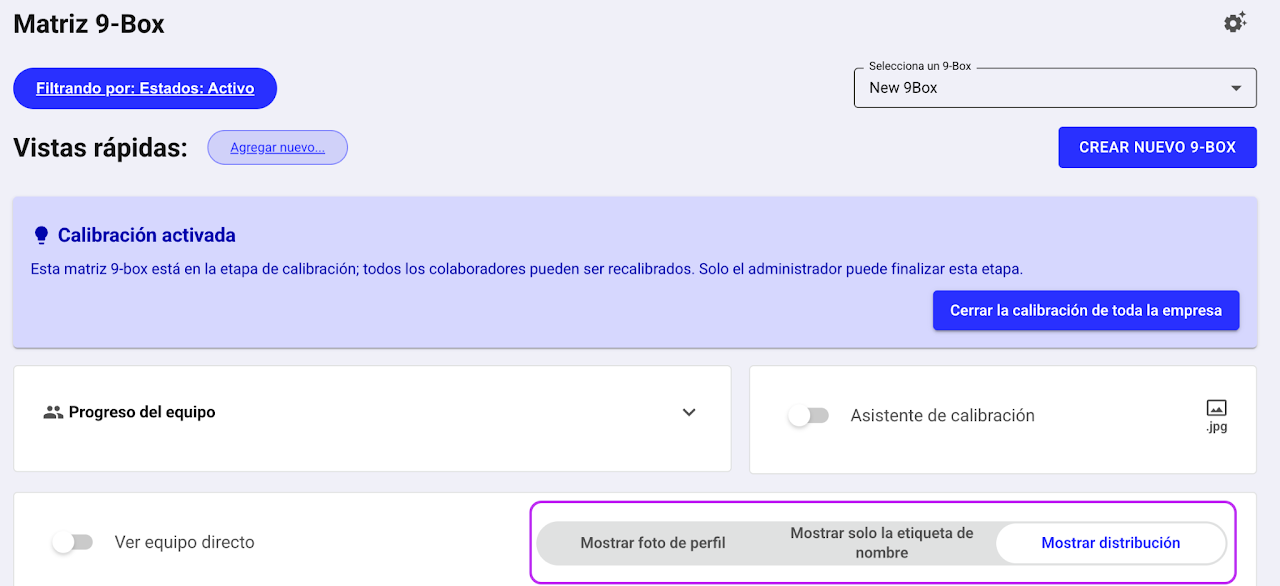
Select the “Show name label” or “Show profile photo” view
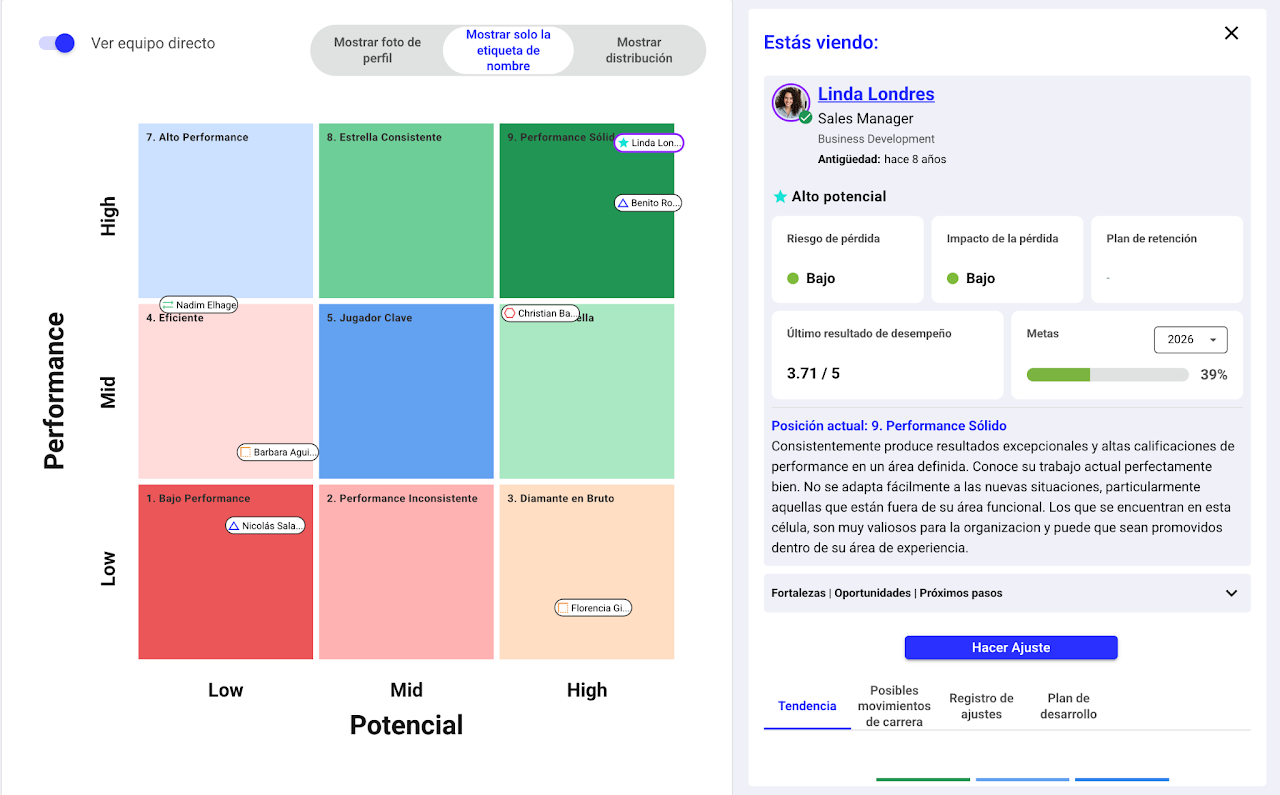
Find the employee you want to adjust and click their name.
Select “Make Adjustment” to begin.
Once your team leaders have completed their adjustments, you can adjust your indirect team.
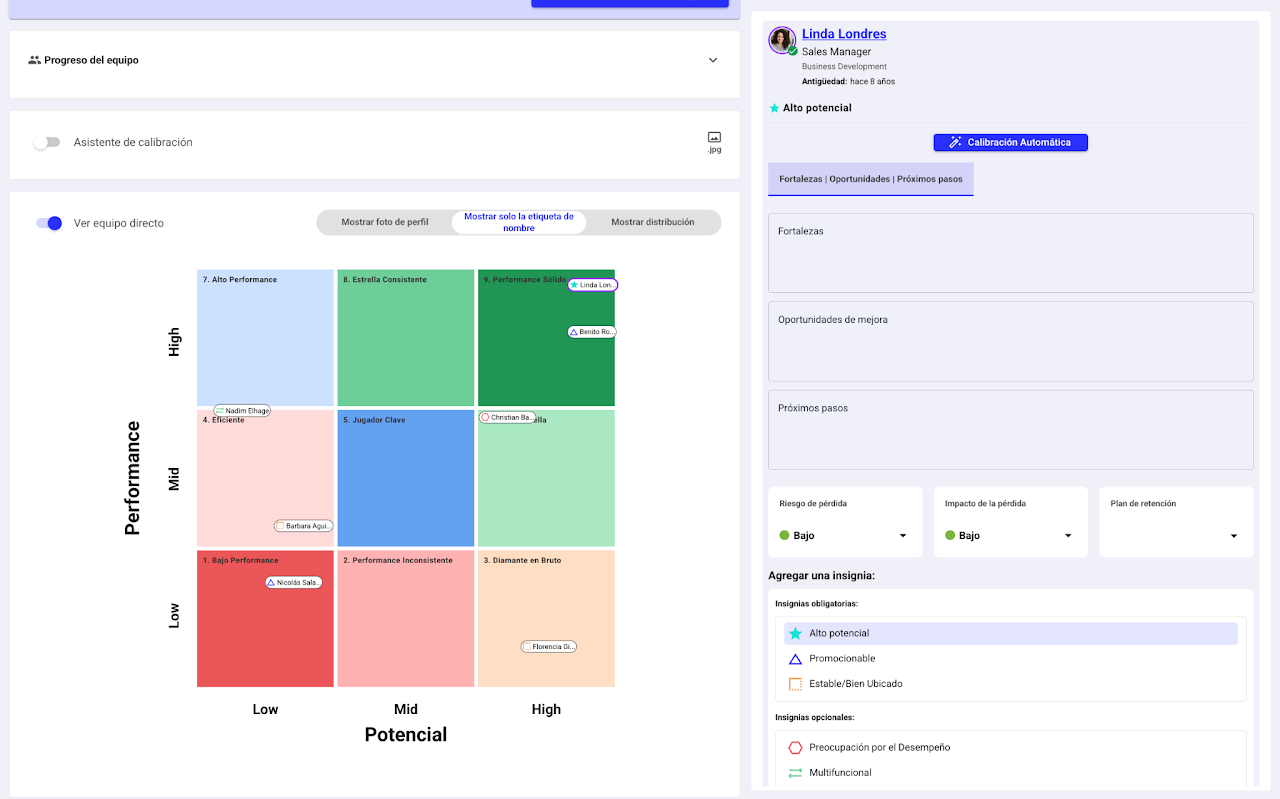
After clicking “Make Adjustment”:
Drag and drop the employee to their new position within the matrix.
Write strengths, improvement opportunities, and next steps.
If applicable, fill in the Turnover Risk and Loss Impact.
Assign a badge (hover over the name to see the description)
Click “Save” and continue with the next employee.
How to Add a Person to the 9-Box?
As a leader, talent manager, or administrator:
Click “Add Employee”.
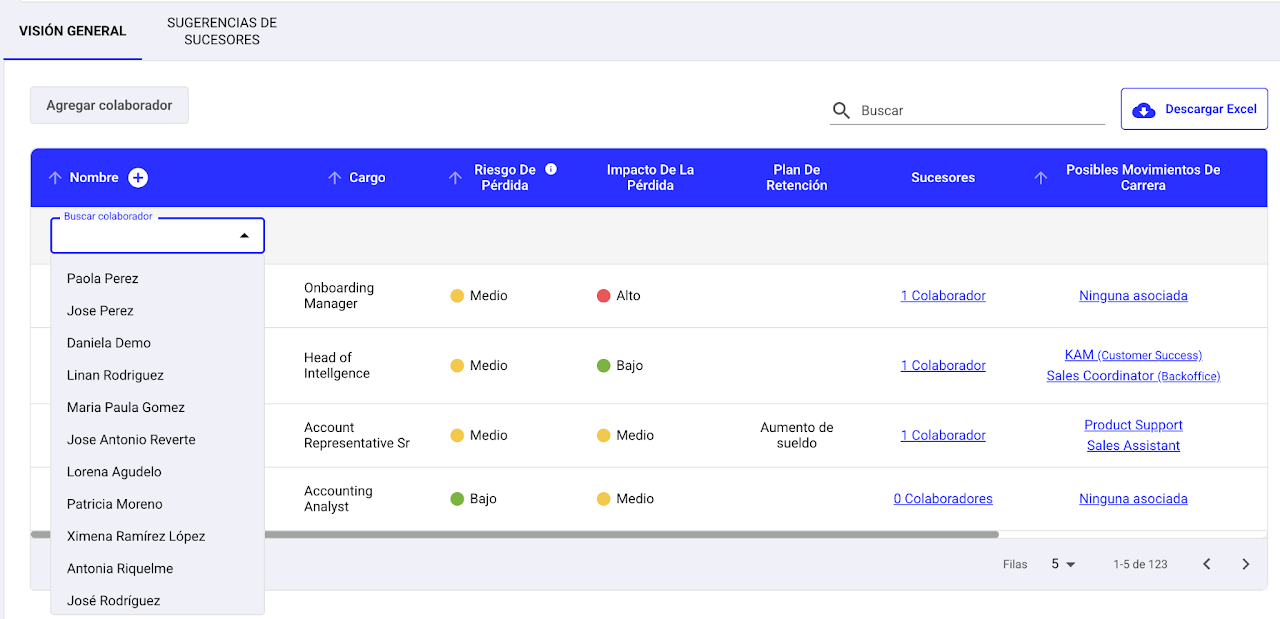
Search for the person or type their name in the search bar.
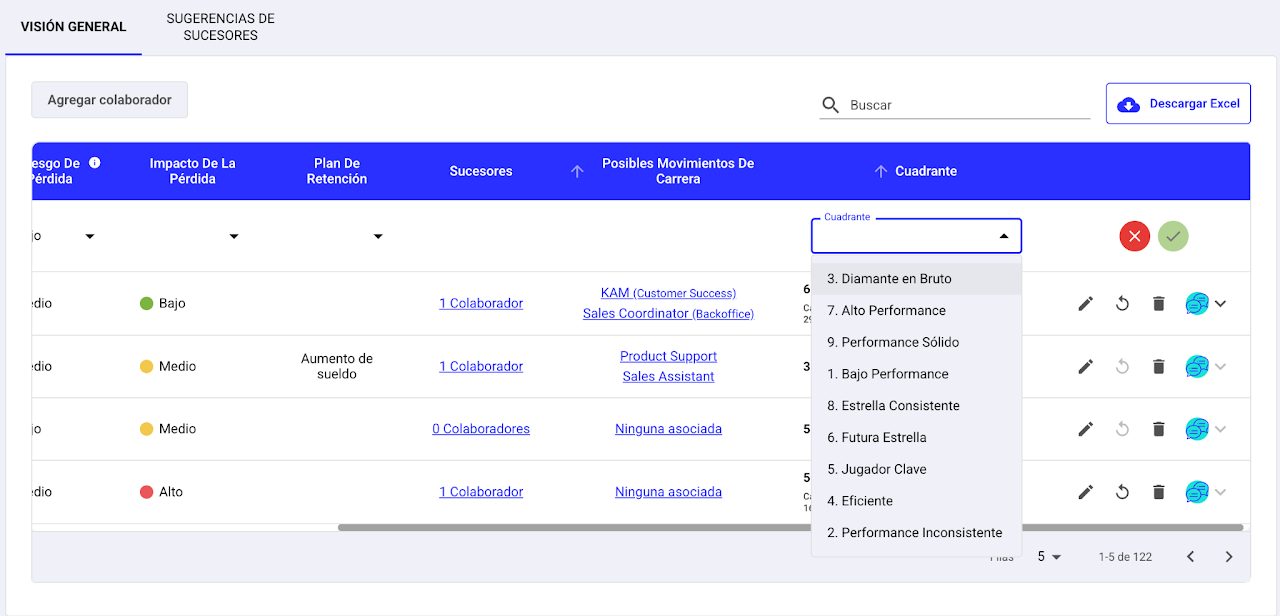
Select the appropriate quadrant on the Nine-Box matrix.
Click Save ✅ to register the assignment.
💡 Once saved, the employee will immediately appear in the matrix at the center of the selected quadrant.
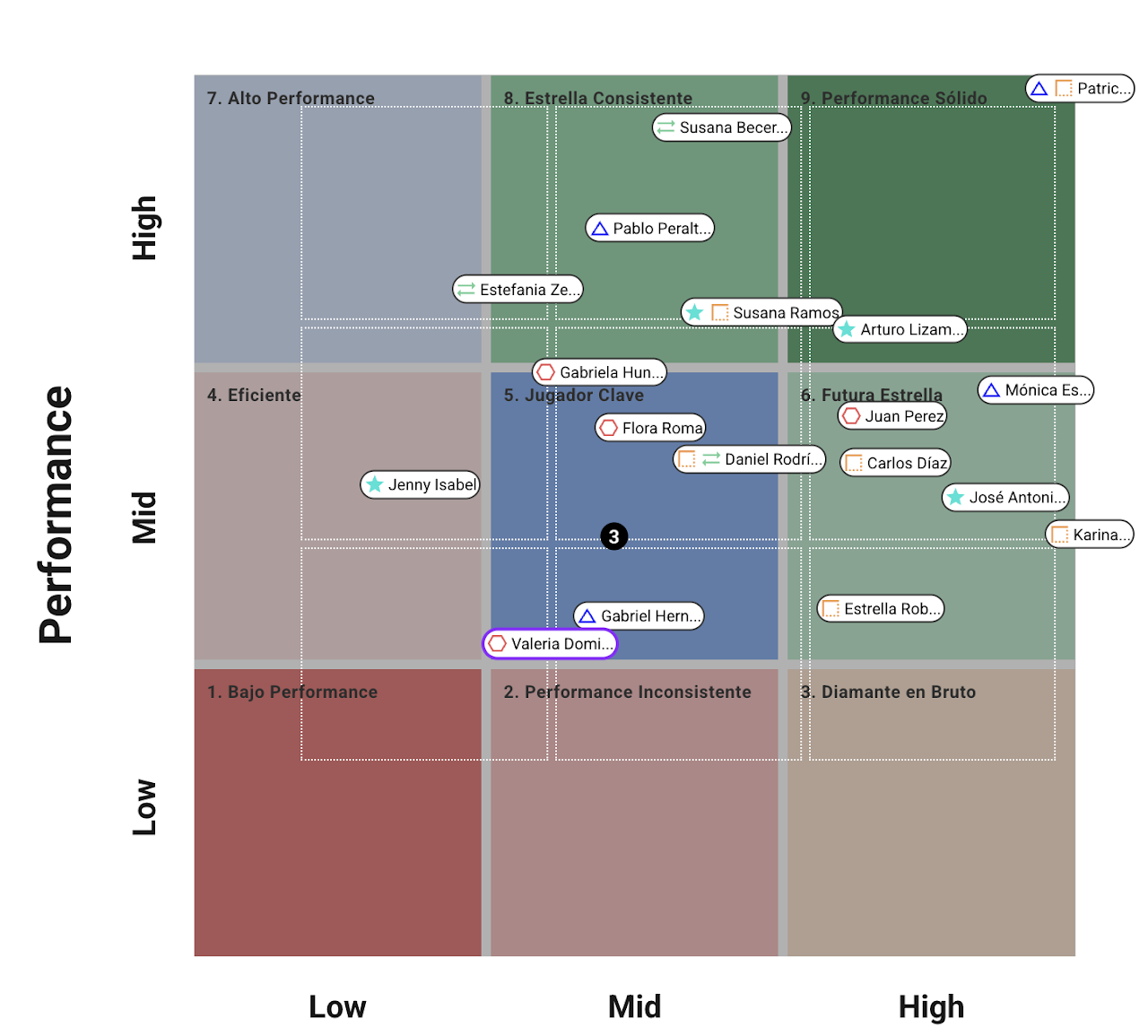
What is the Calibration Assistant?

The Calibration Assistant is a tool that helps you better adjust and distribute your employees within the Nine-Box matrix when initial results cluster too much in one quadrant.
When this happens, it can be hard to compare profiles or clearly identify key talents, growth potential, or performance risks.
To simplify this, the assistant creates a floating Nine-Box (mini Nine-Box) that works as a visual reference while you calibrate.
What is it for?
Avoid excessive clustering of employees in a single quadrant.
Make more balanced calibration decisions between performance and potential.
🧩 How does it work?
The system shows a floating Nine-Box or mini matrix.
You can see your employees’ current distribution while making adjustments.
Use this reference to redistribute people more evenly on the matrix.
💡 Recommendation
Use the floating Nine-Box when you notice many employees cluster in the same quadrant. This will help you compare profiles and redistribute them more easily, achieving more accurate calibration.
How to view my team’s progress?
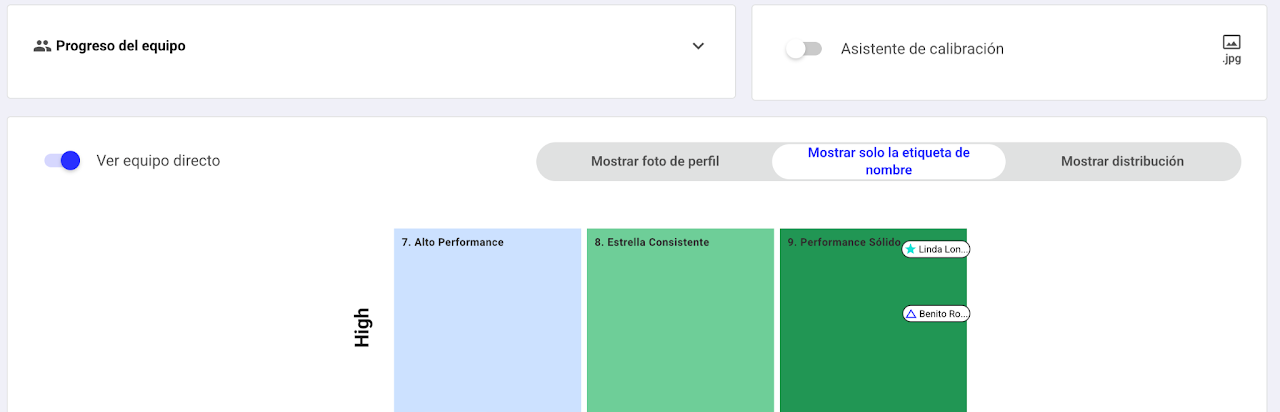
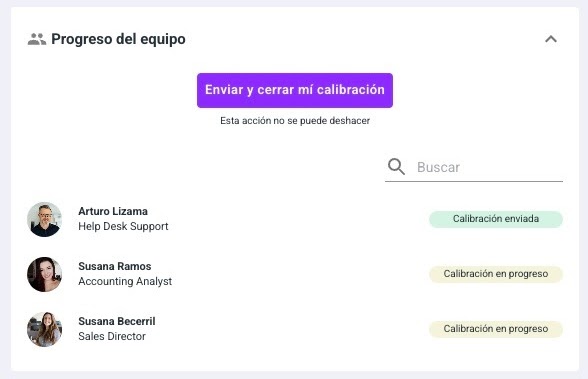
As a leader, at "Team Progress" click the arrow to expand the team progress.
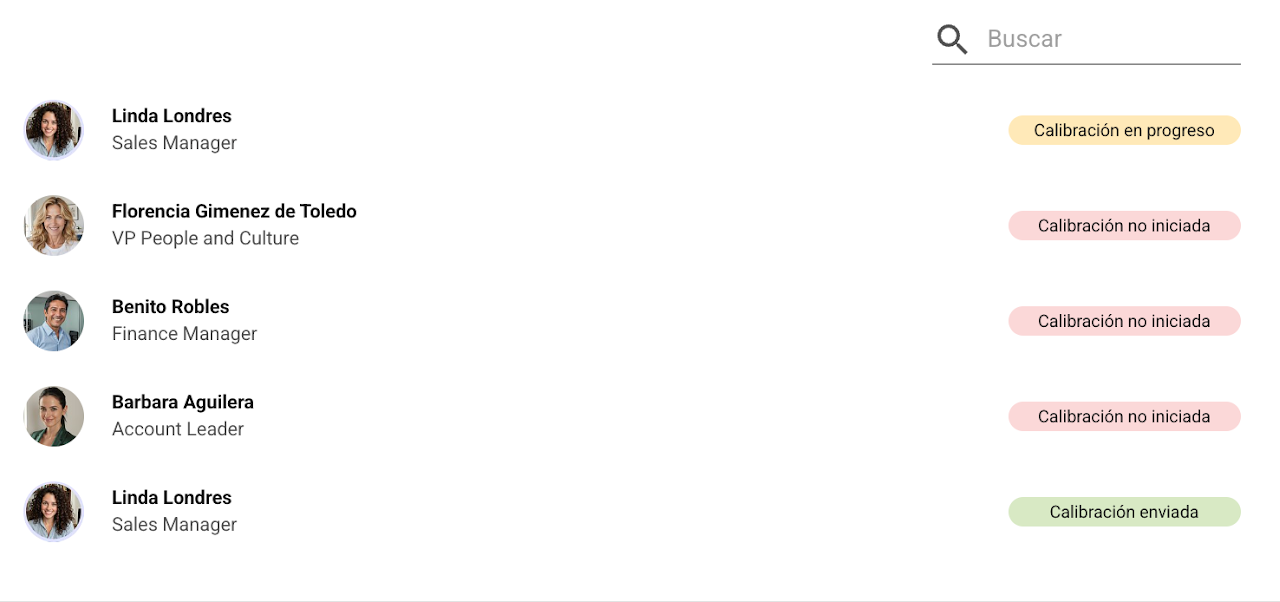
In this section you can track the status of adjustments made by leaders who report directly to you. This lets you see how the process is progressing within your team and detect if any reviews are still pending.
💡 Important:
If you adjust someone who reports to one of your leaders, that leader will no longer be able to make changes to that employee. This ensures consistency in decisions made during the process.
Calibration Closeout
How to submit and close calibration?
Once adjustments are complete, leaders must close their adjustments to confirm they have finished the calibration process.
Key Considerations
🔹 Adjustments made by a higher-level leader
If a leader at a higher hierarchical level adjusts an employee who belongs to another leader's team, the direct leader will lose the ability to edit that employee.
🔹 Early Closure in the Hierarchy
If a leader closes their adjustments earlier than their direct-reporting leaders, the adjustment process will automatically lock for those leaders, preventing them from making further changes.
🔹 Complete Cycle Closure
To finalize the calibration cycle, the Global HR Administrator can close the adjustments for the entire organization.