Manage and assign skills
What is the Nala Skills Dictionary?
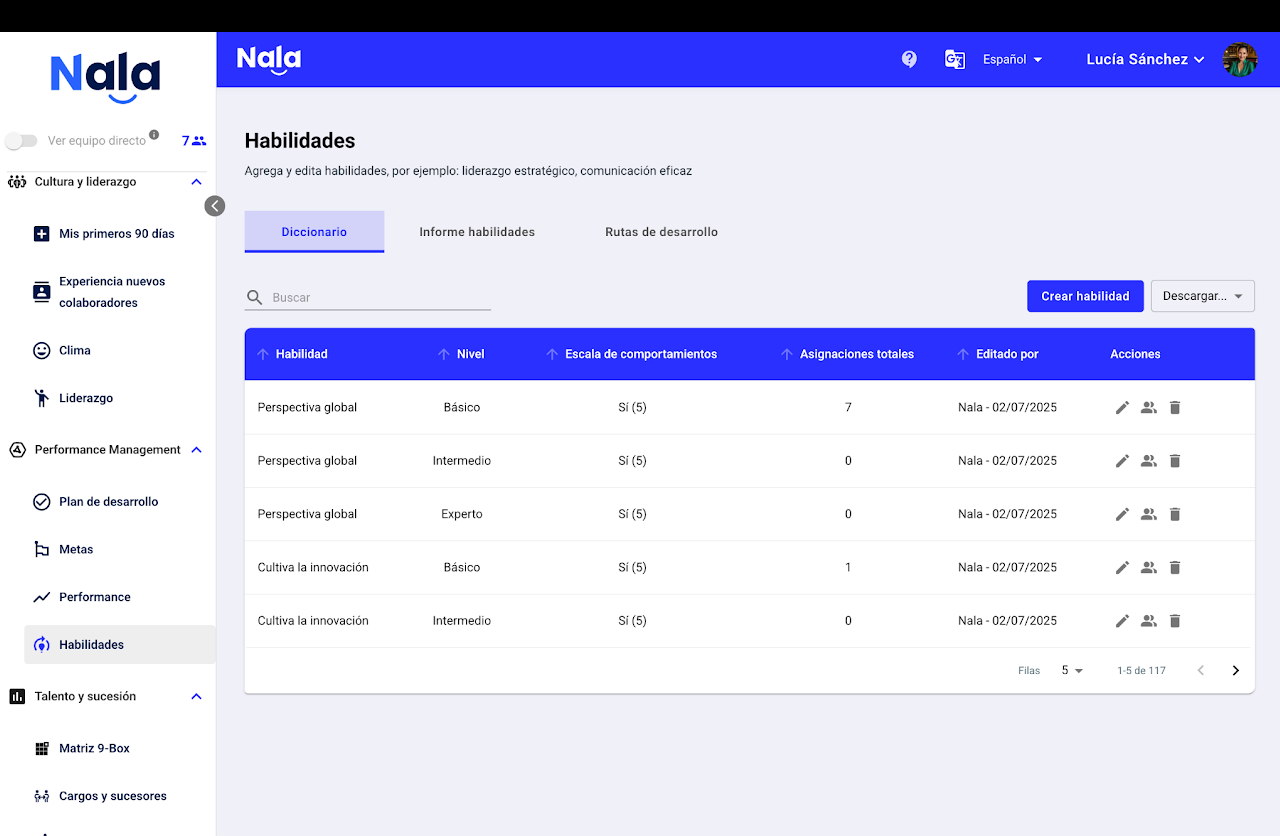
Nala provides you with a skills dictionary inspired by Korn Ferry’s FYI: For Your Improvement.
Based on this model, Nala breaks down the 38 competencies into three mastery levels:
Basic
Intermediate
Expert
Each level includes a set of observable behaviors, allowing you to:
Adjust the expected skill level based on seniority or the expertise required for the job level.
Create custom measurement scales based on behaviors.
Decide whether you want to measure skills with a behavior scale or with a frequency scale during performance evaluations.
How to create a skills dictionary in Nala?
In the performance management module, under the “Skills Dictionary” tab, select Create Skill.
Set a title
Associate with a category
Expand the level (you can rename it if needed)
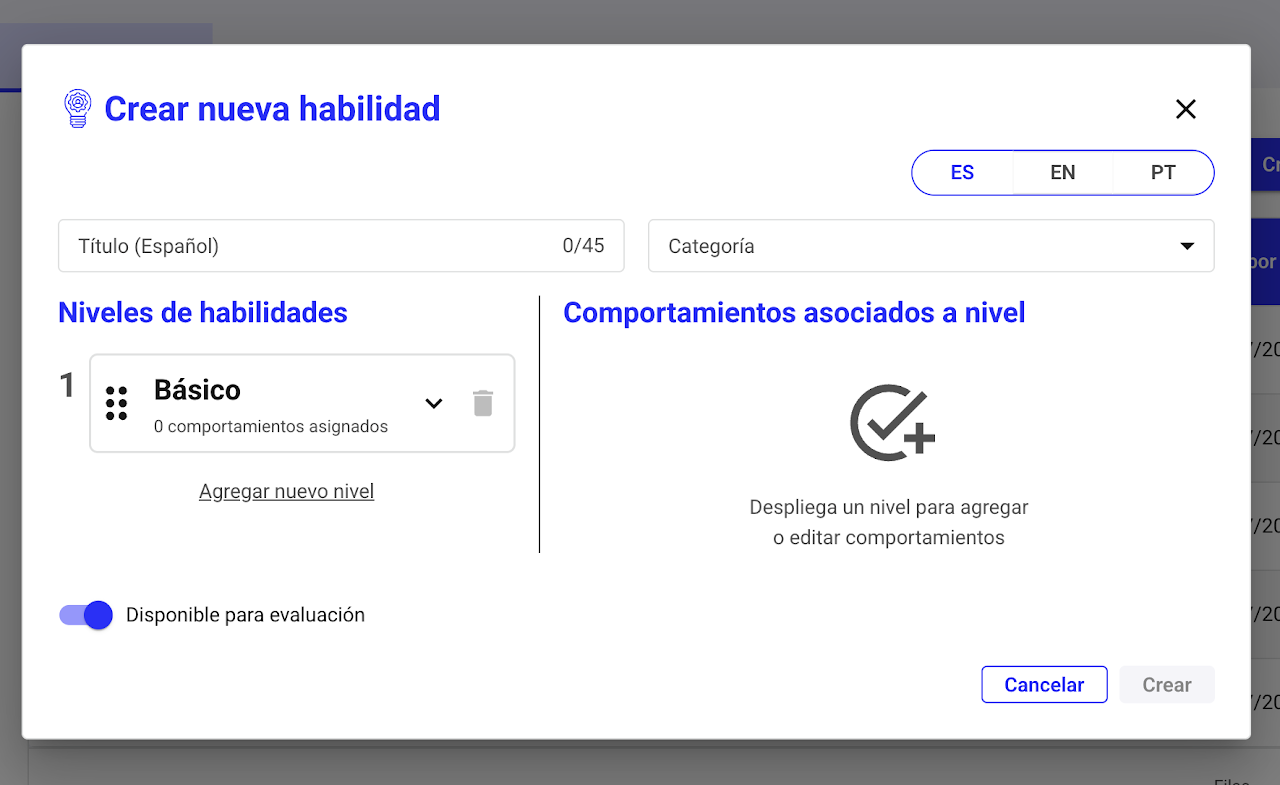
Add one or several statements to the level. Each statement becomes a separate skill evaluation question. the skills assessment.
Optionally define behaviors for each level. Completing this allows you to use them as a response scale.
Select Create.
If you didn’t enter text in every language, Nala will ask if you want to use the automatic translation system.
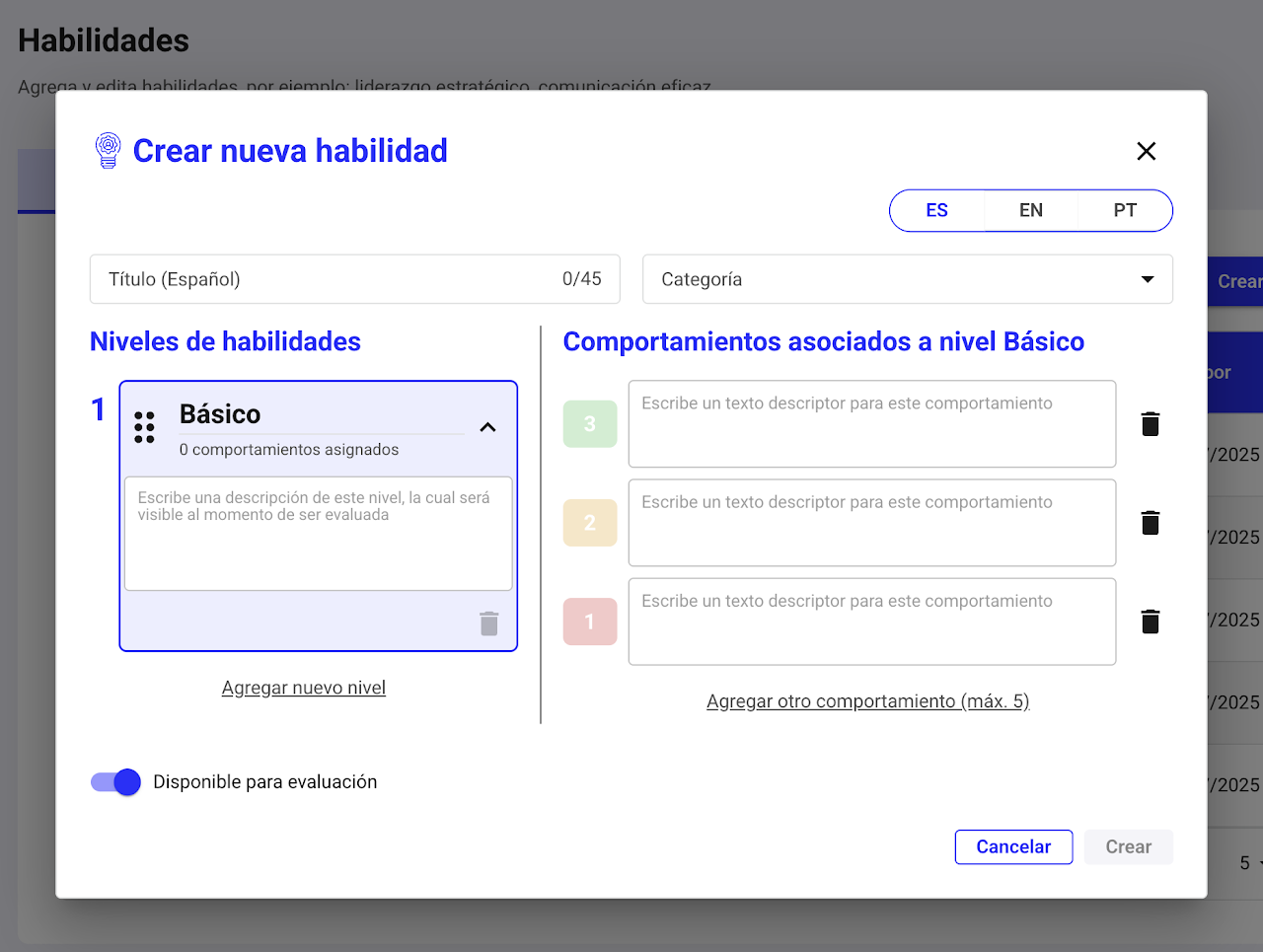
Important: Keep the switch active if you want this assessment to be evaluated in the future.
Skills with multiple statements
A skill level can contain one or several statements. Performance evaluates each statement as a separate question, potentially with its own behavior scale. This allows several behaviors of the same skill to be evaluated without combining them into a single question.
Administrators with permission to manage the dictionary and leaders evaluating assigned skills. The leader role alone does not grant dictionary editing permission.
Configure the level — administration
Open Performance Management > Skills, edit the skill and select the level. Add and order its statements, then configure behaviors and translations where applicable. Save and review the level.
Answer each statement — administrators and leaders
In the Performance skills evaluation, answer each question for the assigned level using its own options. Do not apply another statement’s scale. When a skill comment is required, it is requested at the last statement.
Review the result
Check the consolidated skill result. It combines valid statement scores and contributes to the Performance result according to the process configuration.

Questions and options retain their version once the process starts. Later dictionary edits do not change those evaluations. Single-statement skills keep working; statements do not all need the same number of behaviors.
How to assign skills in Nala?
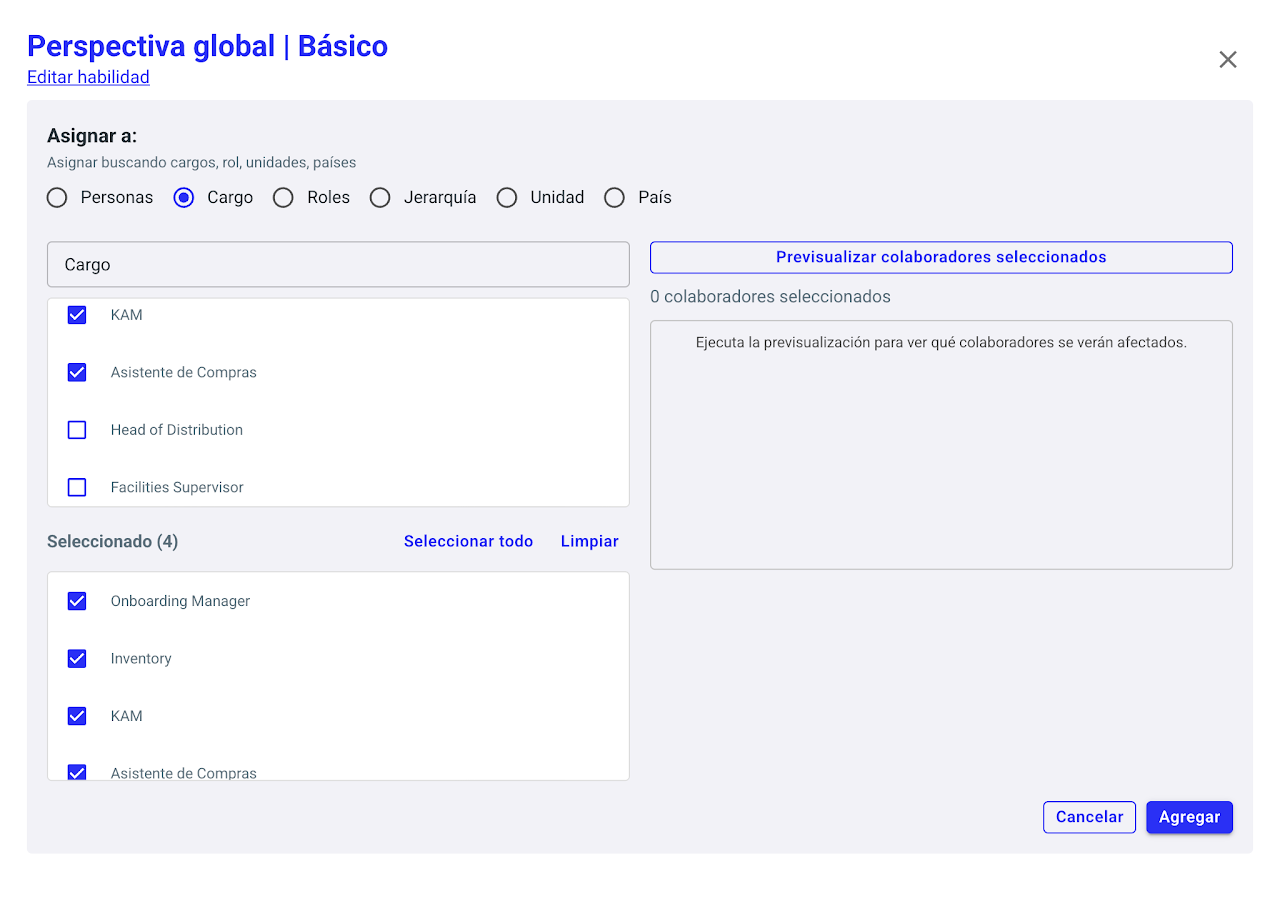
Click the people icon 👥 to open the skills assignment panel.
There you can:
See who already has those skills assigned.
Select “Assign” to choose whom to assign them to.
Define the assignment criteria. You can assign skills by:
Unit
Hierarchical level
Position
Country
Role (leader or employee)
Or directly by person, for example:
You’re preparing someone for a new position, or
You want to evaluate skills not specific to their current role but relevant for their development.
Confirm the assignment so it is recorded in employees’ profiles.
Then select Add to save the change.
⚠️ Important: You can view skill results only if they are included and evaluated in the next performance assessment. Assigning a skill alone does not generate results; it must be measured in an evaluation process.
How to view the skills report in Nala?
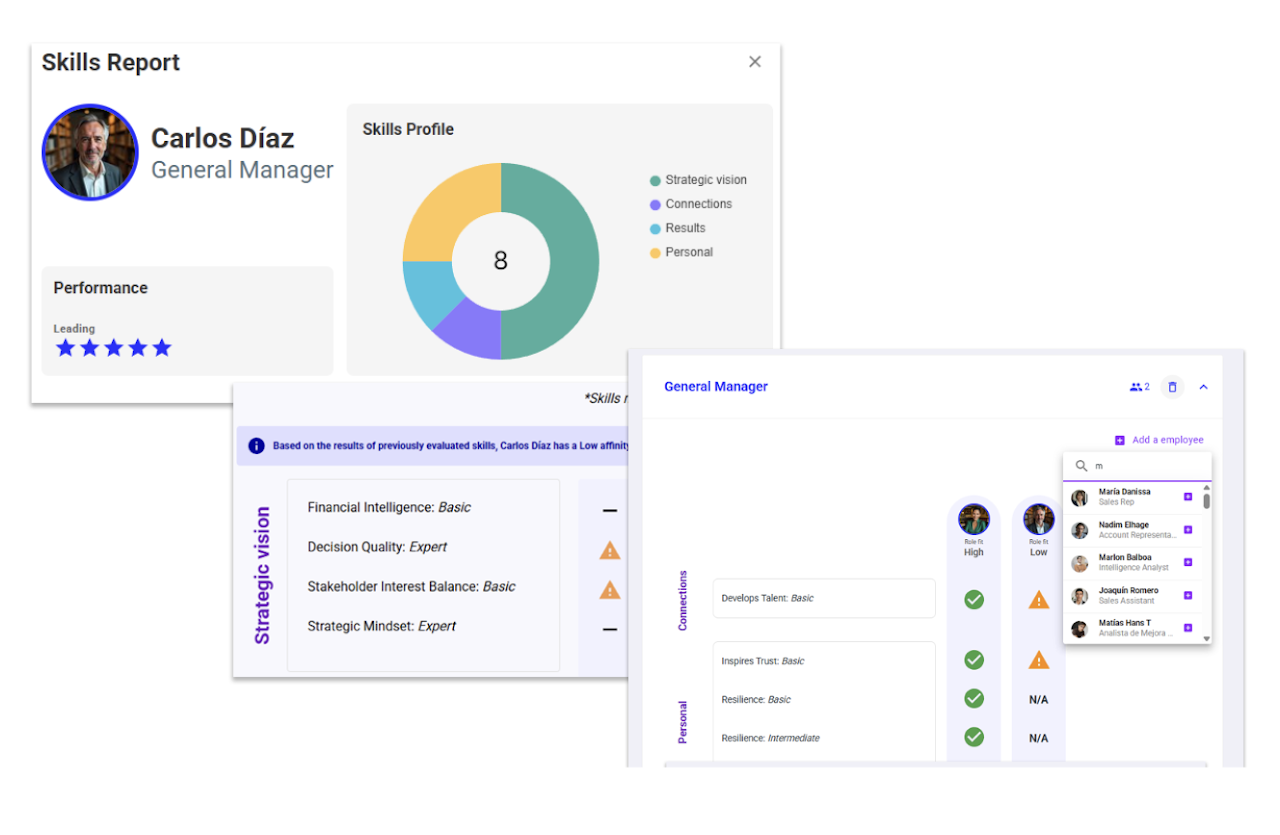
The skills report lets you compare skill development levels among employees by:
Position
Team
Area
Leaders also have access to this section to:
Identify team strengths and gaps.
Assign projects based on each person’s development level.
Make evidence-based decisions for talent development.
TIP: Use this information to create Action Plans or Individual Development Plans (IDPs) that boost specific skills in your teams.
How to view Development Paths in Nala?
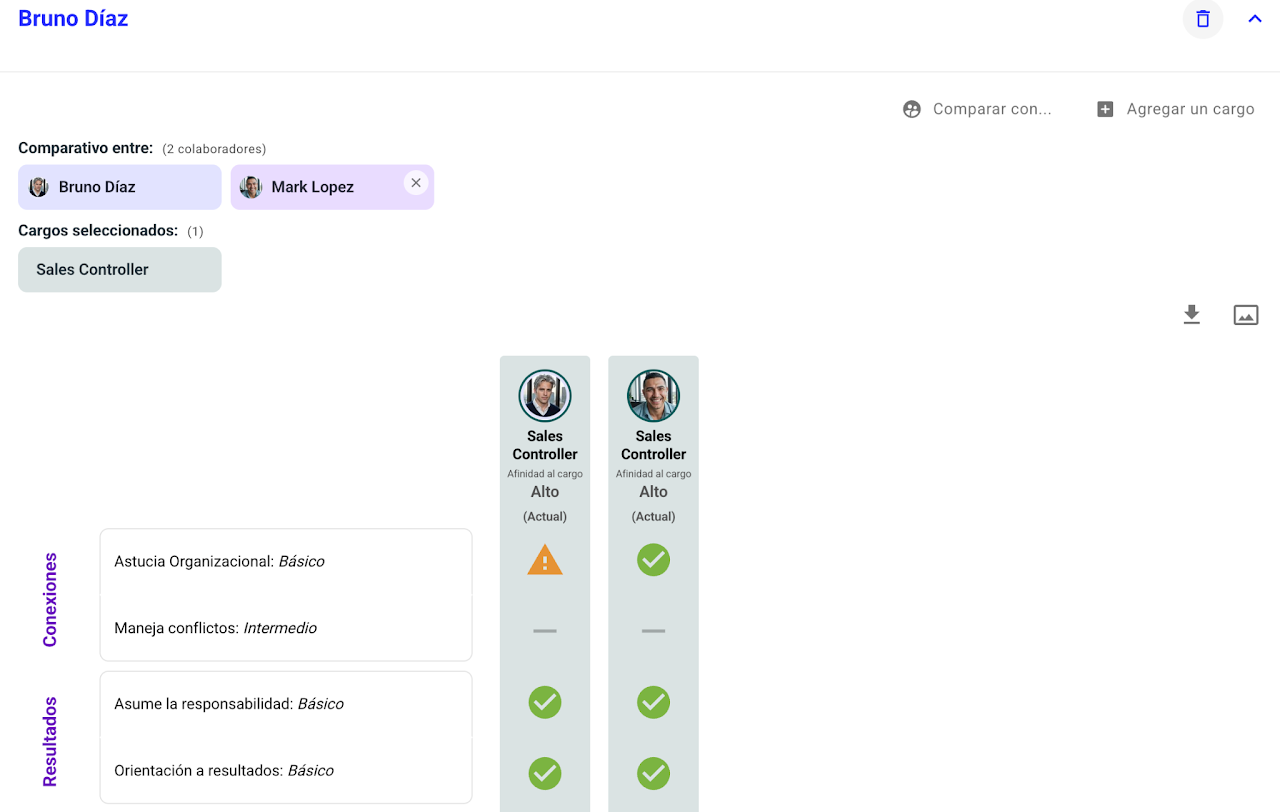
Development Paths let you compare an employee’s current skills with the skills required for other positions within the organization.
With this tool you can:
Visualize development gaps.
Identify priority skills for a future role.
Support career and internal mobility conversations.
Strengthen employees’ professional growth based on data.
How to view skill assessment results in each employee’s profile?
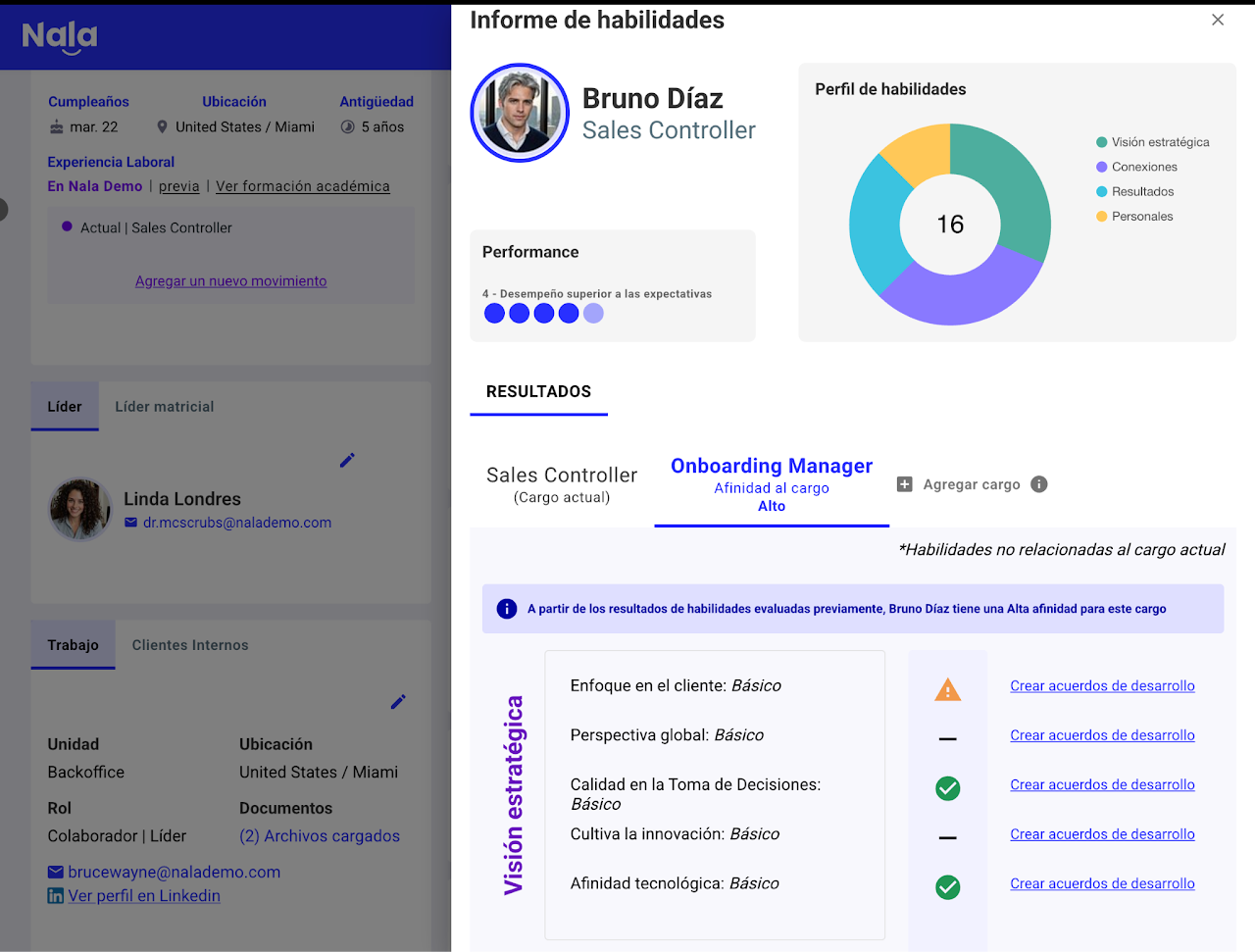
Once skills have been assessed, you can see in the profile of each employee:
A. Result by skill
Each skill will display:
The level achieved, low 🔴, medium ⚠️ or high ✅
A comparison with the required level for your current position, allowing you to identify gaps or strengths.
This helps you understand how prepared the person is for the role they currently hold.
B. Connection to Development Plans
From this same view you can:
Associate skills directly to a Development Plan to work on specific gaps by selecting “Create development agreements.”
Create or update an Individual Development Plan (IDP) incorporating the skills that need strengthening.
IDPs allow structured tracking of the employee’s progress in their key skills and linking concrete actions (such as courses, projects, mentoring, or coaching). If you have the Key Positions module enabled, you can also link to succession plans. This will only be visible to you as an administrator or the succession administrator.