Individual Development Plan
In Nala, you can create and monitor individual development plans based on agreements defined in one-on-one conversations between leader and employee.
These agreements allow for structured and continuous tracking of each person’s development.
Roles in Individual Development Plan
Depending on your role, you will have different options:
Leader
Can view and edit the development plans of their direct team.
By clicking on each person, they can review their agreements.
If there are no agreements, they can create them by clicking “Create agreement.”
Employee
Can access their own development plan.
Can mark an agreement as “In progress” or “Completed” directly from their plan by selecting “Update.”
If assigned agreements, they can review details from the action menu (three dots) → “Details.” There they can see:
Agreement information
Links of interest: useful resources to advance
Administrator
Can view and manage development plan information at the general level.
Has access to module settings (categories, tags, reminders, among others).
📊 Visualization and tracking
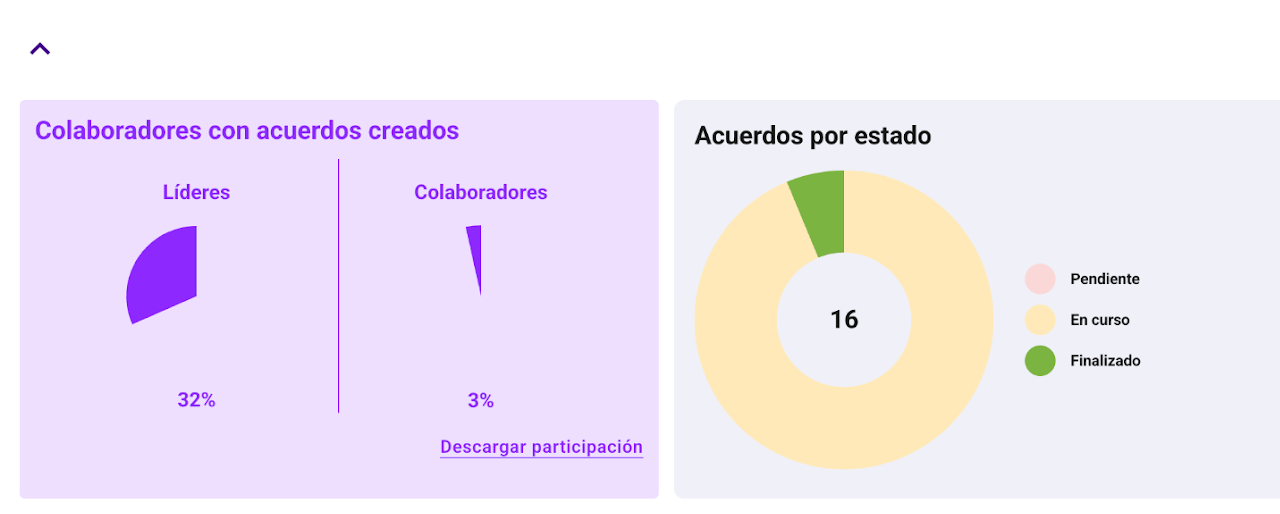
Tracking cards:
The module includes tools to facilitate tracking:
Employees with created agreements
Agreements by status
You can hide them using the arrow if you want.
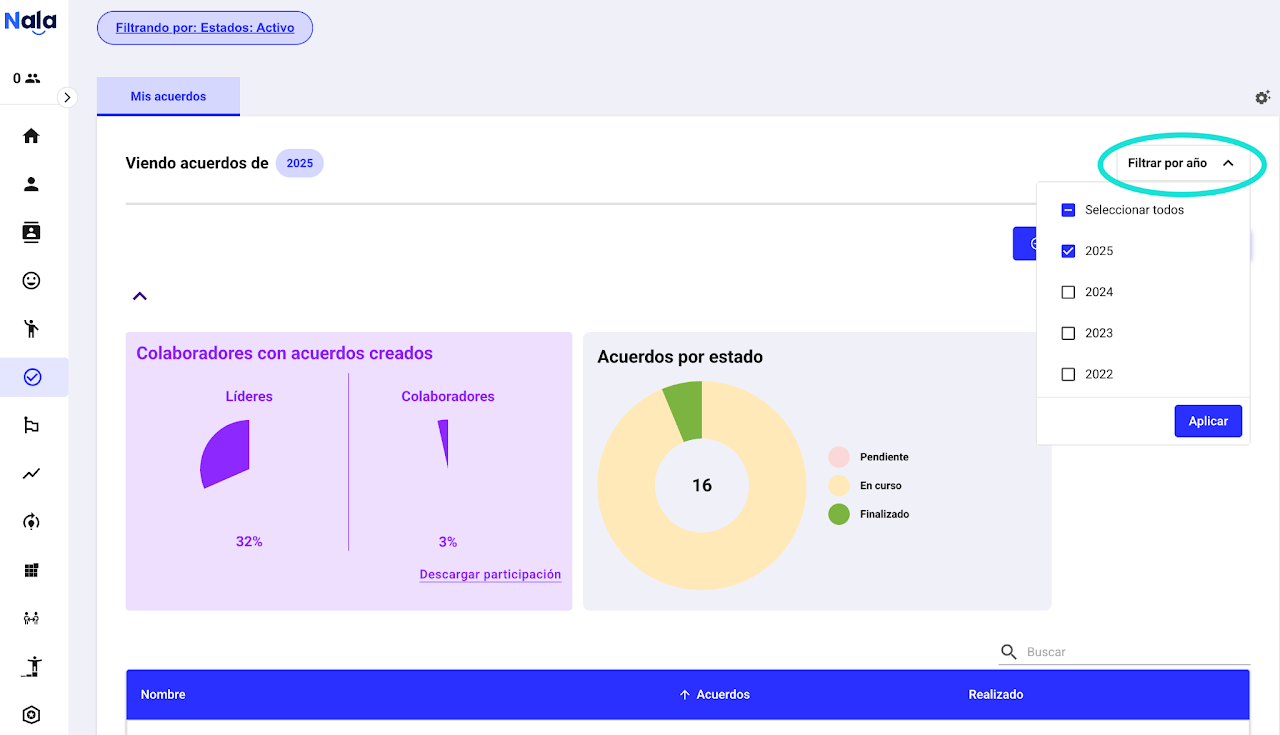
🔎 Filter by year
You can filter development plans by the year they were created, making historical analysis and tracking by periods easier.
Module settings
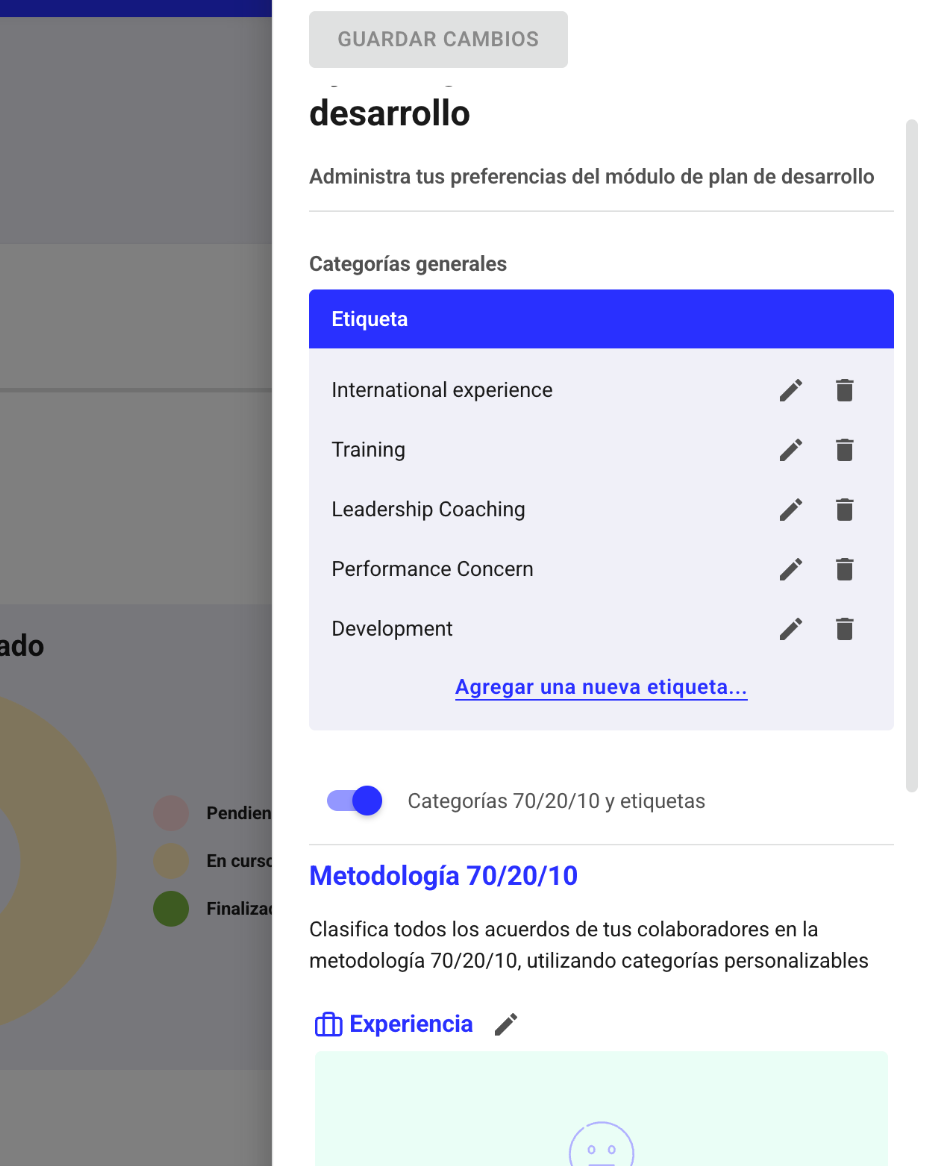
As an admin, performance admin and talent manager, you can from the settings panel:
Manage categories (for example: Technical skills and soft skills).
If you delete a category, existing agreements will keep it, but it cannot be used in new agreements.
Additionally, you can activate classification under the 70/20/10 methodology, promoting more comprehensive development:
70% Experience
20% Exposure
10% Education.
Define tags within the 70/20/10 categories.
Reminders and review stages
You can create and manage review stages to track plans using the mail icon
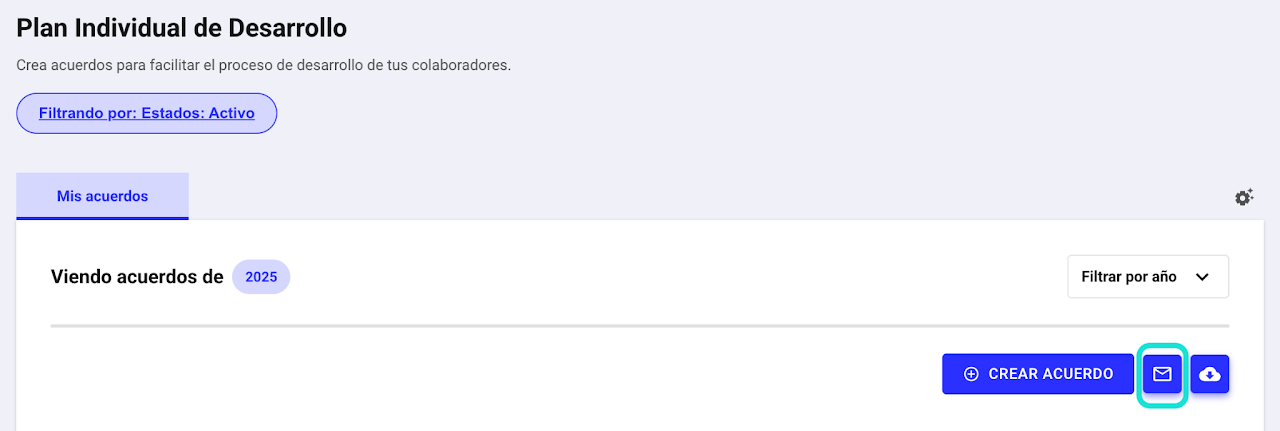
How to create a review stage and notify employees?
Select the mail icon in the Development Plan section.
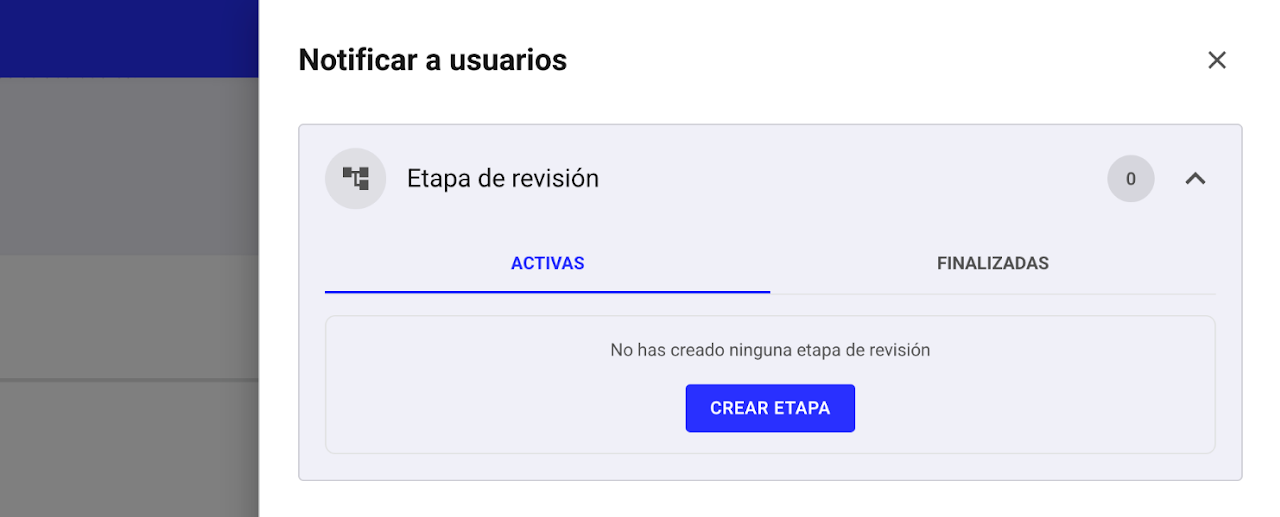
Under "Active," select "Create stage"
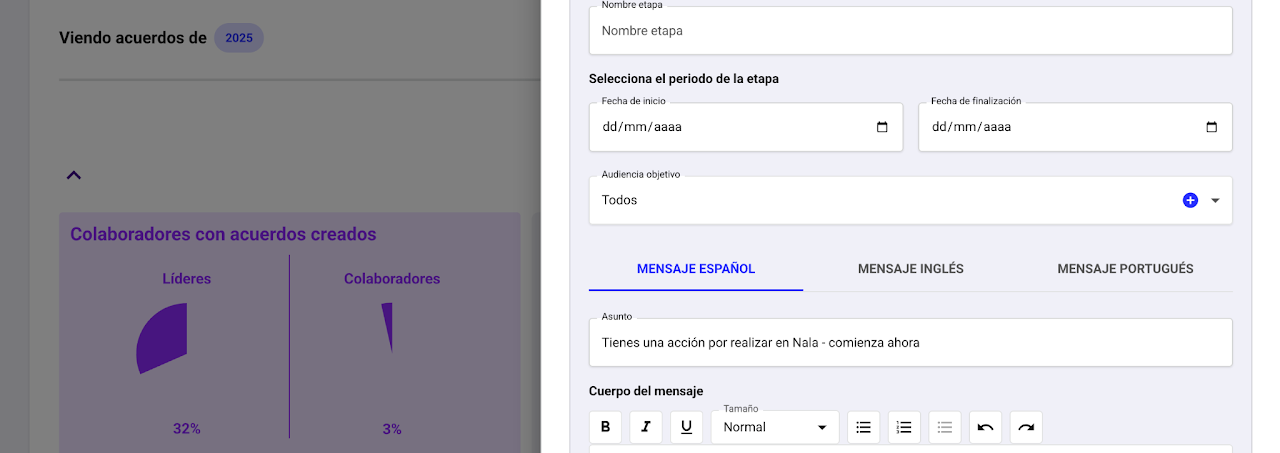
Fill in the information:
Define a name
Set periods
Select the audience or create a new one.
Customize the notification email (if desired)
Send or schedule.
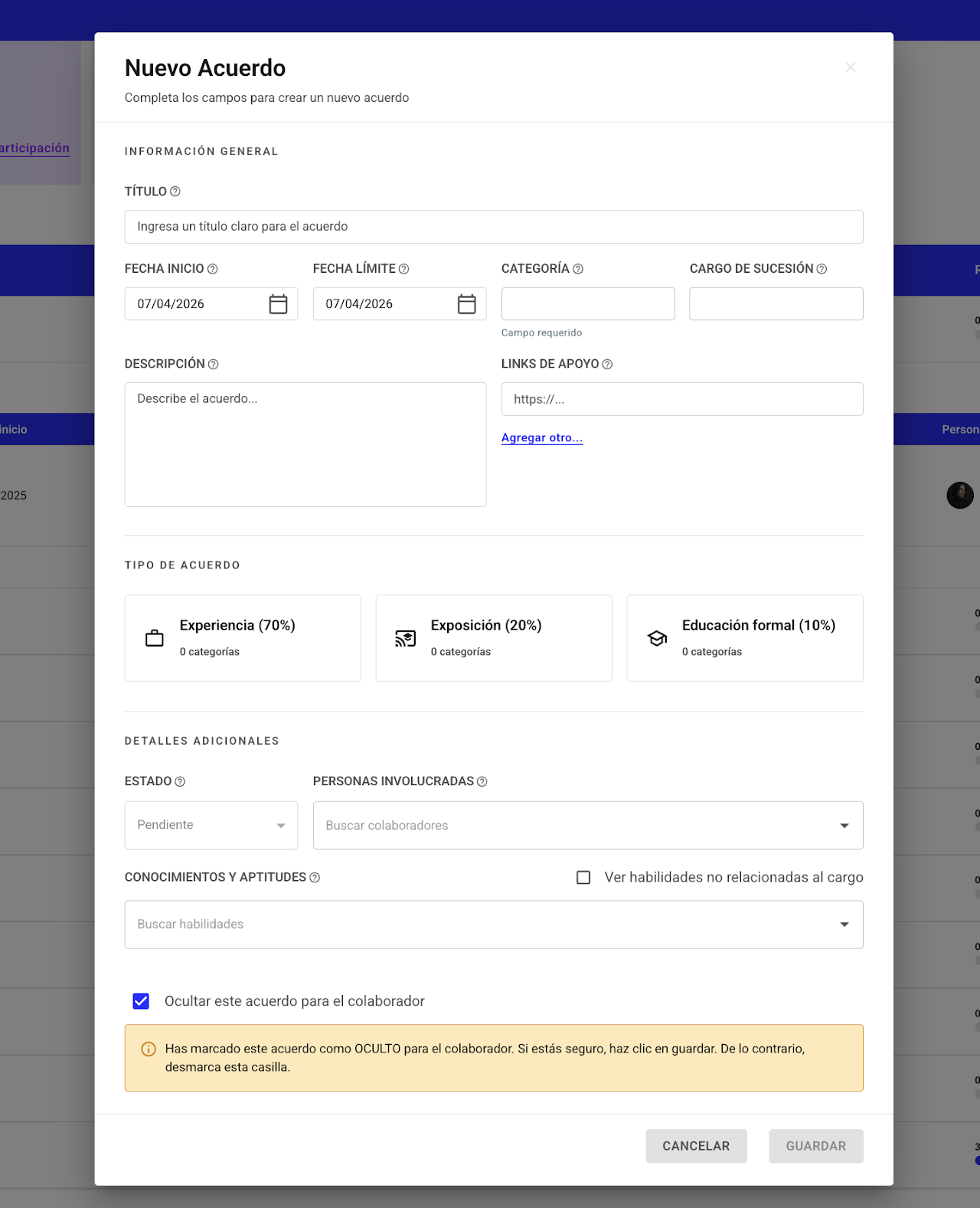
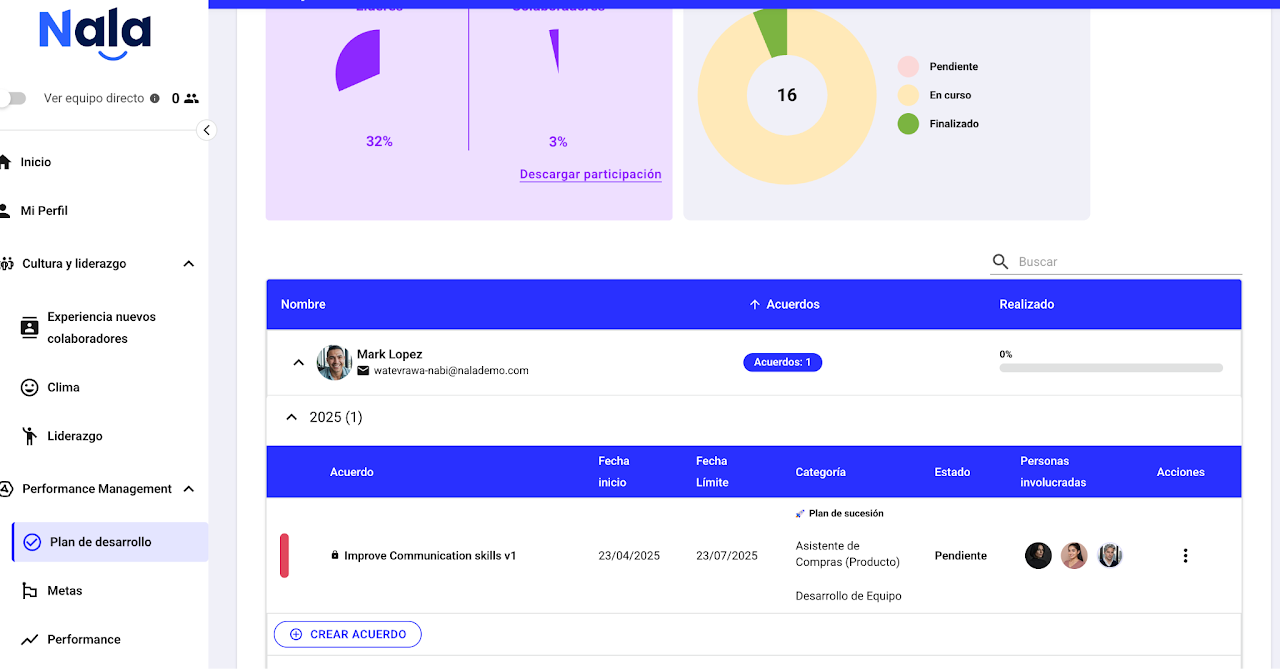
How to create a development plan?
To create a new agreement, locate the employee, select the arrow(s) to view agreements, and click "create agreement".
Keep in mind that agreements are added one by one since the goal is to define them during a conversation with your employee.
By clicking "create agreement" you will find a form to enter the information.
Set a due date and select a category for each agreement.
Optionally, you can assign involved people and support links to help your employee develop the agreement more easily.
If your company has the 70/20/10 methodology enabled, you must associate the agreement to the agreement type by clicking on one of them.
If it has to do with skills, you can search for skills that have been created in your company's skills dictionary.
Finally, check or uncheck "Hide this agreement from the employee." If you keep it checked, the employee will not be able to see that they have a development plan, and you will see it with the lock icon indicating it is hidden. Otherwise, the employee can view it in the development plan section and in their own profile.
After completing all the information, click save.