Onboarding
With Nala, you can make the onboarding process for a new employee more organized and easy.
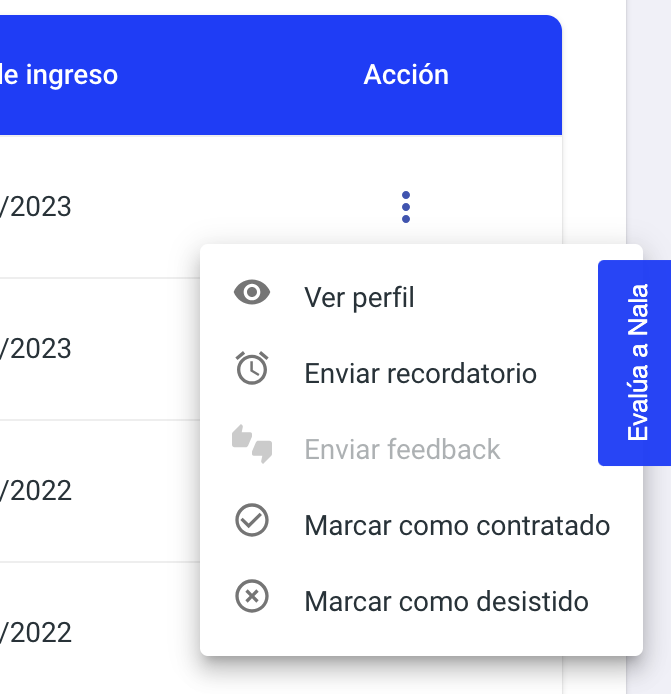
Upon entering the onboarding module, you can create new candidates for your organization, easily find the list of candidates, view their profiles, send feedback, and mark them as hired or declined.
Keep in mind: An email will be sent to the registered address so the candidate can access and fill out information, upload required hiring documents, and review training material you create along with evaluations.
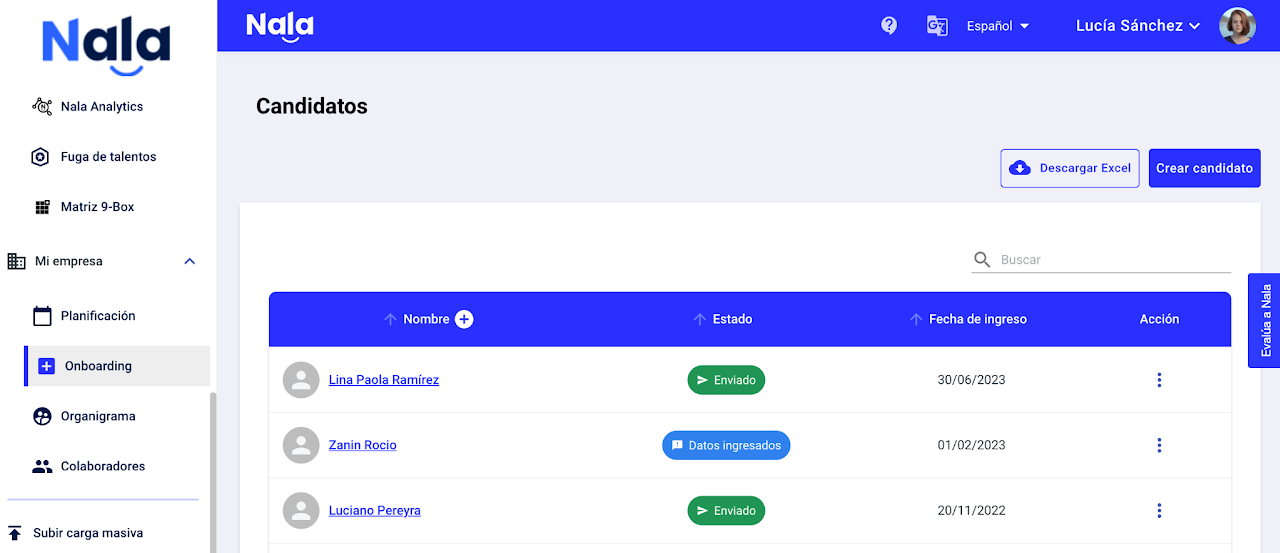
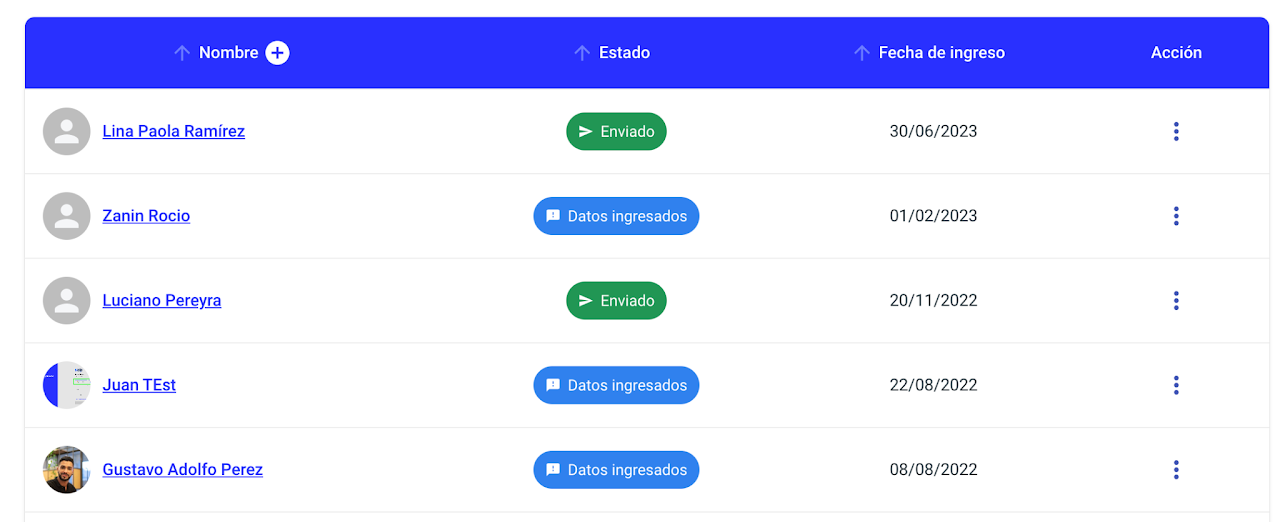
Available information shows candidate name, position, location, start date, and available actions.
The status column shows if the welcome information email was successfully sent to the candidate, with which they can access Nala to complete their information, upload documents, and review assigned training material.
Remember: Once the candidate completes the preboarding process and is hired by your organization, you must enter this module, find the candidate, and click actions > mark as hired to start their onboarding tracking process.
Create Candidates
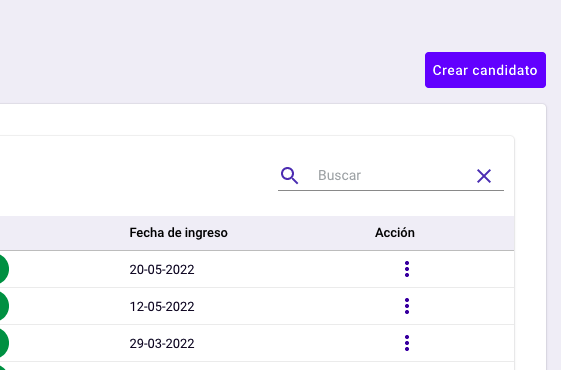
Creating a candidate is very easy; just have their basic information ready, go to the preboarding module, and click the Create Candidate button.
This function is only available to administrator users or those with access permission. Employees cannot access this module.
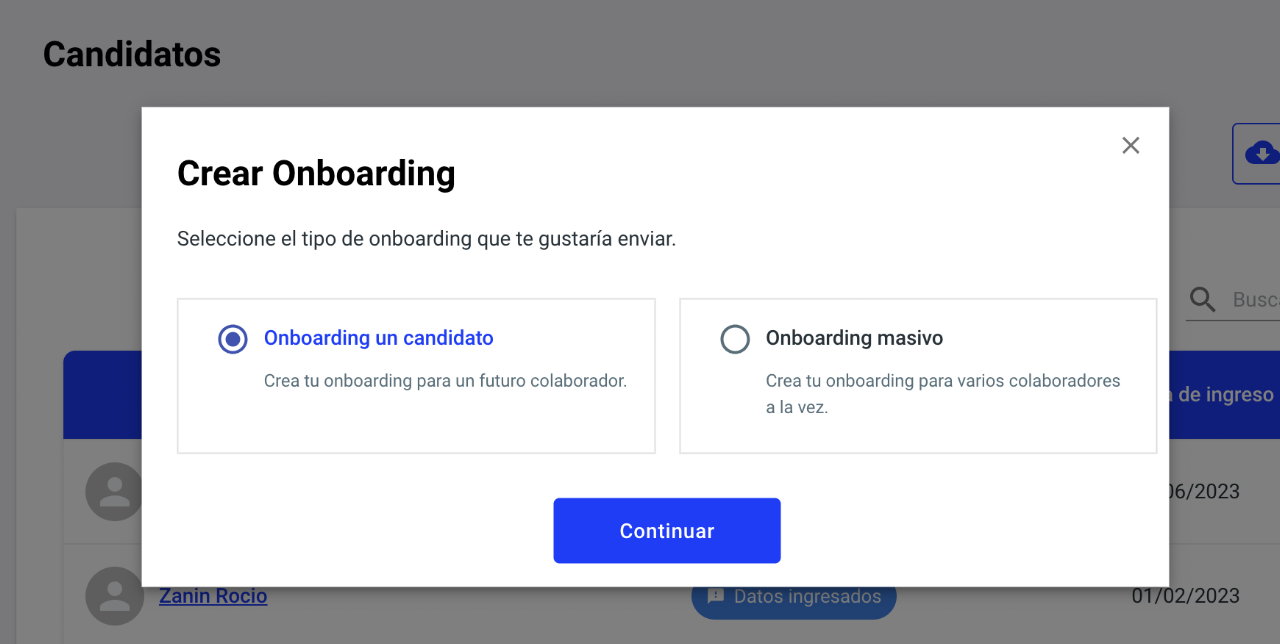
Select the type of creation you want to perform.
Onboard a candidate:
Manually create one person at a time by filling in the requested information
Mass onboarding:
Upload multiple candidates at once via an XLS file and assign an onboarding program simultaneously.
Onboard a candidate
When selecting this option, you must choose a template to assign to the candidate.
Templates include information fields, documents, and training content you want a candidate to view. You can select an existing one, preview by clicking the eye icon, edit, or create one by clicking "create template".
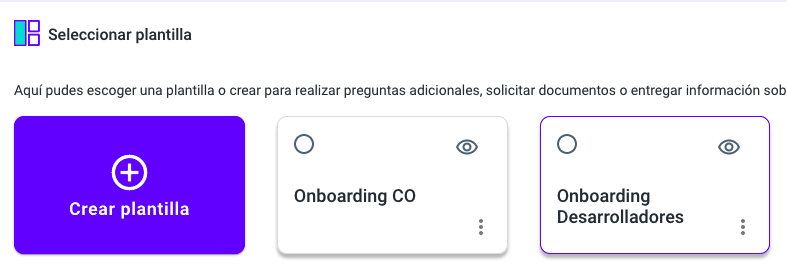
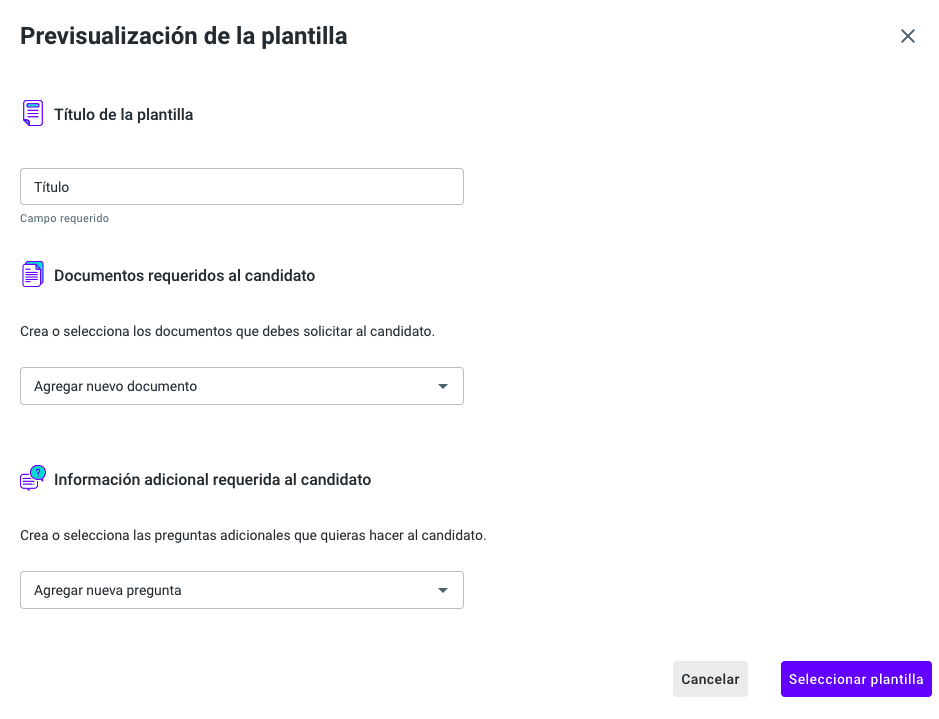
When creating a template, assign a title or name, select required documents from the dropdown, and add additional questions beyond the basic info candidates fill out when joining Nala.
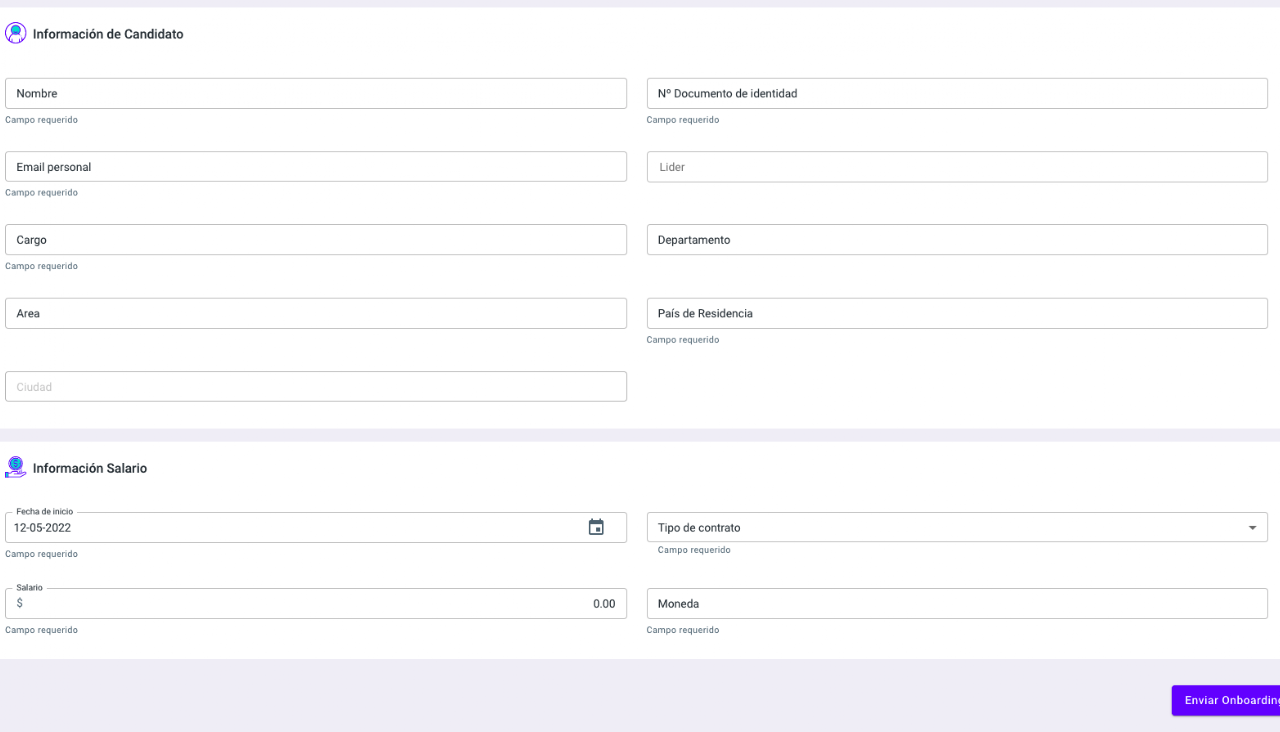
Additionally, manually fill in all candidate data:
Personal information
Basic information
Salary information
Once everything is completed, click send onboarding.
Nala will send a welcome email to the candidate's registered personal address so they can log in and begin their process.
Bulk Upload Creation
When selecting this option, you must choose a template to assign to the candidate.
Templates contain the information fields, documents, and training content you want a candidate to see. You can select an existing one, preview it by clicking the eye icon on each, edit them, or create one by clicking "create template".
We always recommend downloading the new candidate creation template, located in the info box on the right side of the screen.
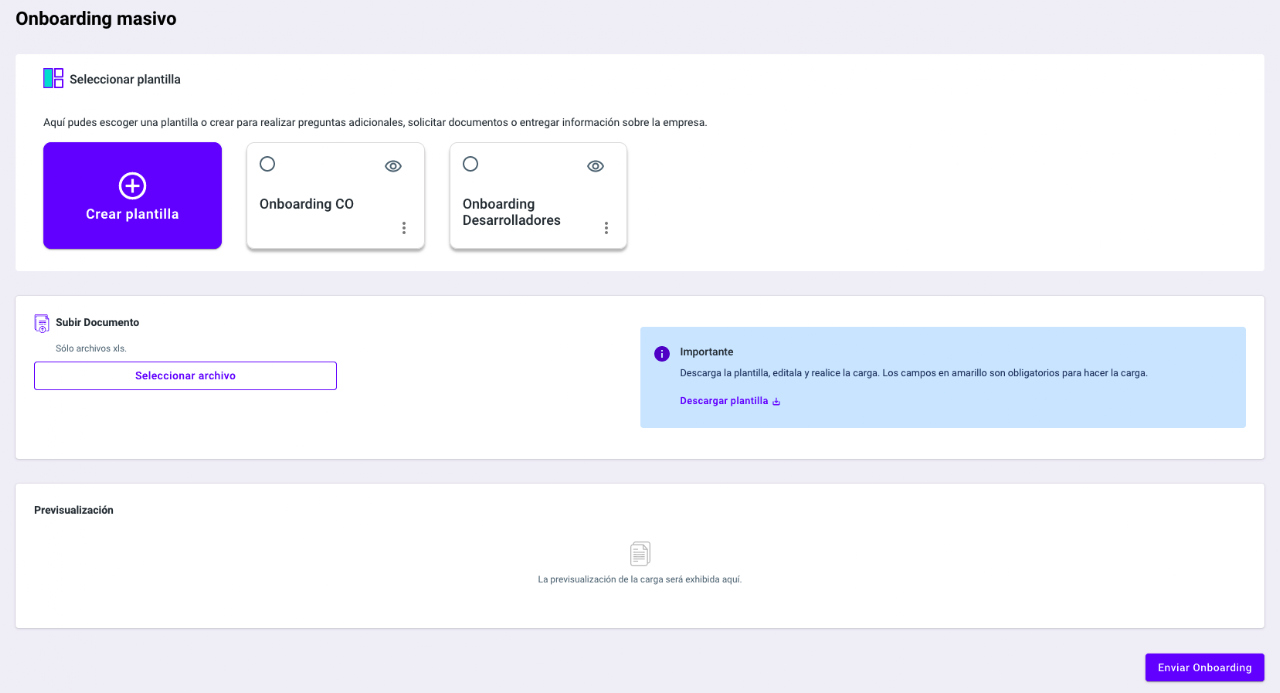
Download the Excel file (XLS) and fill in all the columns with your candidates’ information.
Once filled out, click "select file" and choose the file from your computer.
Nala will upload the file and validate for you if the information is correctly filled. In the preview panel, you can see any errors to fix and re-upload the corrected file.
If your file has no errors, complete the action by clicking "send onboarding" and emails will automatically be sent to all candidates loaded in the template.
Onboarding Roles
You will find different options depending on the role you are using:
Administrator and Onboarding Administrator:
Creates the entry of new candidates and edits the list of existing candidates in an orderly and easy way.
Can view their profile, send feedback, and mark as hired or withdrawn.
Country Administrator:
Creates the entry of new candidates and edits the list of existing candidates in an orderly and easy way.
Can view their profile, send feedback, and mark as hired or withdrawn.