Bulk upload
Step by step

To start, go to the "Upload bulk file" module.
On the right, you’ll see a blue box where you can download the template. This will download an .XLS (Excel) file to complete.
⚠️ We recommend downloading the template each time you upload a new file to ensure you are using the most up-to-date version of your employee database in Nala.
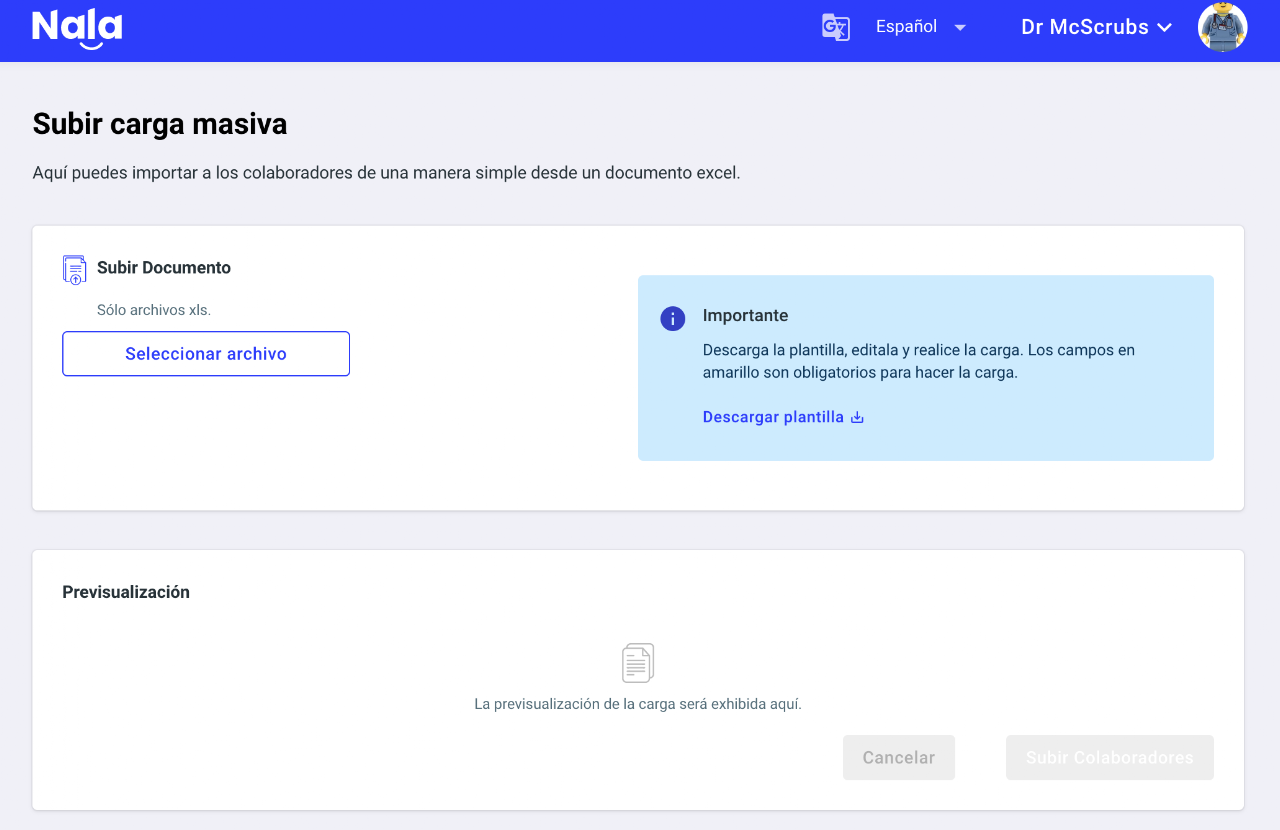

Once you download and open the file, you will see that some columns are highlighted in yellow, which means these are mandatory fields for Nala and must be included to update the information correctly.
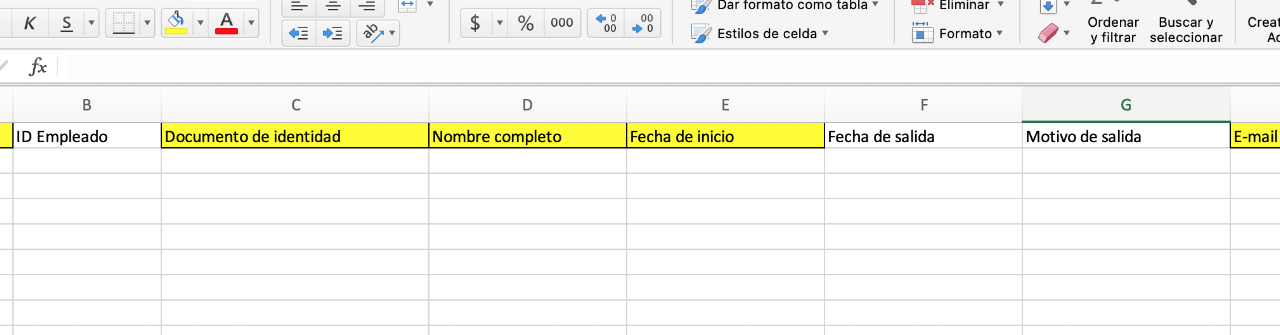

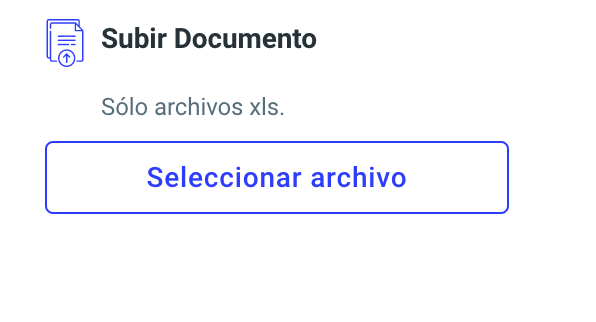
To upload employees in bulk, make sure your file is ready and return to Nala. Click “Upload bulk data”, then click “Select file.”

You will see a preview at the bottom of the screen. Here you can confirm if everything is correct or if there is any row with incomplete or incorrect information.
If this happens, click “Cancel”, fix the file on your computer, and upload it again so Nala can validate it once more.
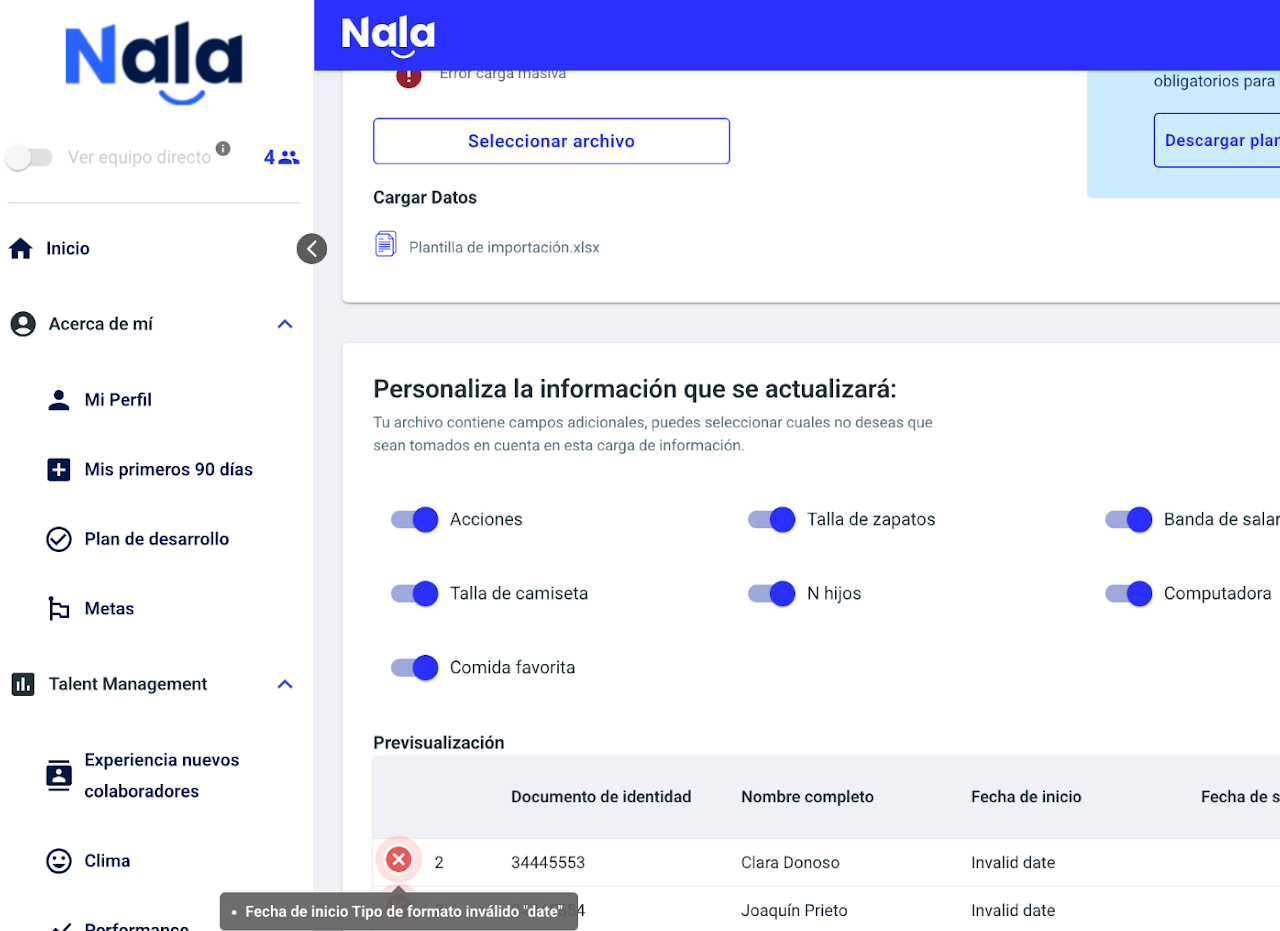

If the preview is correct, click “Upload employees.” Bulk upload will begin, and when finished, the platform will notify you. Then you can close the window.
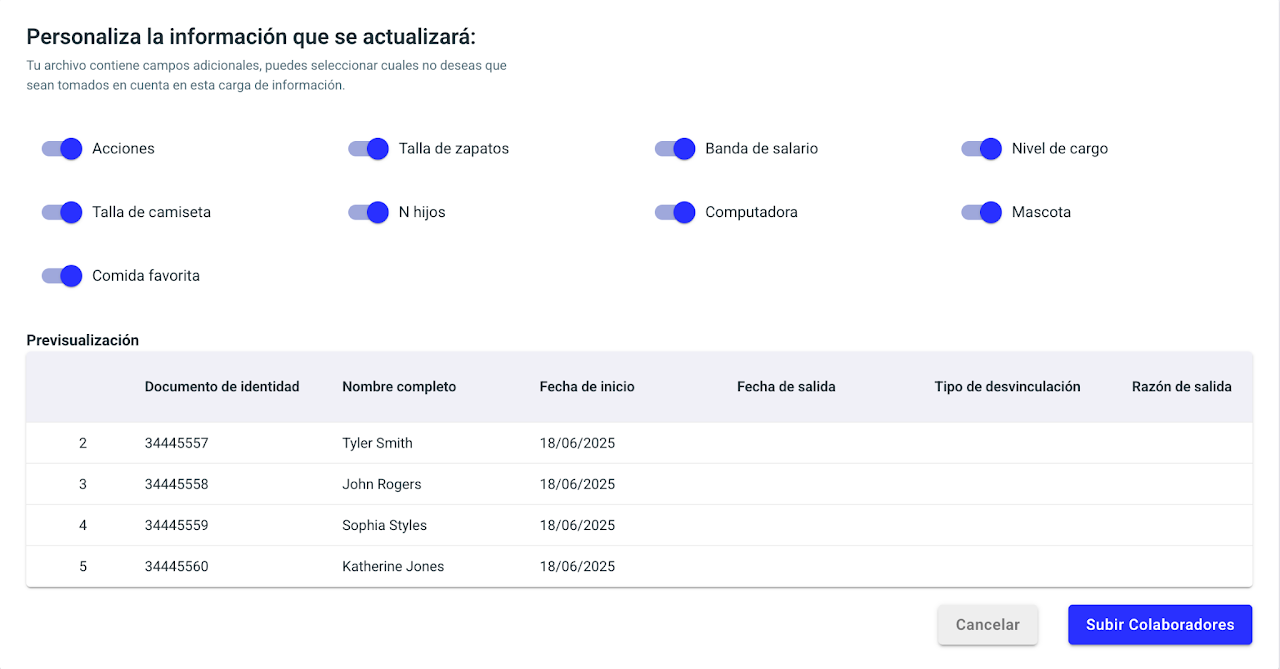

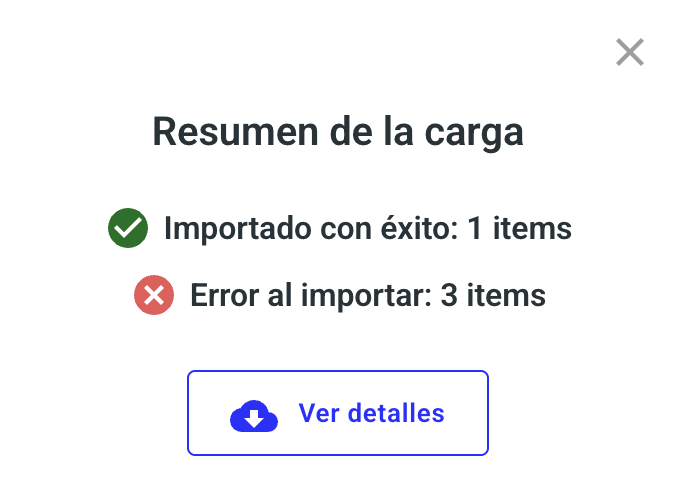
Once the upload is complete, Nala will notify you immediately. You can close the window or download a CSV file with error details.
To avoid problems, make sure the email and ID of each employee match what’s already in Nala. If this information is not aligned, the upload will not process correctly.