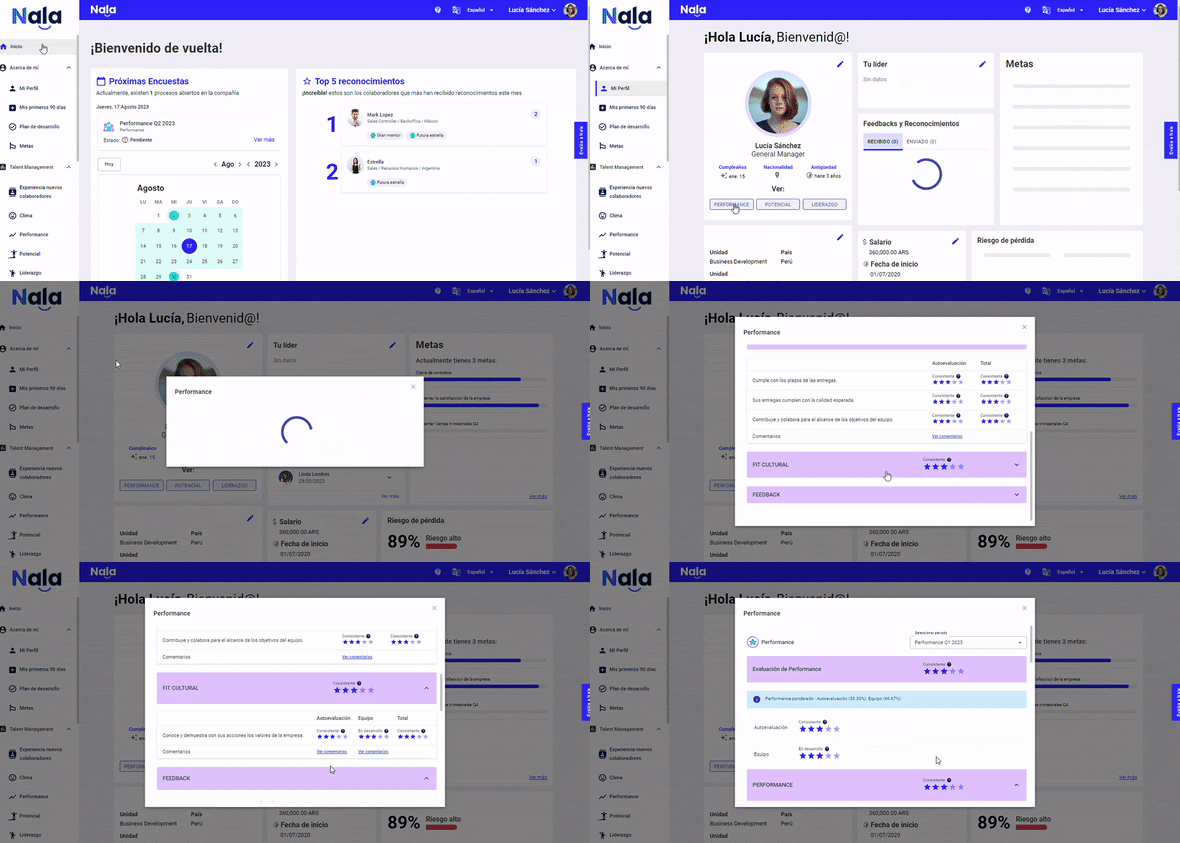
Performance
During evaluation
How do I evaluate my team?
Evaluating your team in Nala is a simple process, but there are some best practices that will help you do it more efficiently and fairly:
1. Evaluate your entire team at once
As a leader evaluating your team or as an employee evaluating peers and internal clients, where applicable, you can evaluate everyone in a single flow. Select "see more" then "Start" to open a matrix.
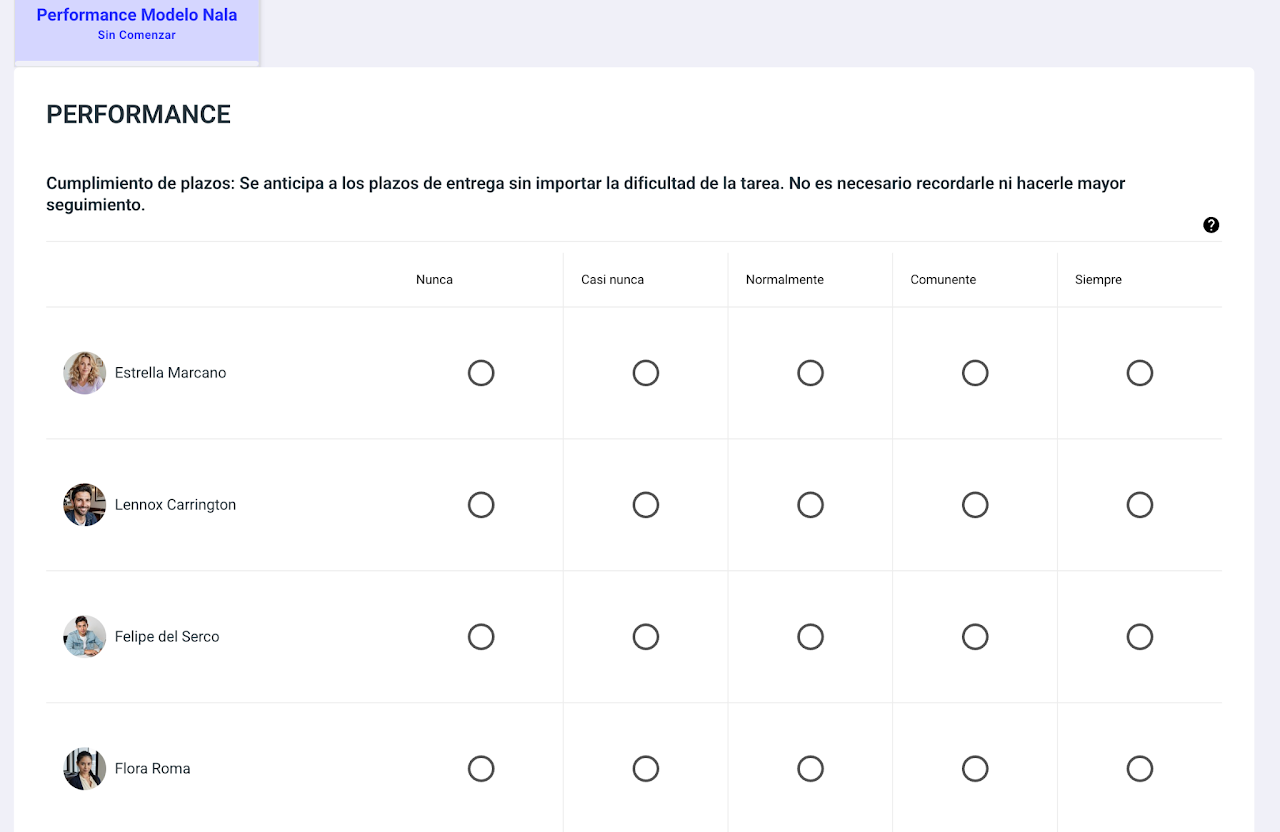
👉 This is the format we recommend because:
It allows you to save time
It facilitates comparison between people
It helps reduce bias and maintain consistent criteria
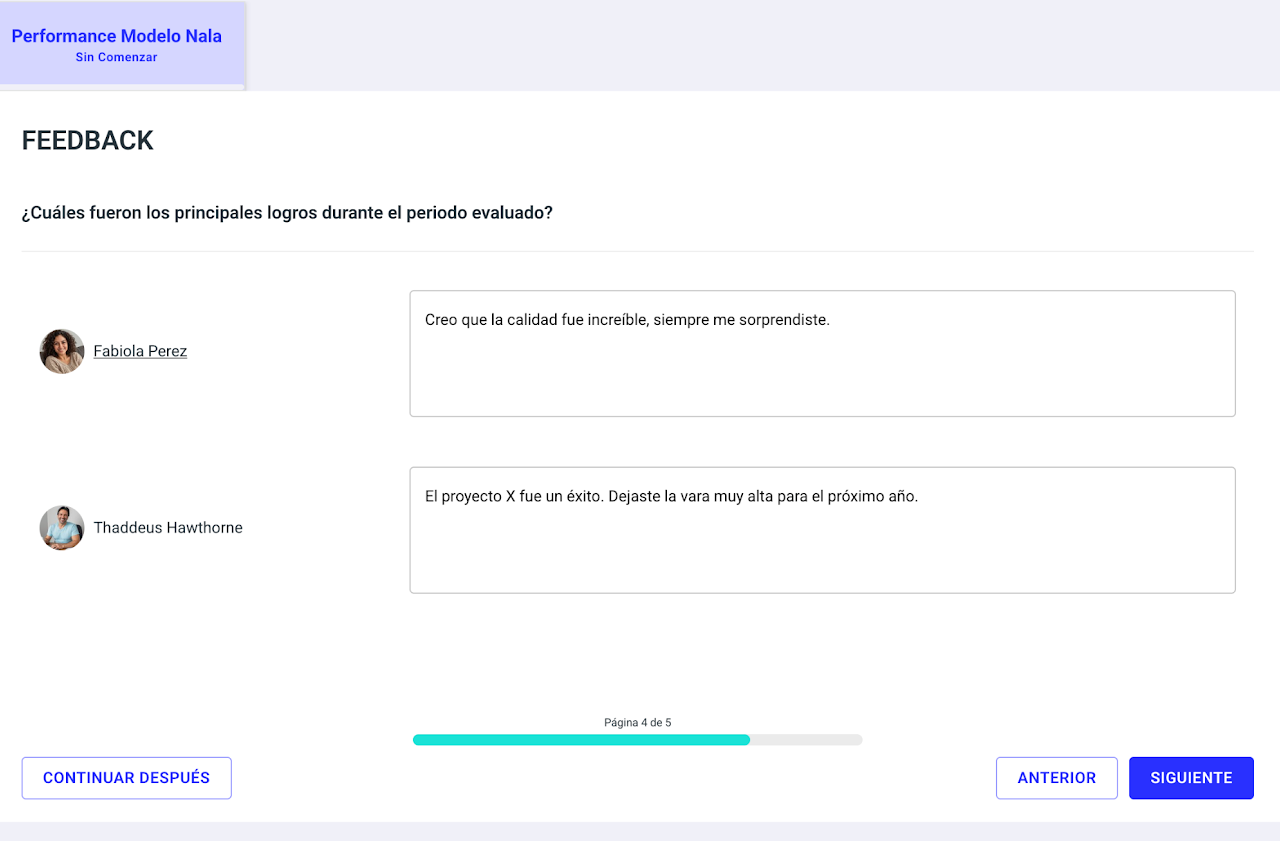
2. Use open-ended questions to give valuable feedback
If your evaluation includes open-ended questions, take advantage of that space to provide concrete feedback.
💡 Some recommendations:
Highlight specific strengths
Mention clear improvement opportunities
Be constructive and actionable
This is key for the person to understand what they are doing well and how they can keep growing.
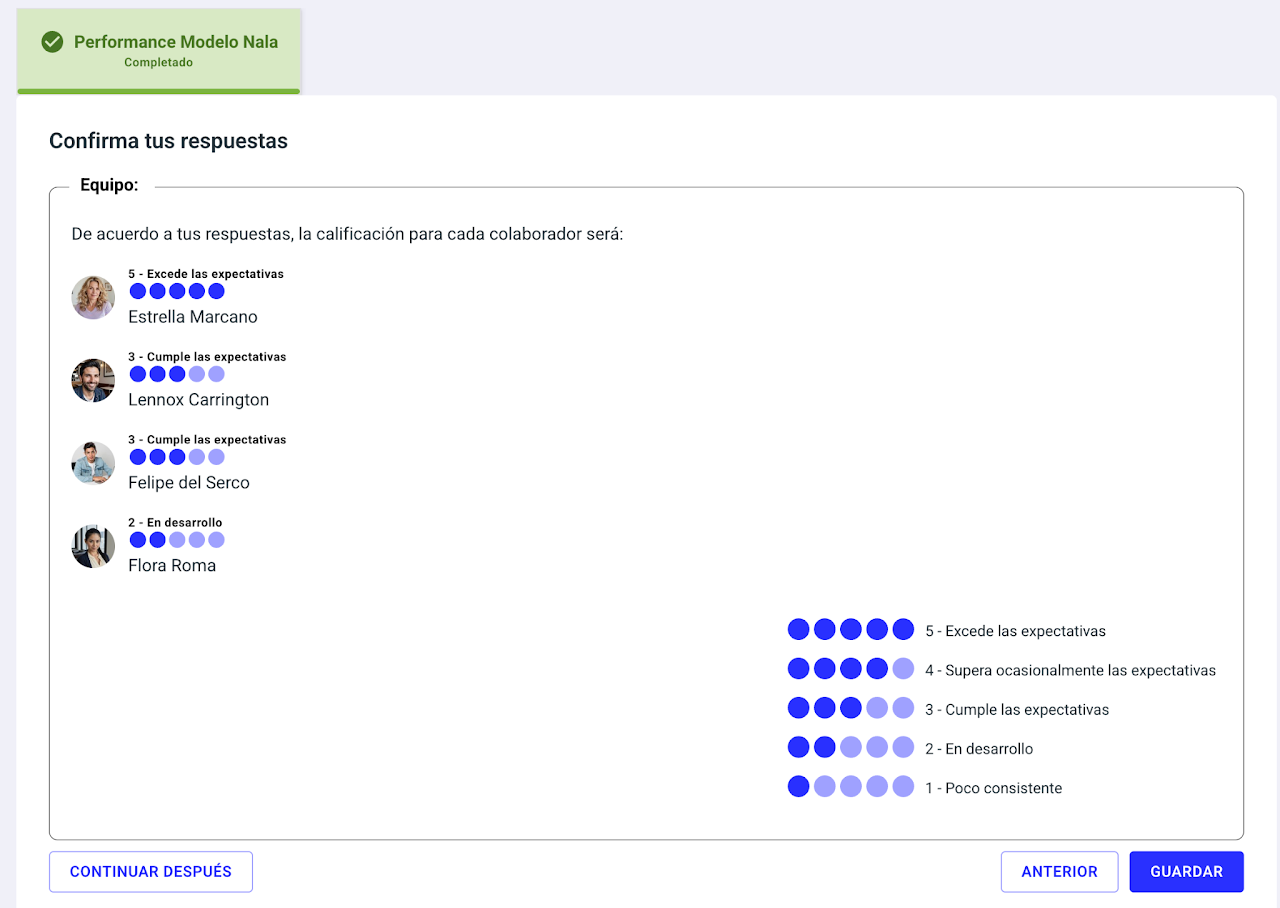
3. Review the score before submitting
Before submitting your evaluation, you will see the final score that will be reflected in Nala.
👉 At this step you can:
Check if the rating is consistent with your answers
Go back and adjust anything necessary
Can I select peers for performance evaluation?
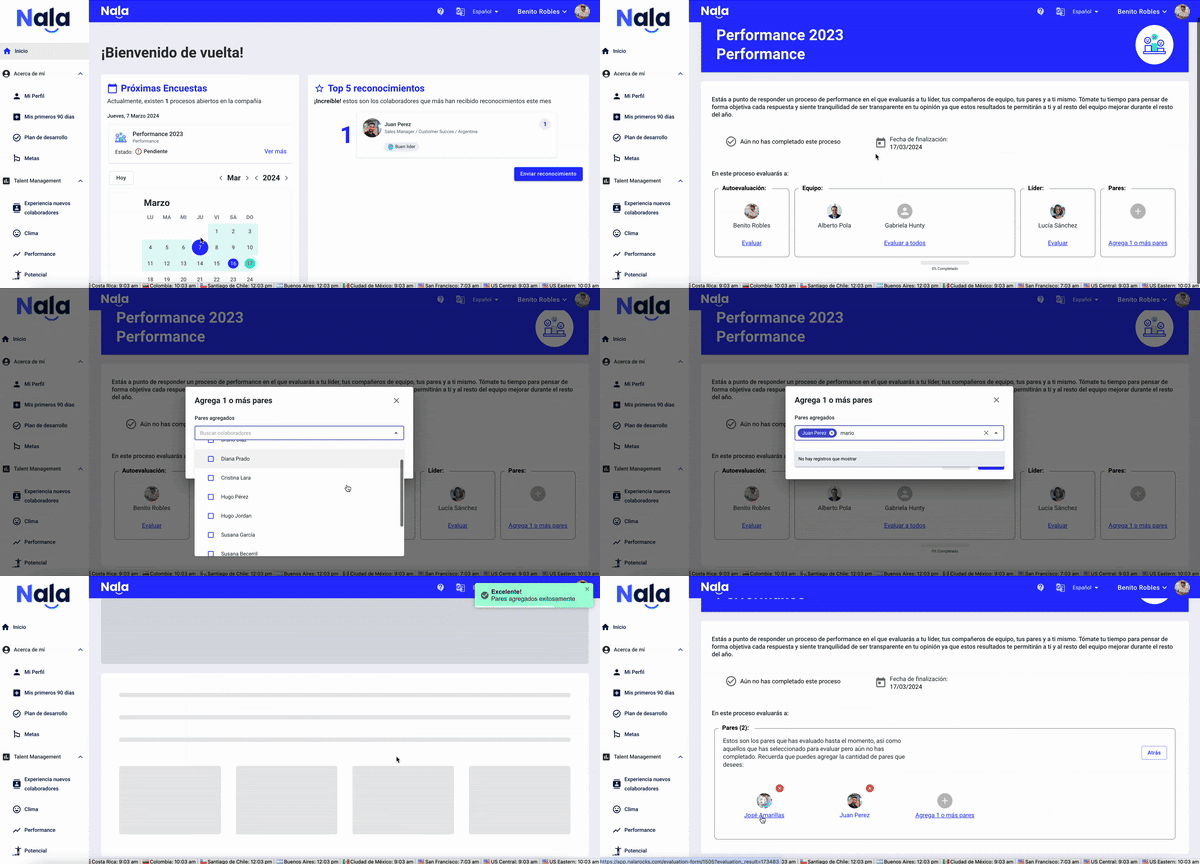
Yes, as long as your organization has enabled this option, you can choose the people you will evaluate as peers.
We know that we don’t always work only with people on our same team. Often, we collaborate more closely with people from other areas. That’s why you can select those who truly work with you and those you believe you can provide valuable feedback for their development.
Important:
Peer evaluations, just like those you make about your leader, are completely confidential.
The evaluated person will only see consolidated results, without access to individual answers or the identities of those who evaluated them.
Can I see the self-evaluation results of my team?
As a leader, you have access to the self-evaluation results of your team, allowing you to compare your evaluations with each employee’s perception.
How to do it?
In goal evaluations:
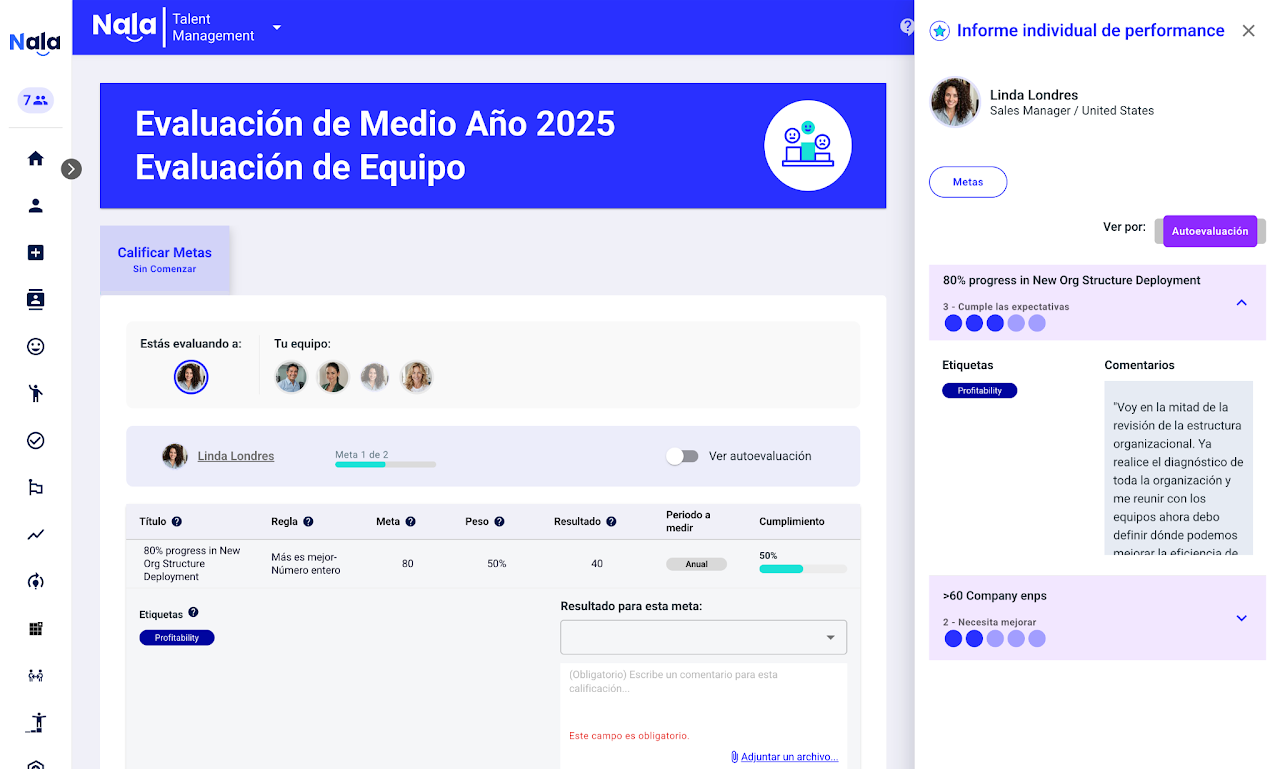
If the option is available, you can turn on the “View self-evaluation” switch.
This will let you review the result per question and compare it directly with your evaluation.
From the employees list:
Click on the employee's name (when it appears underlined).
A panel will open on the right with detailed results.
Important:
You can only see these results if the employee has already completed their self-evaluation.
This information is available only to you as a leader.
How to evaluate goals?
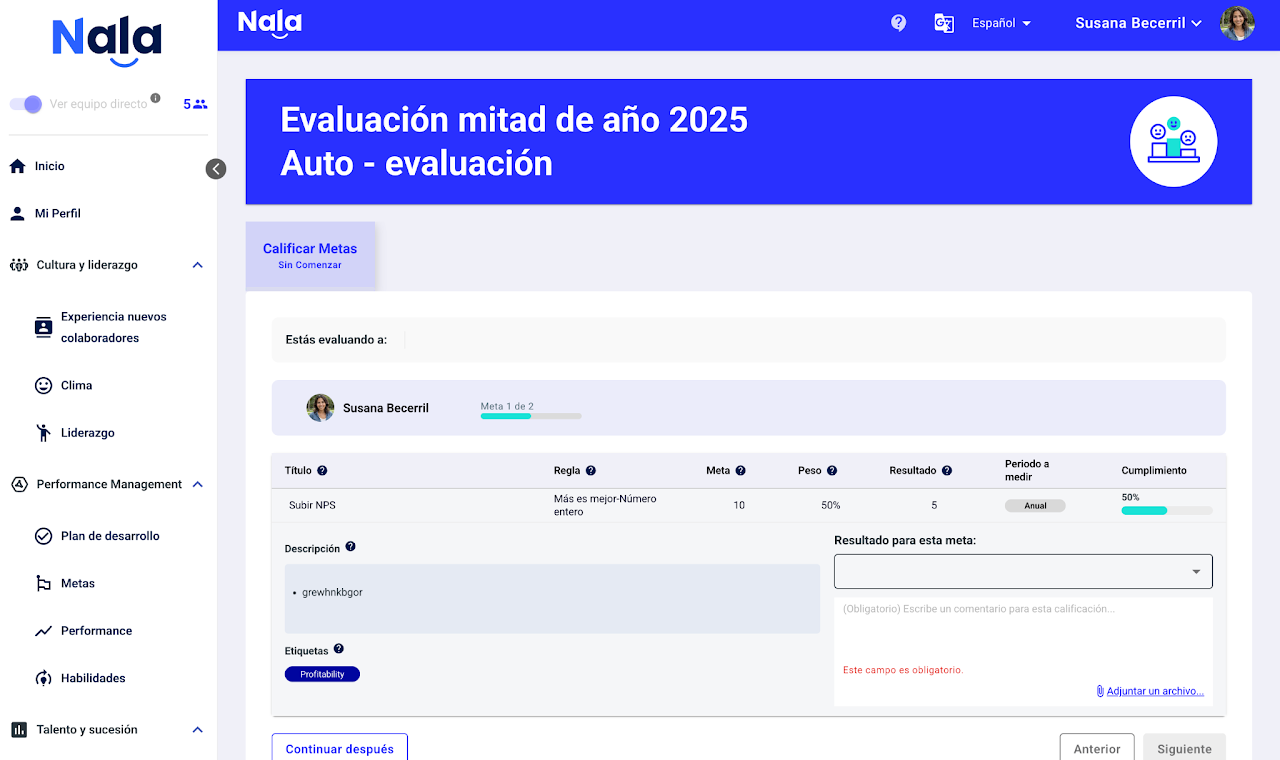
If goals are included in the performance evaluation process, you can evaluate them directly from the evaluation form.
First, you’ll receive an email notification. Then, you can log in to the platform and access the evaluation from the homepage, where it will be available.
Within the form, you’ll find a specific tab for Goals. In this section, you can:
Define the result of each goal, corresponding to the final fulfillment level of the objective.
Add comments to contextualize the evaluation.
Upload supporting files (optional) to substantiate or justify the fulfillment.
Once the evaluation is complete, the goal results cannot be edited, so it’s important to review them before submitting.
Individual Performance phases
Phases show each employee’s progress through a review. Employees in the same process may be In progress, in Calibration, in Feedback or Finished. Managing progress by groups lets you move selected employees without waiting for the whole organization to finish a phase.
Administrators with management permission, within their access scope. Available phases and destinations depend on the process configuration.
Review the phases
Open Performance Management > Performance, select the period and review each phase’s count. Open a phase’s details to check employees and participation.
Prepare the move
Select Manage progress by groups. Choose the source phase and an allowed destination; filter and select the employees or groups to move.
Review and confirm
Check the preview, scope and consequences before confirming. Review the result and open View movement history. Generate a new preview if the selected population has changed.

Finished does not necessarily mean every activity is complete. Moving employees does not permanently close the process, and returning to In progress does not erase submitted answers. When the process closes, employees with no evaluations become Finished with a No evaluation status and receive no individual report. Participation downloads are available in phase details; movement history has no download option.
How are peer and team responses shown in individual reports?
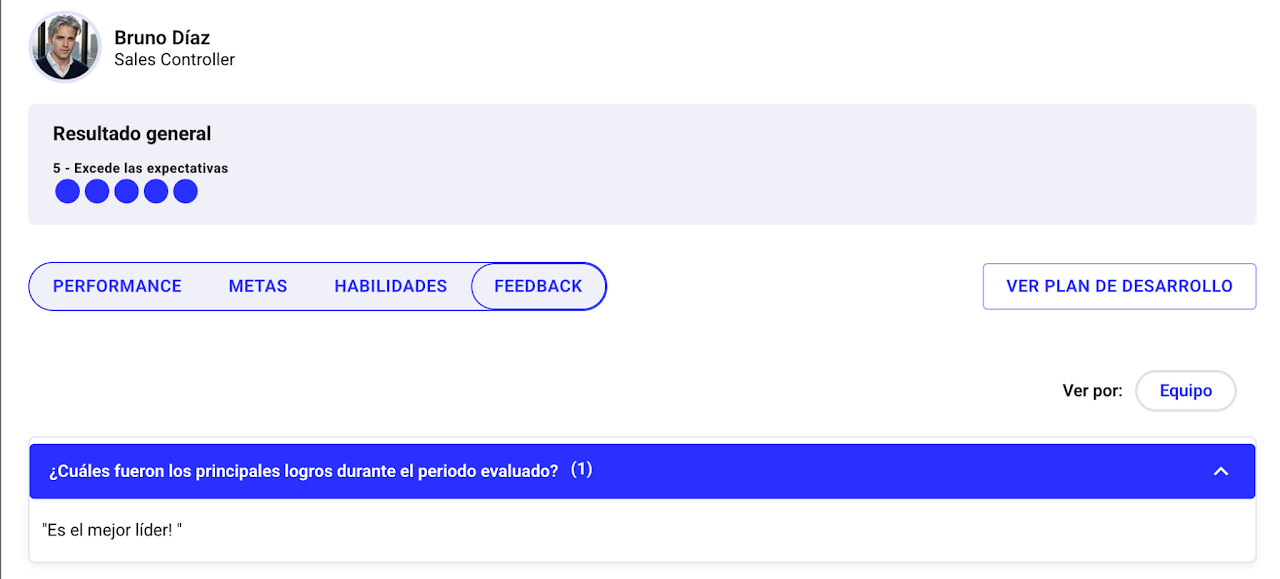
Evaluations made by peers, internal clients, and team are confidential. In individual reports, the evaluated person can see a consolidated result of how they were perceived, but will not have access to individual responses.
This promotes more honest and constructive feedback while protecting the confidentiality of participants in the process. Therefore, we recommend answering transparently, always maintaining a professional tone focused on development.
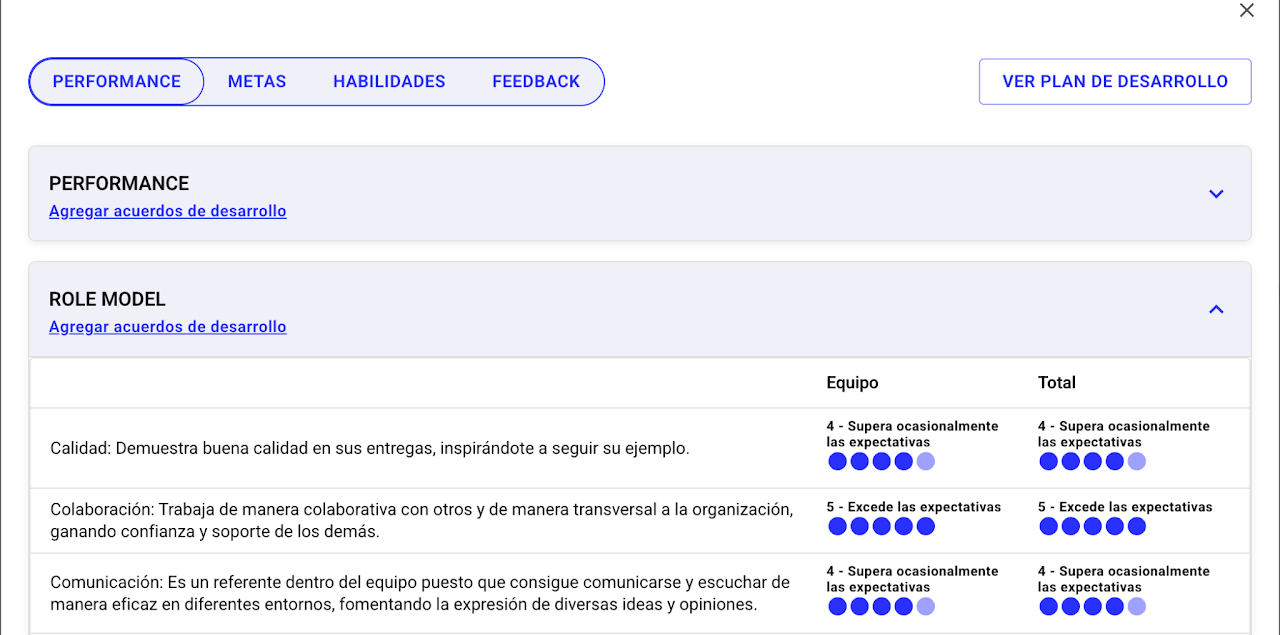
If the evaluation has open-ended questions, they will be grouped by actor (team, peers, or internal client) and displayed in "Feedback"
Calibration
Manual Performance calibration
Calibration lets you review performance results before publication. In manual mode, you complete an independent evaluation with the answers that should appear in the calibrated result. Managers’ original evaluations, comments and answers are preserved.
Administrators and leaders with calibration permission, for employees within their scope and when the process allows the action.
Open calibration
Open Performance Management > Performance and select the period. Find the employee in Performance - Team and open the calibration pencil. If the employee is missing, check the filters, including With manager evaluation.
Complete the manual evaluation
Choose the available manual mode and answer the applicable questions, goals and skills. Review the preview of answers, sections and final score; this mode requires more than choosing a target score.
Explain and save
Select the calibration reason, using Others if necessary. Enter a justification: an empty field or whitespace alone prevents saving. Save and check the calibrated result in the report.

Automatic mode adjusts to a target rating; manual mode preserves the scores selected in the independent evaluation. Calibration does not alter managers’ original answers or remove other evaluators’ contributions. Access depends on permissions and process status.
Prepare and deliver Performance feedback
Feedback records the results conversation and its strengths, opportunities and development agreements. You can prepare a draft and review the individual report while writing. Saving a draft and sending feedback are separate actions.
Administrators and leaders authorized to deliver feedback, within their scope. Administrator access does not automatically permit delivery on behalf of any manager.
Open the editor
In Performance - Team, select Feedback pending or Feedback drafted. You can also open the relevant task from Home. Check the employee and period before writing.
Prepare the conversation
Review the report, record the conversation date and write the comment visible to the employee. Edit suggested feedback when available. Keep internal notes separate. From Home, the report appears beside the editor; Hide report and View individual report preserve what you have written.
Save or deliver
Use Save for later to keep a draft. Send when your permissions and the phase allow it. If you deliver on behalf of the direct manager, review the confirmation: after sending, other leaders can no longer deliver the same feedback.

Save for later does not deliver feedback. Result publication and receipt confirmation follow the process configuration; requirements differ across processes. Internal notes do not appear as the comment visible to the employee.
Feedback stage
What is the feedback stage in performance evaluation?
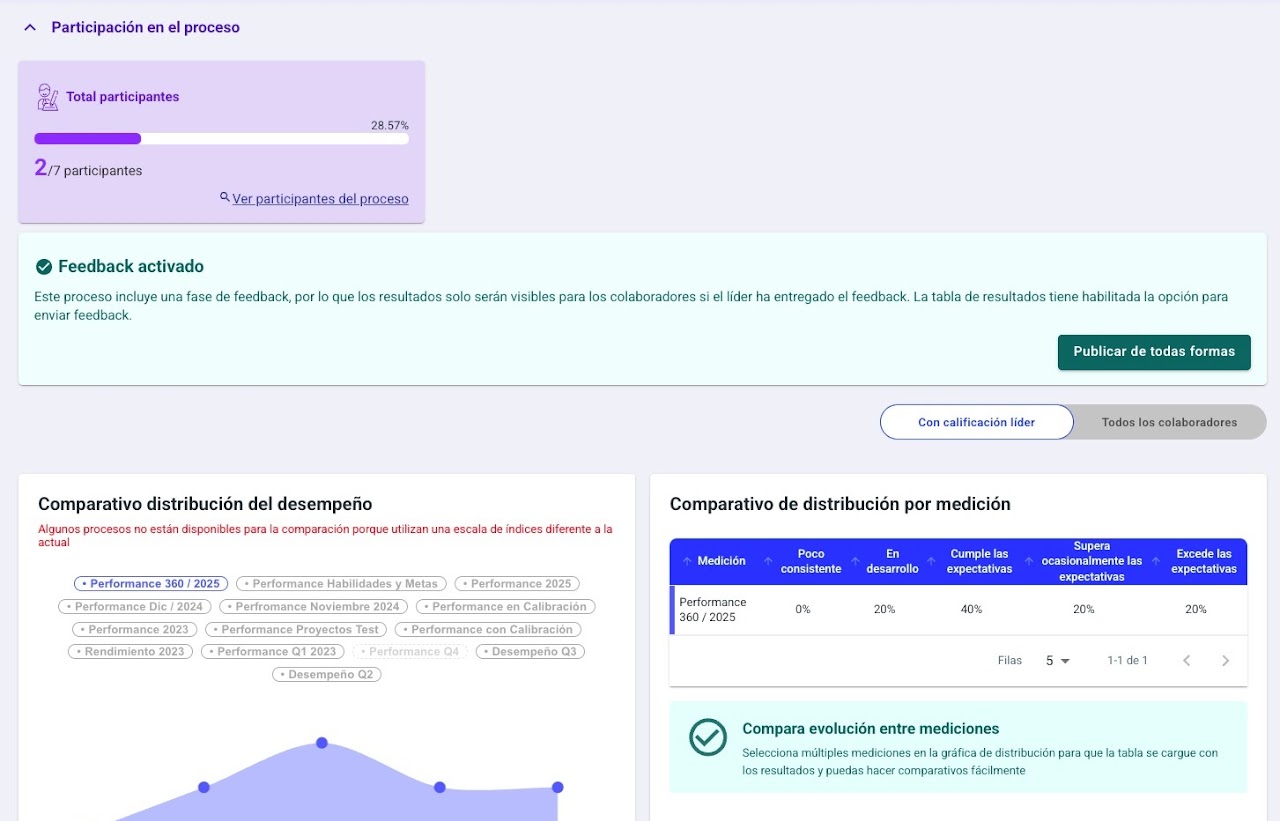
The feedback stage is when the organization ensures that each employee has a conversation with their leader about their results before they can view them on the platform..
During this stage:
The Administrator or Performance Administrator enables this space in Nala.
Leaders (direct supervisors) must confirm that they had the feedback conversation with their employee.
They can send general feedback that will be visible in the individual performance report.
Attach hidden comments for the employee about development plans, follow-ups, etc.
Once confirmed, the platform invites the employee to:
Confirm the conversation happened
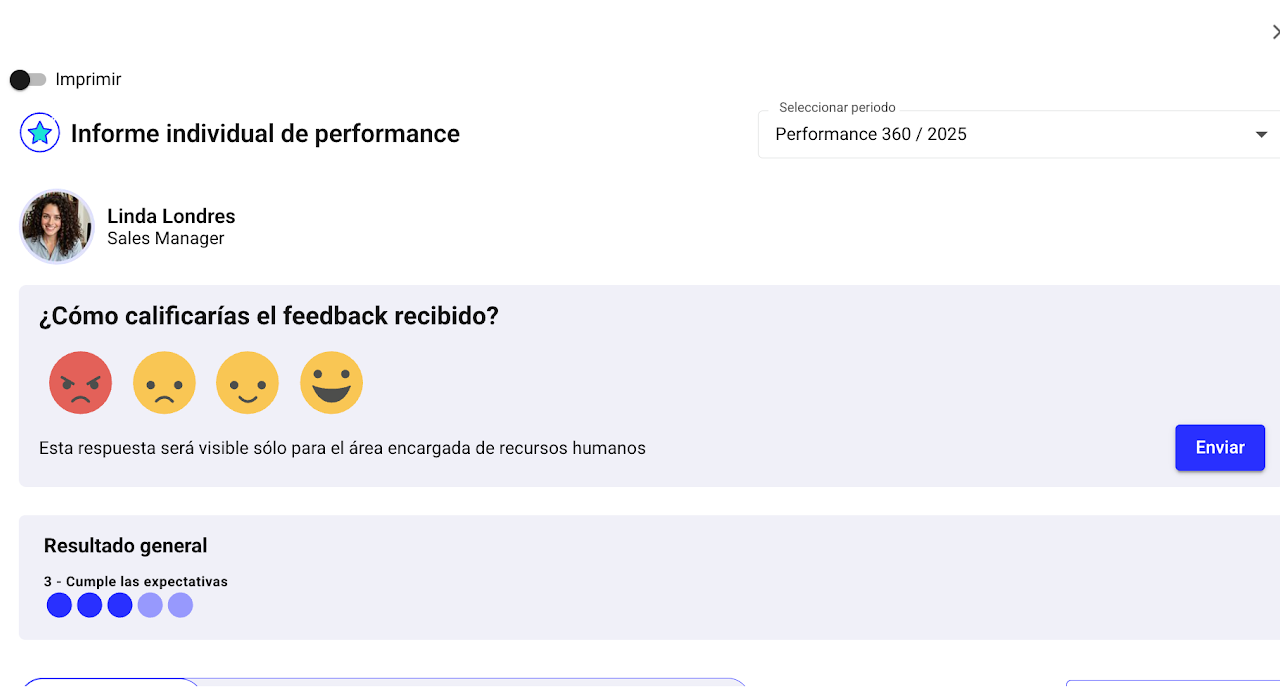
Evaluate the quality of that meeting
👉 Employee responses are confidential and can only be seen by:
Administrator
Talent Manager
Performance Administrator
Leaders do not have access to these comments.
Can results be released without giving feedback?
Yes. The admin can select the option “Publish anyway”, allowing employees to see their results even if their leader has not yet confirmed the conversation.
This:
Does not remove the feedback stage
Does not delete the associated information
Only allows early viewing of results
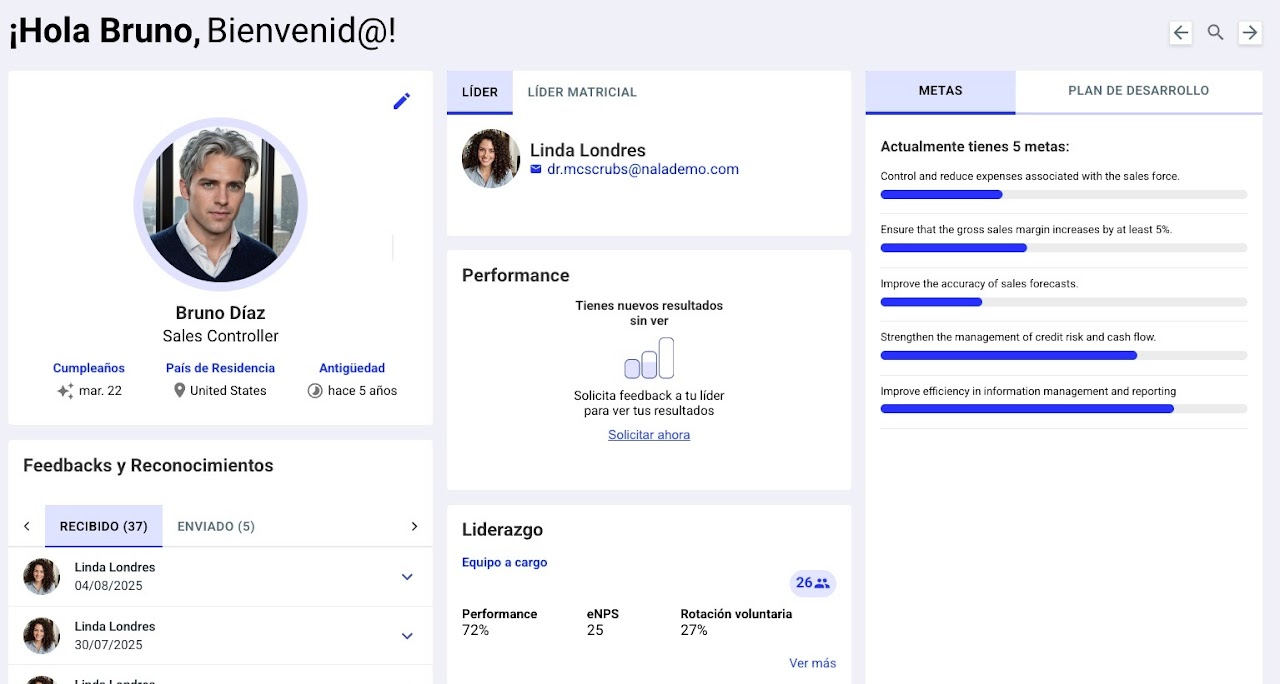
Can I request feedback if I haven’t received it yet?
Yes. If the feedback stage is ongoing, you can:
Go to your profile
Check the Performance card
Click on “Request feedback”
This will send an automatic notification to your leader reminding them to have and record the conversation.
How do I confirm and see my results?
Once the feedback verification stage has started, you can manage the process directly from your profile.
1. Request feedback (if you haven’t received it yet)
From your profile, on the Performance card, you can click “Request feedback” to send an automatic reminder to your manager.
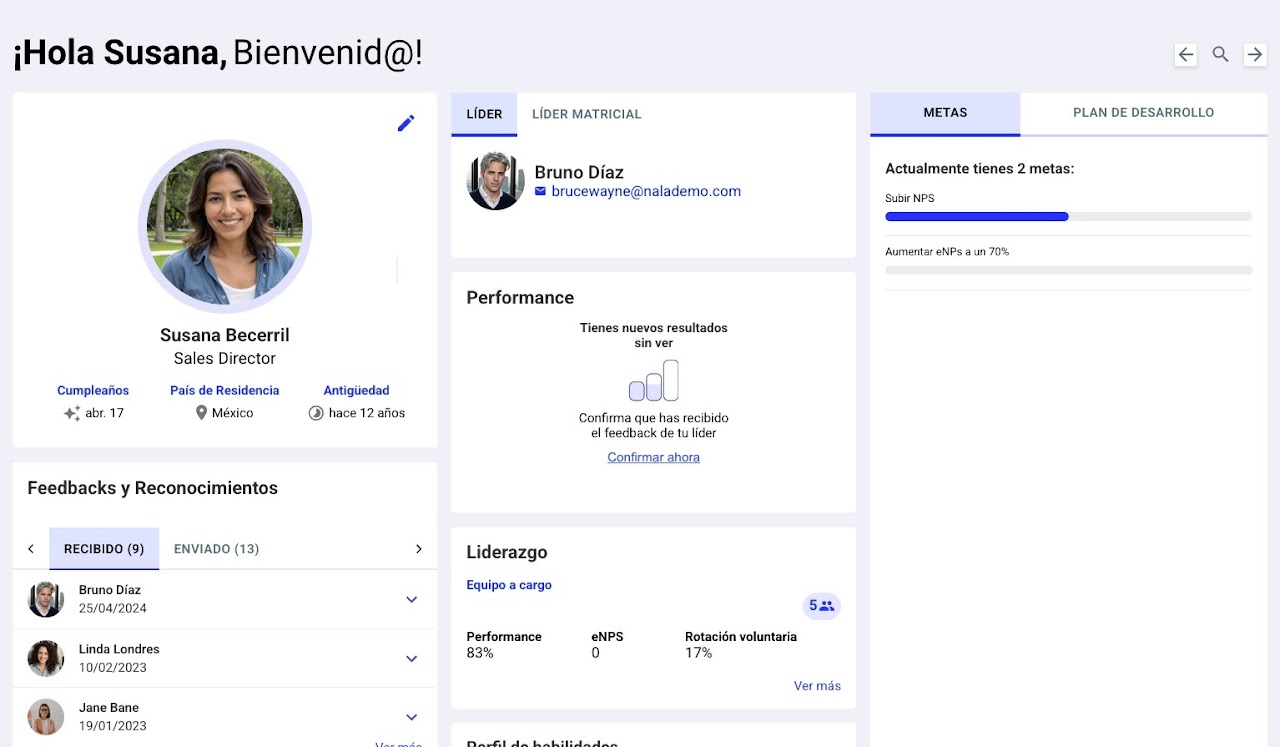
2. Confirm the feedback received
After your leader has had the conversation with you, you can:
Click “Confirm now”
Confirm the conversation happened
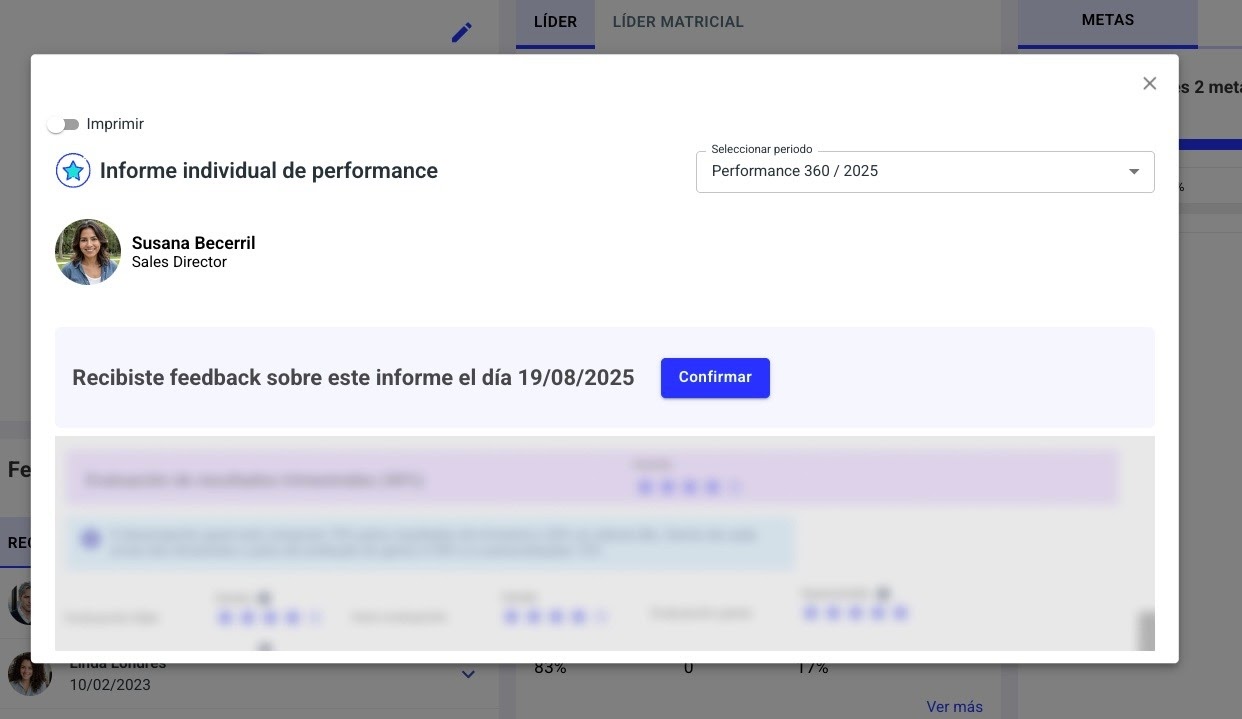
3. View your results
Once feedback is confirmed, your results will be available to view on the platform.
4. Rate the conversation (optional)
You can rate the feedback session if you want to share your experience of the conversation.
Results
How to see the results?
How to see my team’s results:
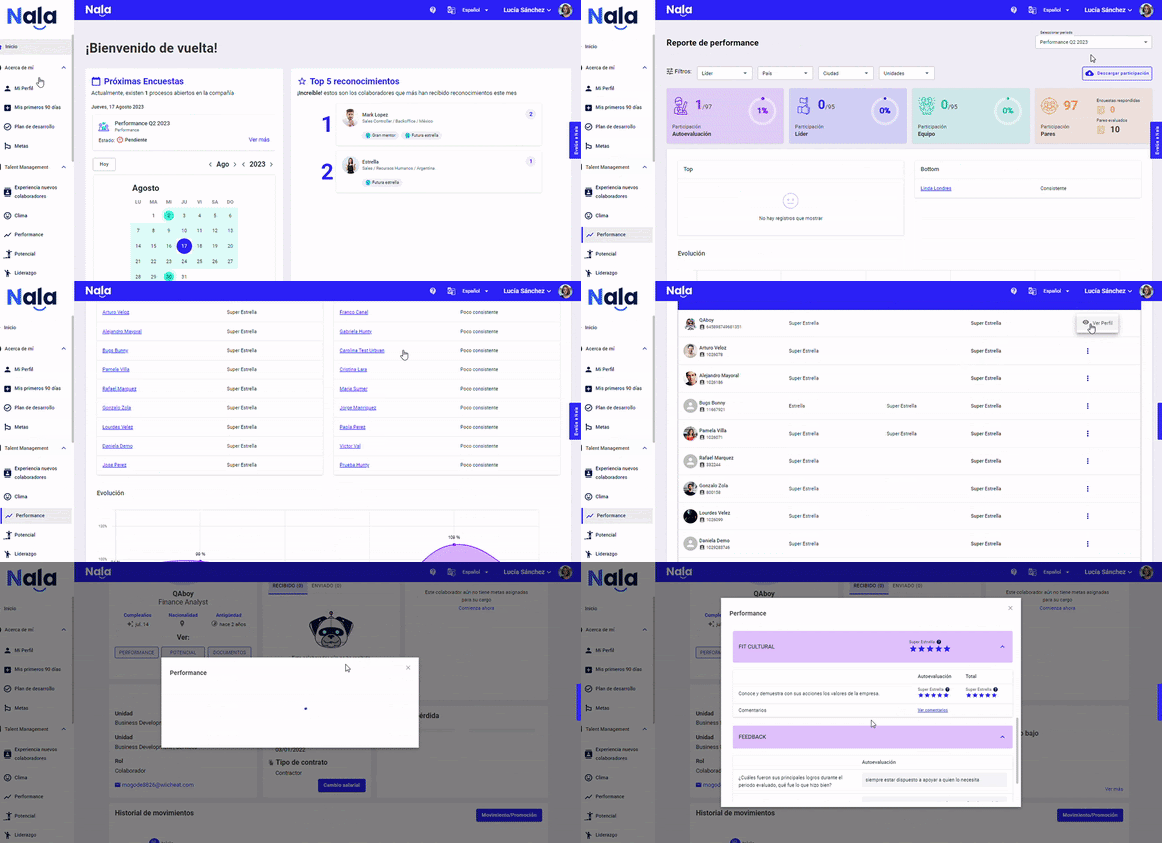
How to see my results: