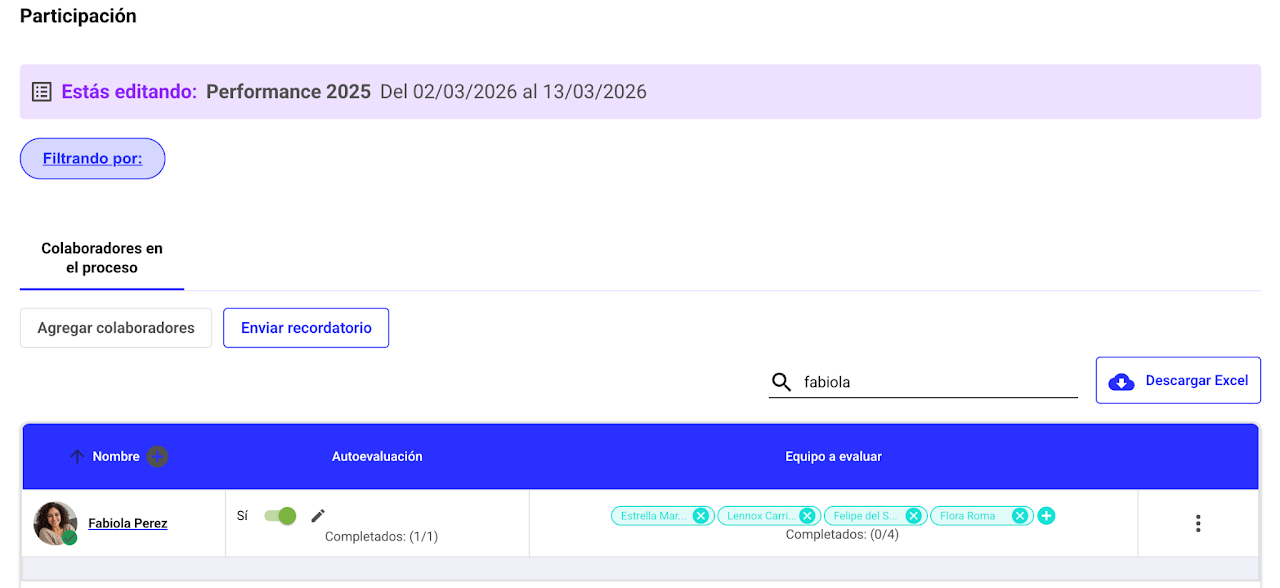
Manage Surveys and Processes
The Planning module is exclusively for administrators. This module is not available for employees.
Here you can view the scheduling of processes, edit, create, and manage ongoing processes.
All processes are 100% customizable; you decide what is asked and who answers what. The processes available for planning will depend on your role.
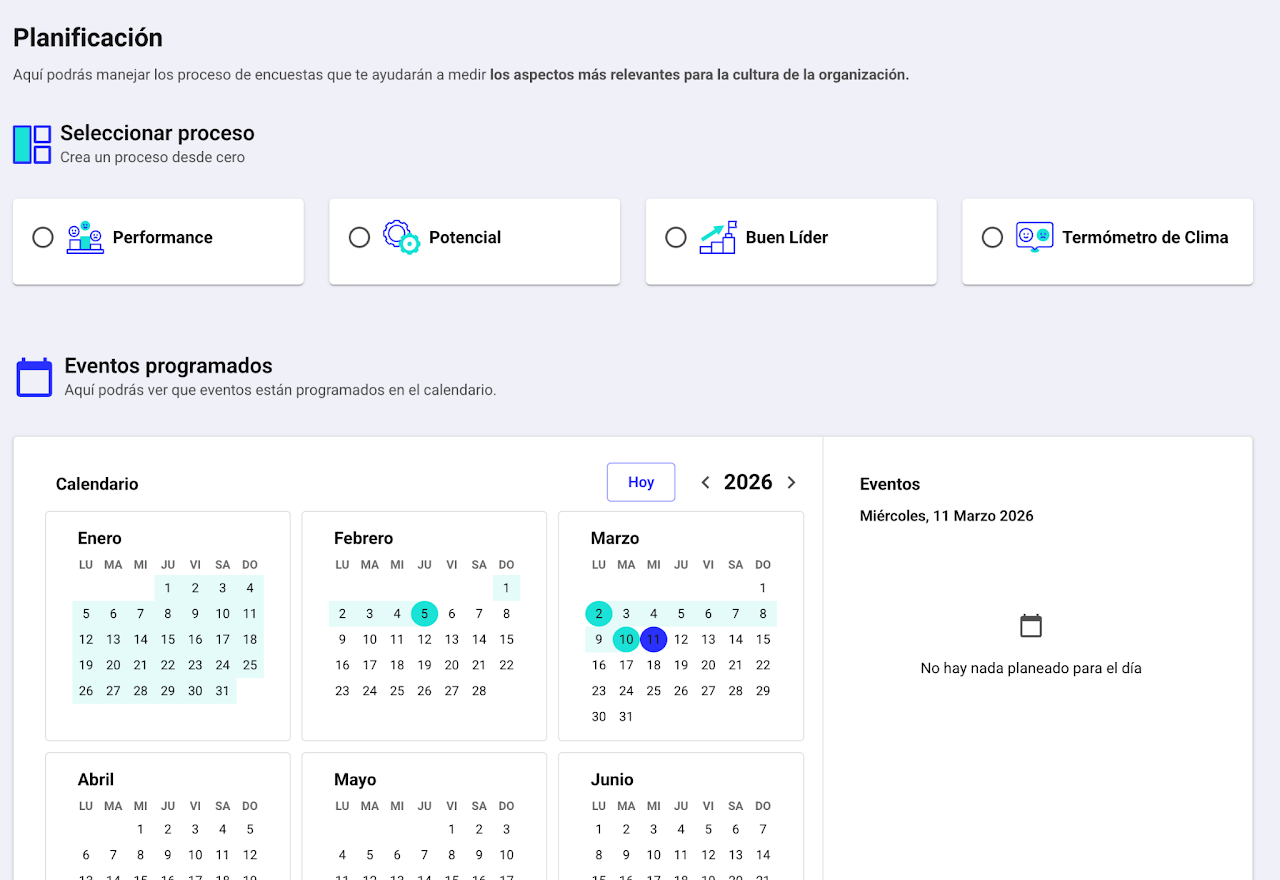
Available process types:
Performance
Potential
Good Leader or Leadership
Climate Thermometer
Frequently Asked Questions
Process Planning
How to plan a process?
Follow the step-by-step guide to understand each part of the configuration process:
Plan a process step-by-step:
Log in to Nala.
Navigate to the Planning section.
Select the process type you want to create
Decide if it will be a test or a formal process
⚠️ Important: once scheduled, if the process is a test it cannot be changed to a real process or vice versa.

Select or create the audience who will participate in the process.
Define the process template and, for performance, which components will be evaluated. You can combine them freely:
Question battery: create custom forms with open and closed questions, different actors, sections, and more.
Goals: include the goals or objectives for a specific period so employees can assess their objectives and measure progress.
Skills: generate customized forms based on the skills previously assigned in the Skills module. Each employee will be evaluated on their corresponding competencies.
Set the form start and end dates.
Name the process. If your company is global, also enter the name in English and Portuguese.
Configure eligibility by seniority. Define the minimum time employees must have been at the company (e.g., only evaluate performance after 90 days of an employee’s start date).
Set up notifications.
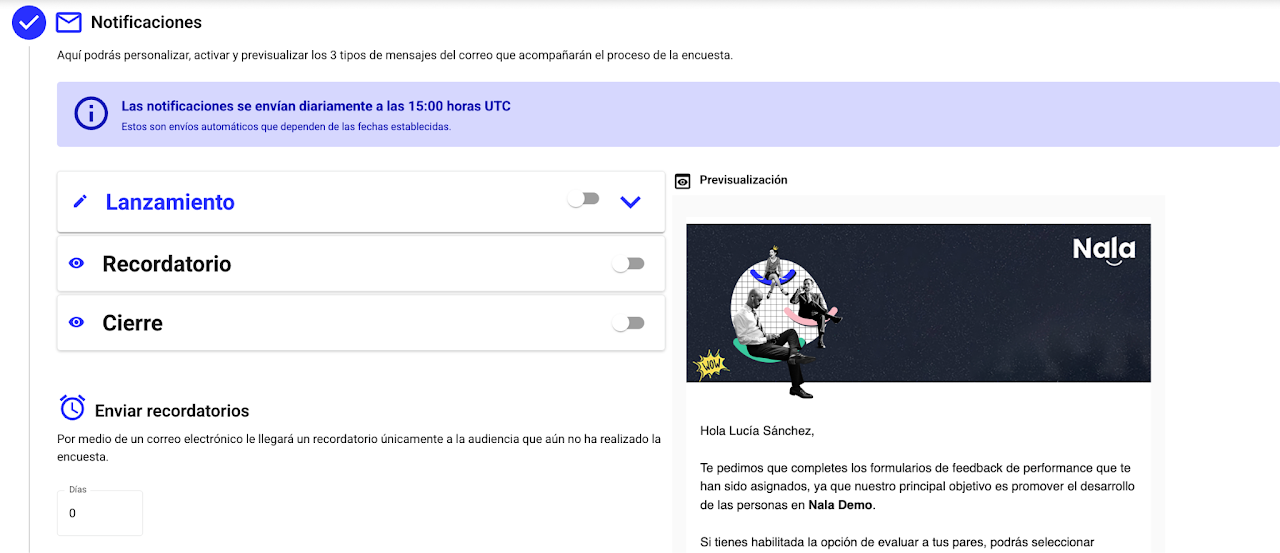
Decide if there will be launch, closing, and automatic reminder notifications.
Edit the launch email in Spanish, English, and Portuguese.
Select if the process will include calibration and/or feedback.
If you enable calibration, results won’t be visible until the admin publishes them.

If you enable feedback, results won’t be visible until the employee confirms they received their feedback.

Set the results scale (according to your response scale). This will serve as the basis for individual reports and the Performance dashboard.
Important: to customize the percentages of the results scale, contact customersuccess@nalarocks.com
Review participation and customize it as needed.
Save the draft or schedule the survey.
If you schedule, the process will automatically publish on the set day at 3:00 PM UTC. You can also send it by selecting the button.
Configure eNPS and confidentiality thresholds
Configure what your climate survey will measure and the minimum number of responses required to display results. These settings help protect team confidentiality.
- When planning the climate survey, decide whether to include the eNPS question. You can exclude it when it is outside the scope of that process.
- Review the minimum response threshold configured for your company and applicable to the process before scheduling the survey. There is no single threshold for every company.
- Review the settings, then save the draft or schedule the process.
If you exclude eNPS, its indicators will not appear in that process’s results. This does not mean responses were lost. Historical comparisons may include eNPS from periods that measured it. Completed processes may use the threshold saved for that process; if no valid value is available, the current company threshold applies.
How to activate Calibration?
Calibration is available for the Performance and Potential process.
Create your own audiences for each evaluation
How to customize a survey?
All templates are customized the same way, some evaluations have slight differences but the core process is the same. For this step-by-step, we will show you how to customize a performance evaluation.
✅ Select a template
then click on customize process.
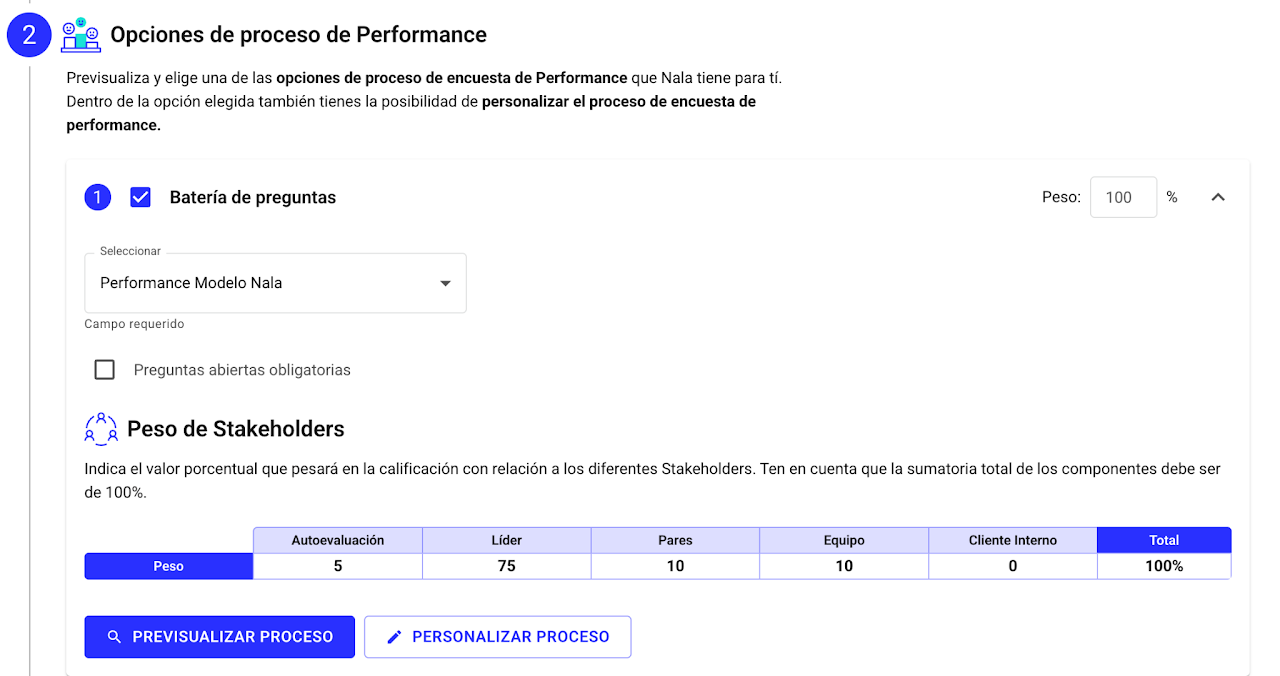
✅ Name the form
Pick a clear and representative name. Remember it will be visible to the entire organization, so make sure it clearly reflects the evaluation’s goal.

✅ Define the stakeholders 👥
Decide who will participate in the evaluation. Here you can:
Enable or disable the different evaluator groups.
Adjust the weight of their responses, assigning more or less impact to each group based on their relevance to the evaluation.
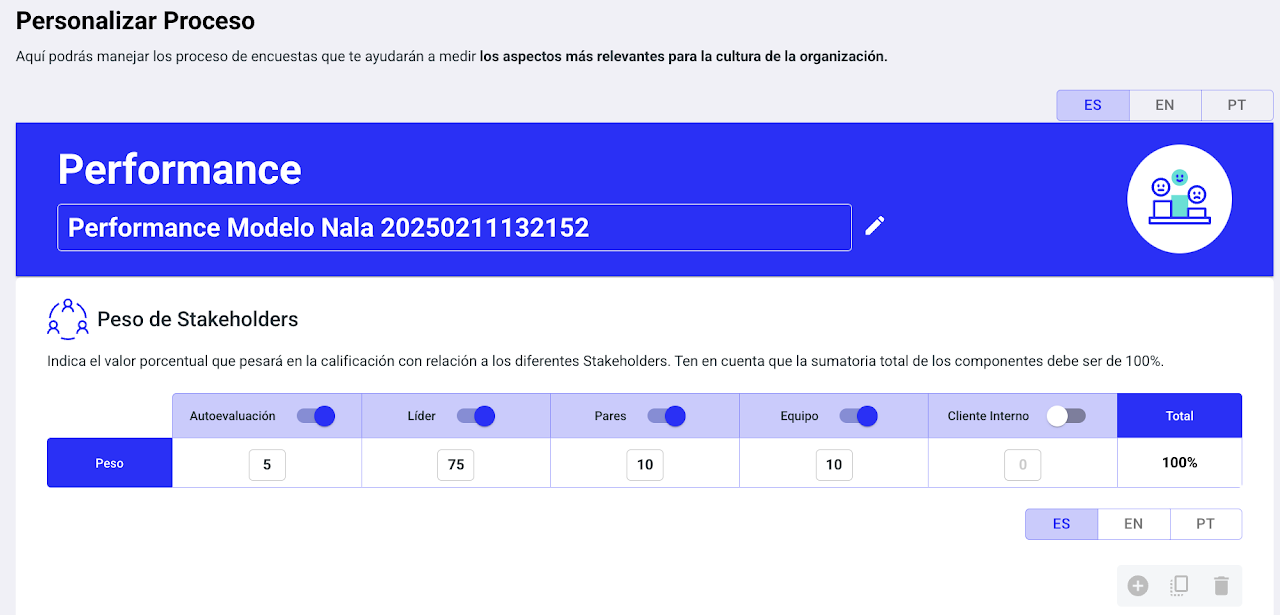
✅ Customize sections and questions
Adjust the content based on what you want to measure. You can:
A. Edit the name of each section.✏️
B. Decide which sections will be available to each stakeholder. If there are parts you don’t want certain groups to answer, you can hide them.
C. Make sure to select each participating stakeholder and assign a weight to their response. This setting is independent of the general weights you set earlier. If you prefer all responses to have the same weight, you can easily set it that way too!
D. Edit the questions if needed; just select the box and type. Don’t forget to update it in all languages.
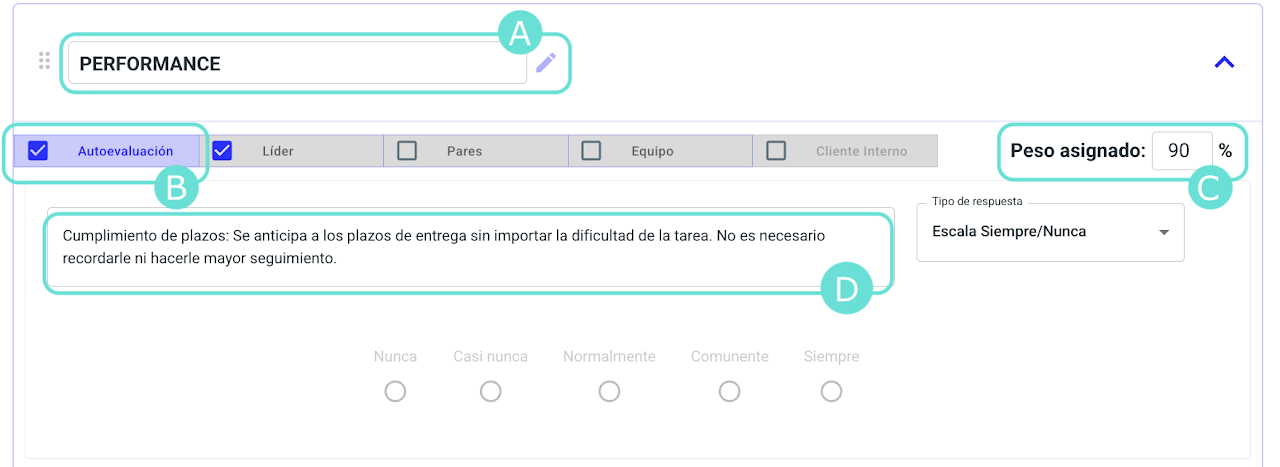
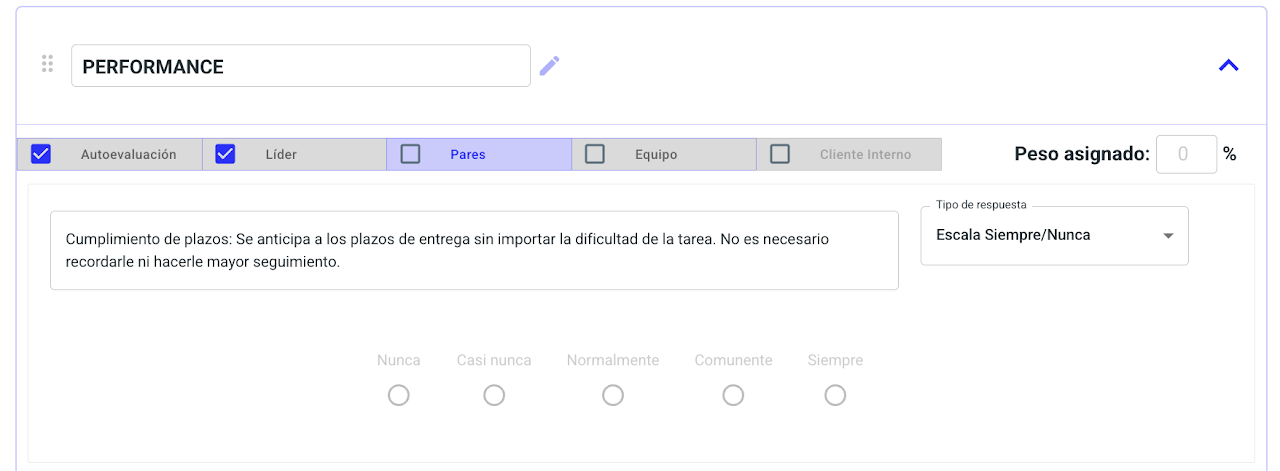
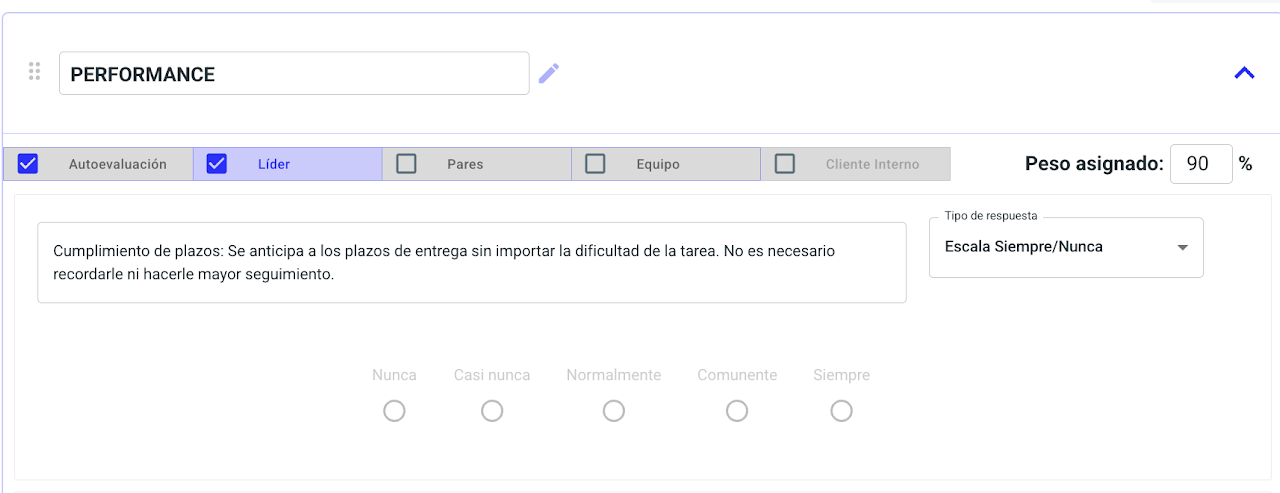
Click on the stakeholder 👆🏻. Their color will change, and you can assign a weight. If you skip this step, the weight will save as 0%.
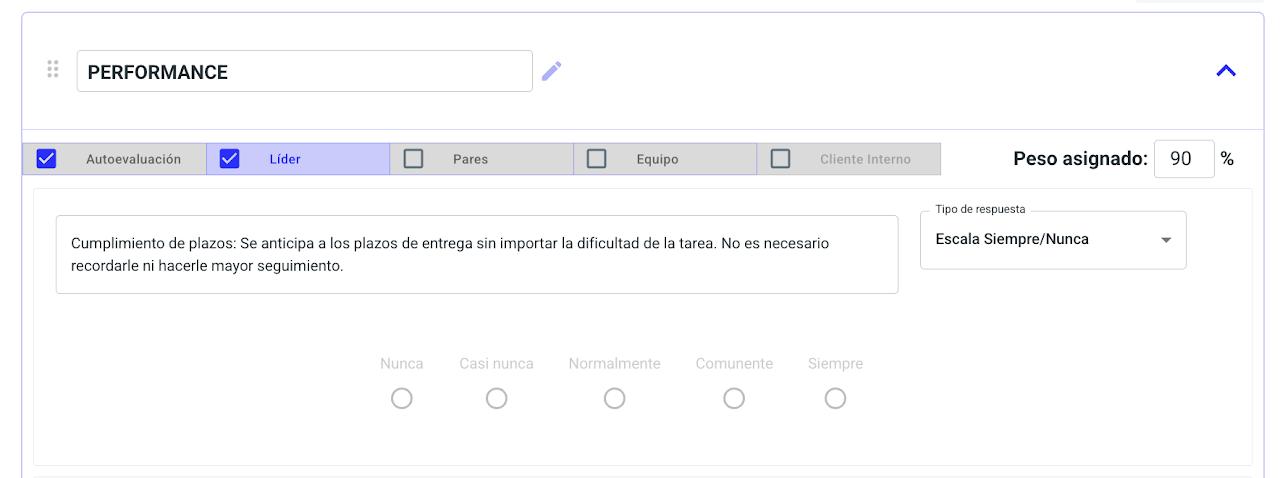
If a stakeholder is not selected as, for example, "Peers", you won’t be able to assign a weight and the box will be disabled, as shown below.
How to edit the response scale?
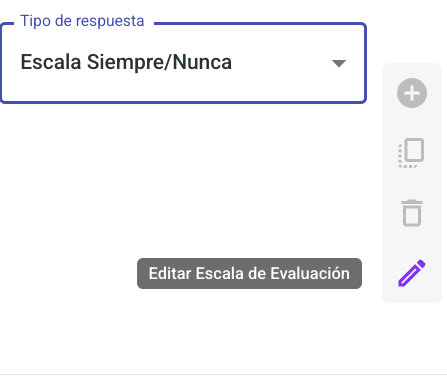
When customizing a form, in a closed question section, set the scale type and click the pencil icon that appears when you hover over the "Response Type" field
This lets you change the scale labels and descriptions.
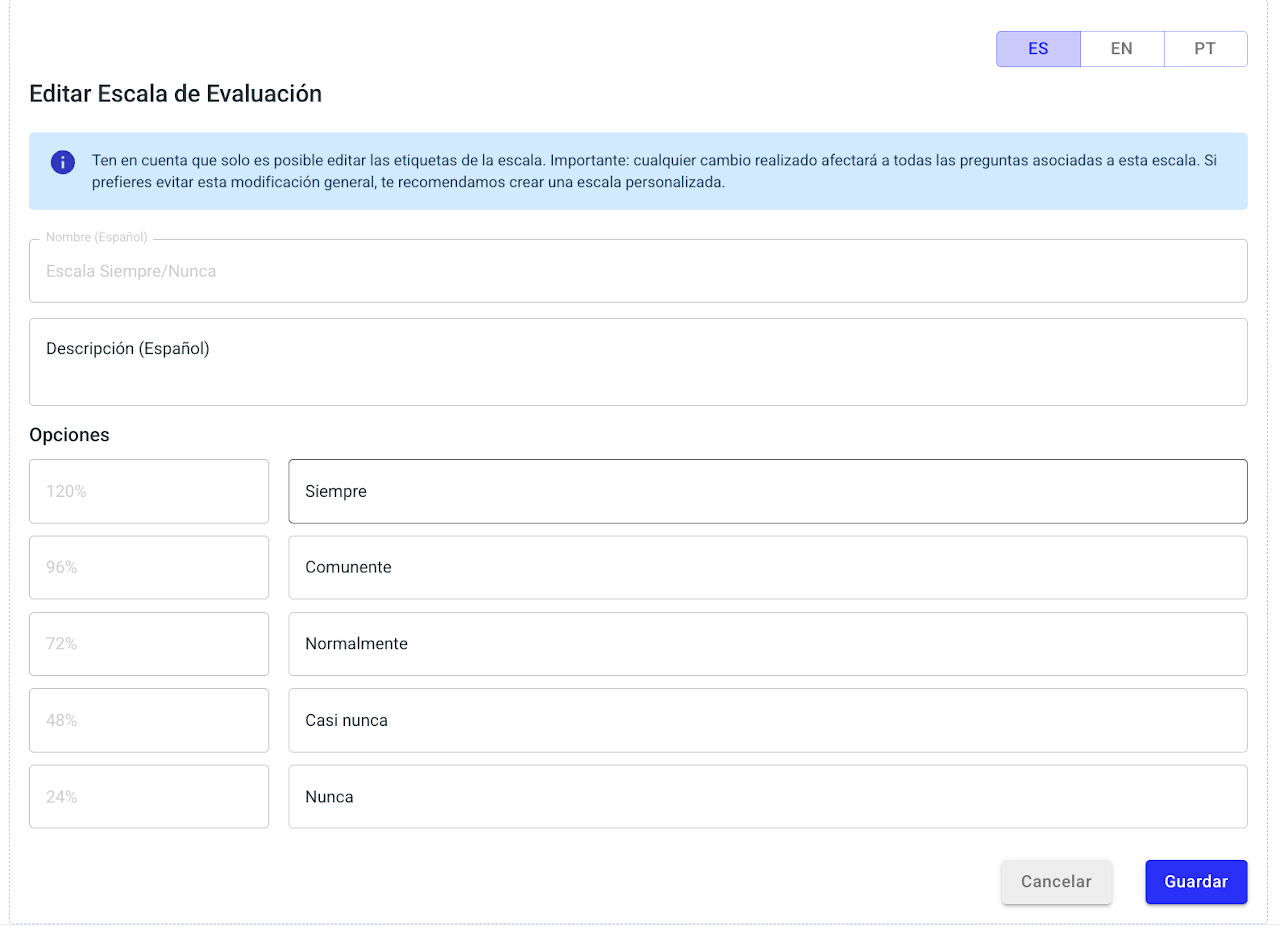
When finished, select save. This change will apply to all questions in the form using this scale.
Important: if you need to adjust the percentages of each response or the results scale, contact: customersuccess@nalarocks.com
How to create a response scale from scratch?
You may want to edit a scale from 0 to define the number of responses.
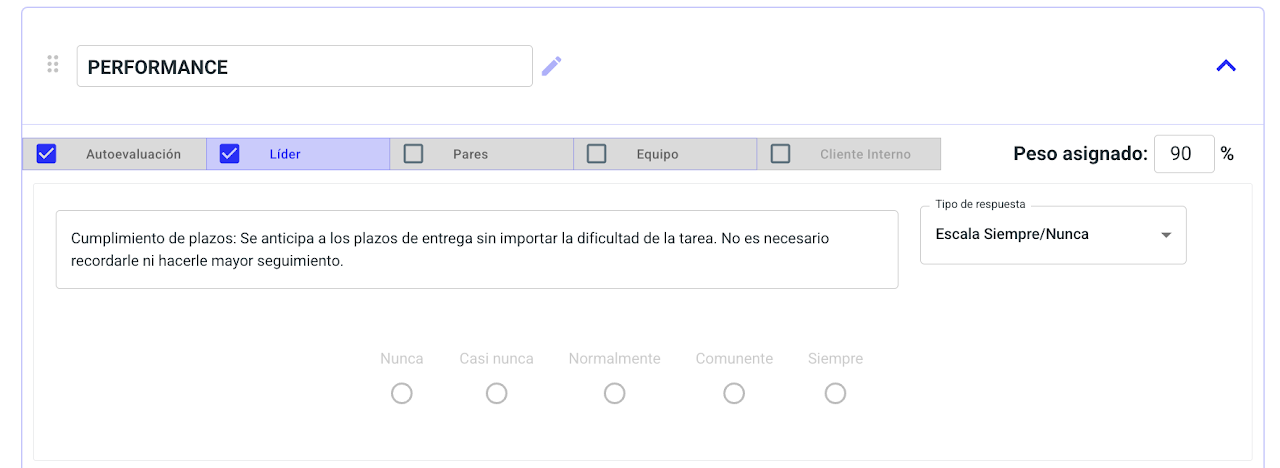
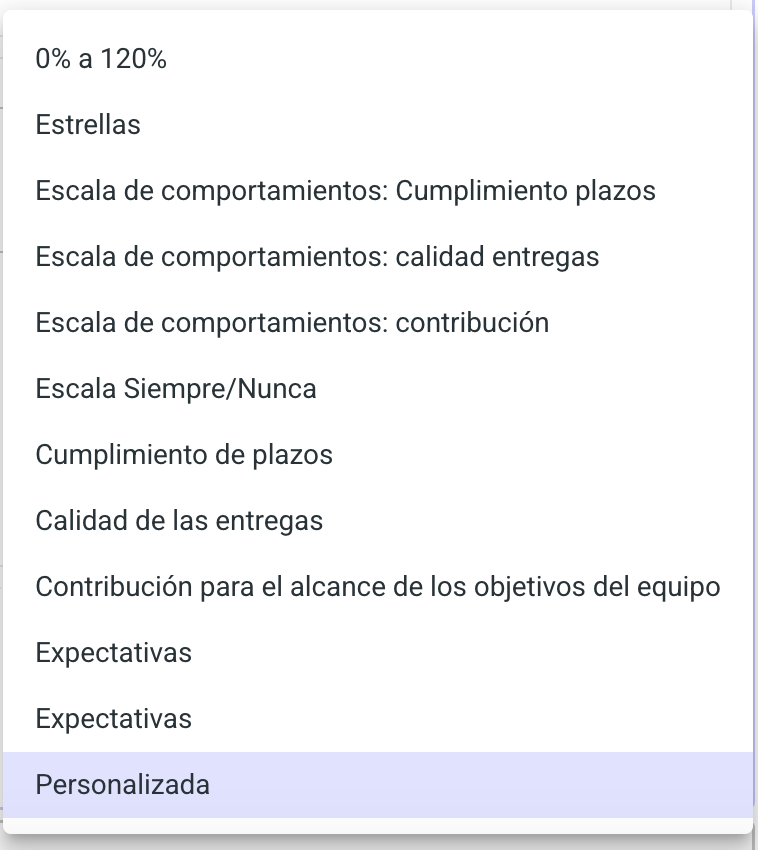
To do this, when customizing the form for a closed question, select the answer type and click "Custom" in the dropdown
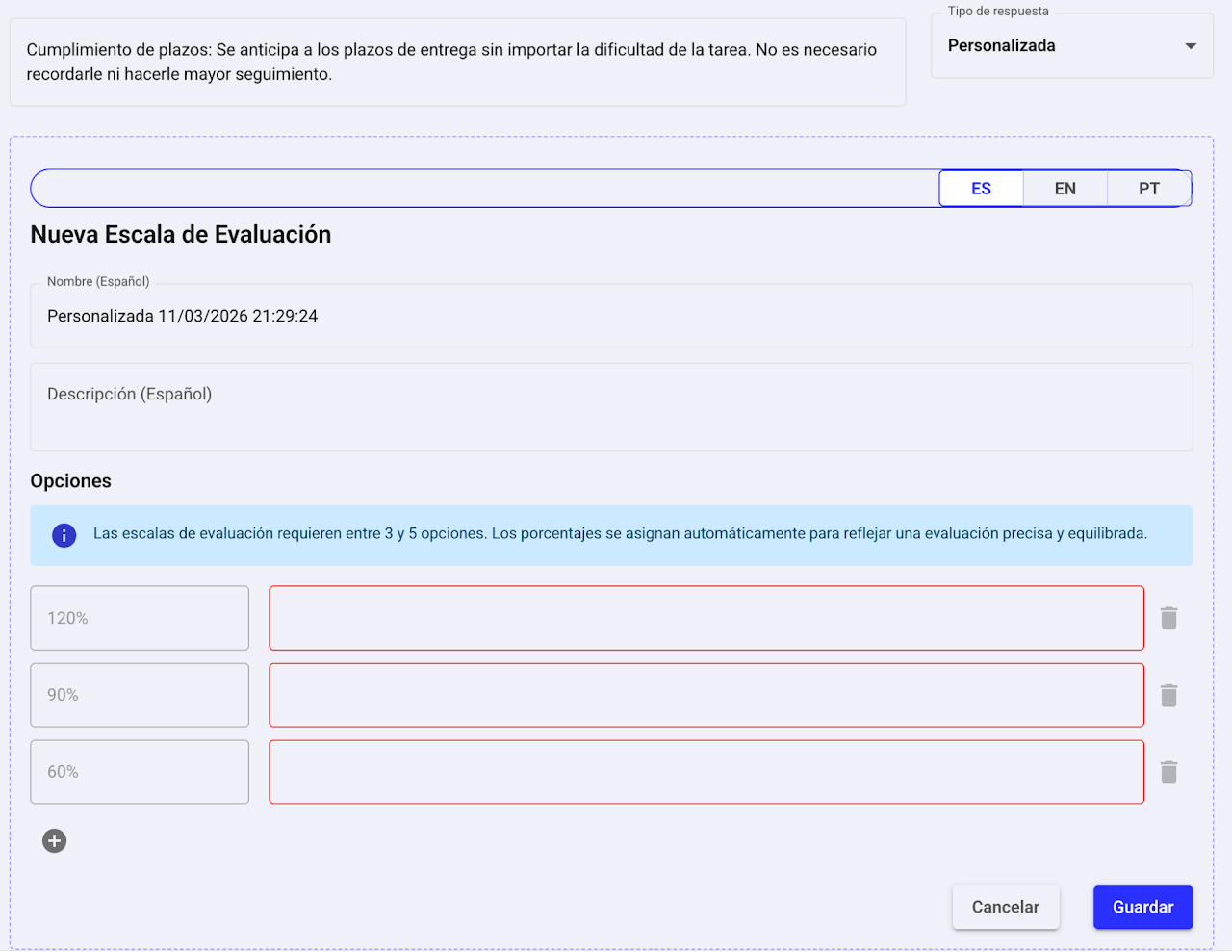
Define the scale name,
Number of answers. You can add more values with the plus (➕) or delete with the trash (🗑️)
Add a description and answers.
Important: if you need to adjust the percentages of each response or the results scale, contact: customersuccess@nalarocks.com
How to run a test process?
If you need to run a test before launching a real evaluation, mark the process as "Test process". This allows you to adjust the process mid-evaluation without affecting results. These will not appear in performance reports.

⚠️ Important: Once you schedule a test process, you cannot deactivate it. If you want to run a formal evaluation, you must create a new process.
How to set up individual goal evaluation from Planning?
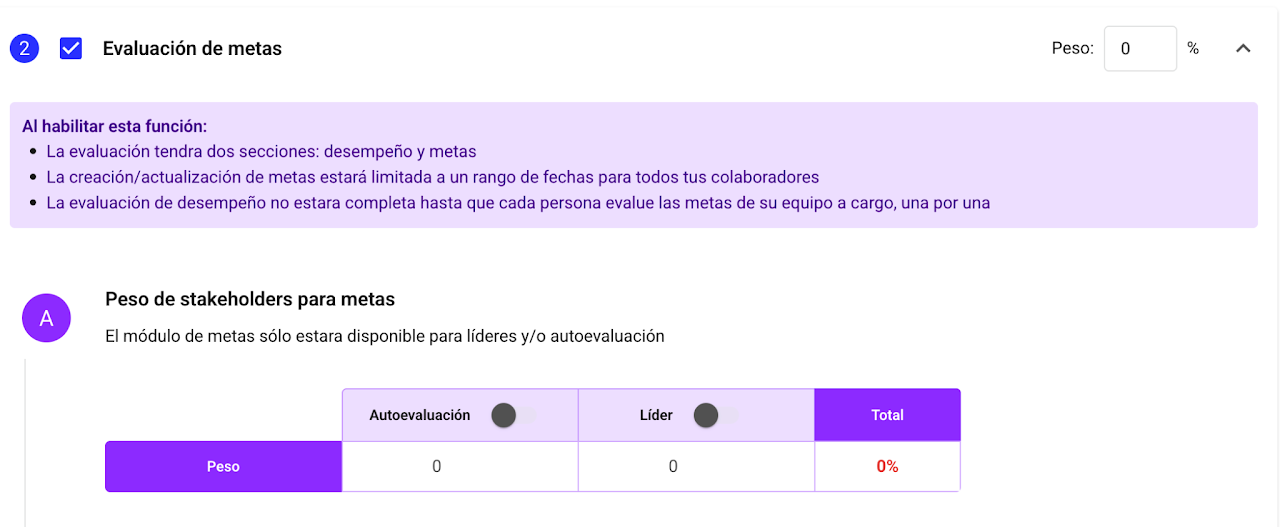
When activating goals within performance evaluation, forms will be created with the objectives associated with each employee.
Assign weights to each section
First select which components you will use in the evaluation, then define the percentage of the total this section will represent in the evaluation.
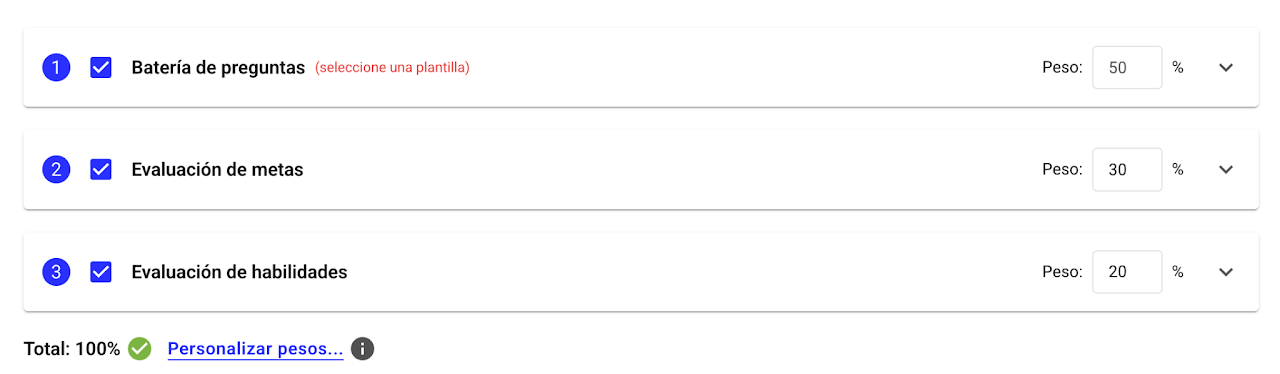
Set the evaluators’ weight
Open the “Goal evaluation” accordion and decide who will evaluate and what weight their evaluation will carry:
✅ Leader
✅ Self-evaluation
You can distribute the percentages as you like by enabling and disabling stakeholders and setting the scores, it is even possible to assign a weight of 0 to the self-evaluation.
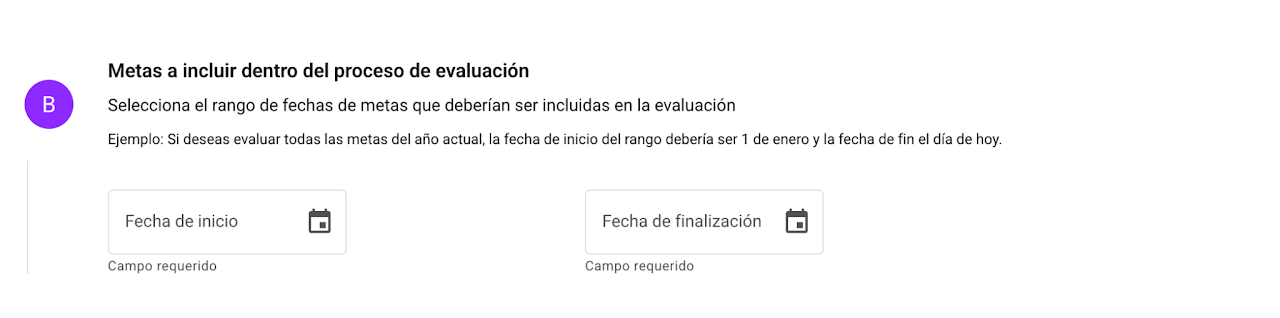
Define which goals will be evaluated
Define the time range when the goals you want to evaluate were created. This can be annual, semiannual, quarterly, or monthly. After the process is closed, these goals cannot be edited.
❗ Important: If you don’t properly define this range, the platform will not fetch the corresponding goals and they cannot be evaluated.
Set the goal evaluation scale
Define how goals will be measured:
✅ Expectation scale (recommended if you don’t use indicators or your organization’s goals are qualitative)
✅ Indicator from 0 to 120%
The selected scale will be used by evaluators to rate goals.
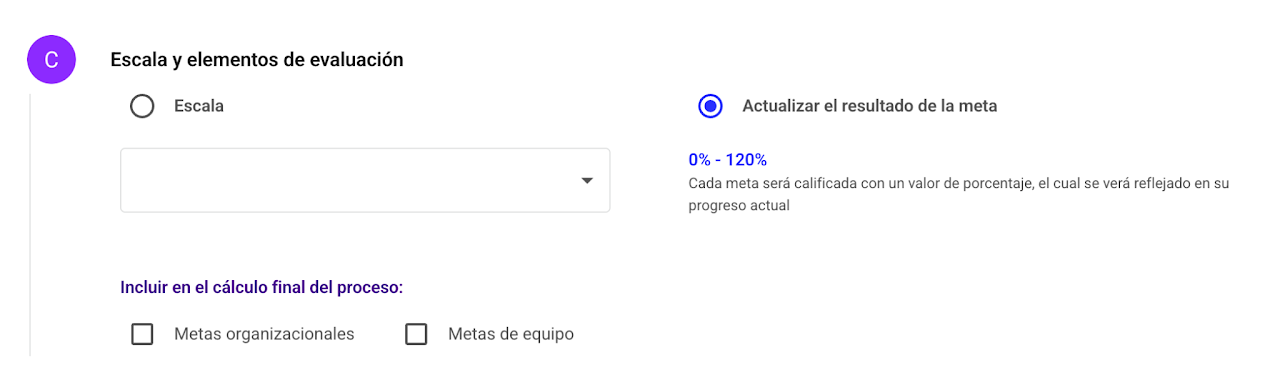
If your organization has active organizational and/or team goals, you can decide whether your employees’ overall performance completion is calculated including the achievement of group goals. If you choose to include them, you must first evaluate the group goals via the goals module.
Set comment or justification requirement

If you want to force your employees to provide a justification for their rating of each goal, enable this field so they cannot submit their evaluation without comments.
Tip: Before scheduling the evaluation process, ensure your employees have well-registered goals. To do this:
Goals must be within the established time frame for the evaluation
The sum of weights must be 100%
Goals must be approved. Pending approval goals will not be evaluated.
What is participation in a process?
Participation in an evaluation is generated automatically from payroll information in Nala and shows who evaluates whom, according to the evaluation type per stakeholder.
Self-evaluation: the employee evaluates themselves.
Leader: the direct leader’s evaluation.
Peers: people sharing the same leader.
Team: direct reports of the evaluator.
Internal client: employees who provide services (assigned manually in the profile). How to assign them? ⚠️ Important: To activate this, you must contact the Customer Success team (customersucess@nalarocks.com).
Each time an evaluation is configured, the participating stakeholders and their weights are defined. Depending on activation, they appear in the participation scheme.
To understand this better, let’s review the following example:
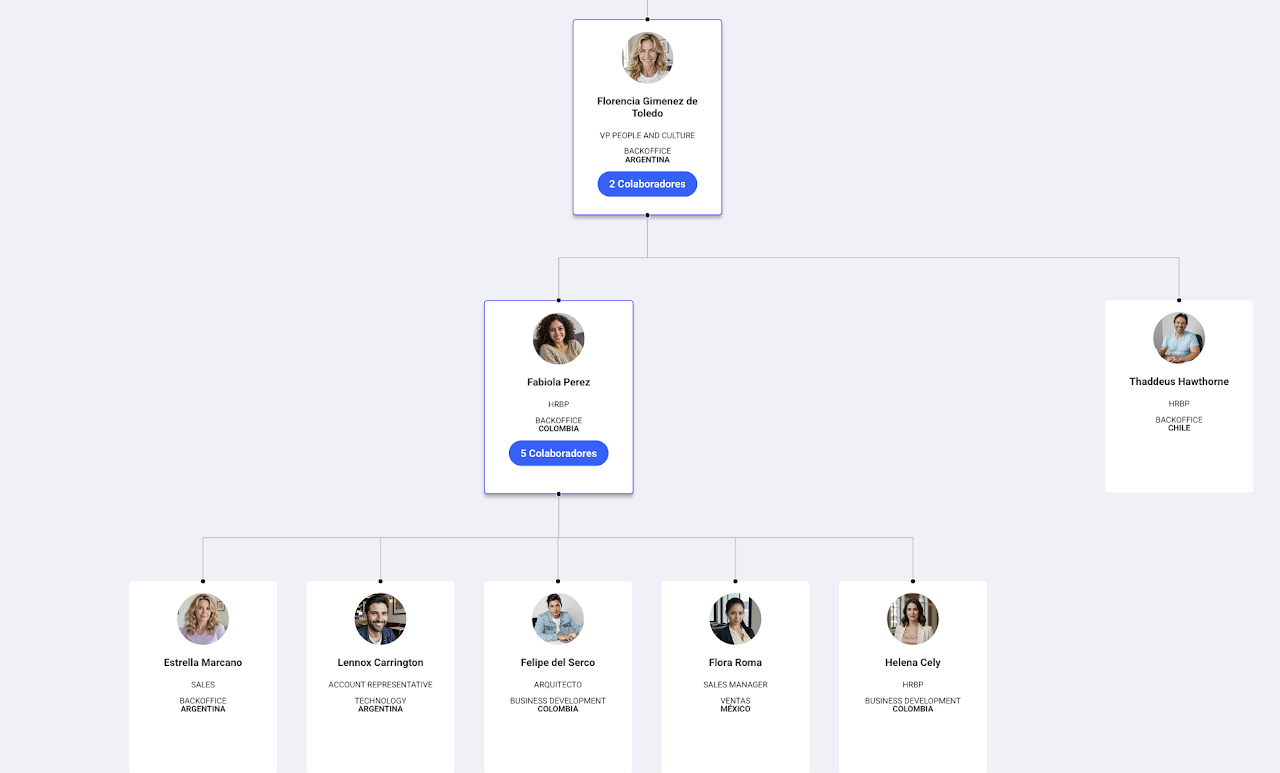
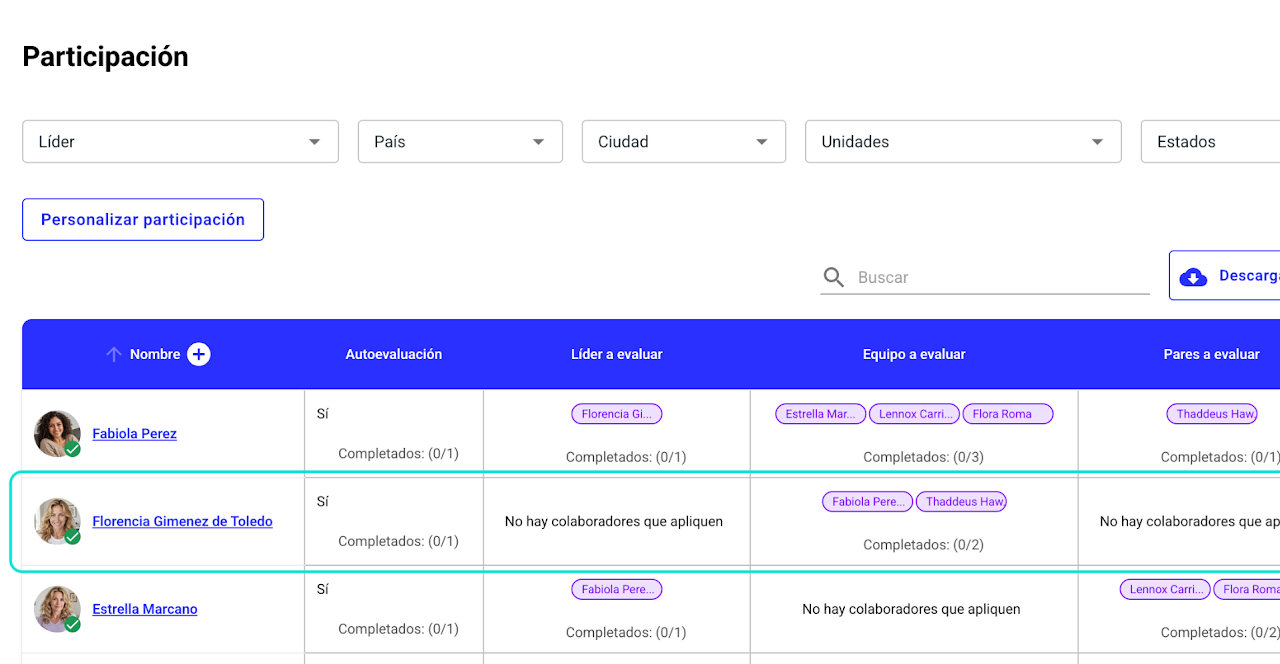
In this org chart, Florencia Giménez de Toledo is the leader of Fabiola and Thaddeus. Fabiola, in turn, leads Estrella, Lennox, Felipe, Flora, and Helena. Reviewing the process participation:
Florencia:
Completes her self-evaluation.
Does not evaluate a leader, as she is at the top of the org chart.
In Team, she evaluates Fabiola and Thaddeus, her direct reports.
Fabiola:
Completes her self-evaluation.
Evaluates Florencia as Leader, since she reports directly to her.
In Team, some of her direct reports appear. (Who is included depends on the process audience and the minimum company tenure required to participate).
In Peers, she evaluates Thaddeus, who also reports to Florencia.
How to customize participation in a process?
In the "Planning" section:
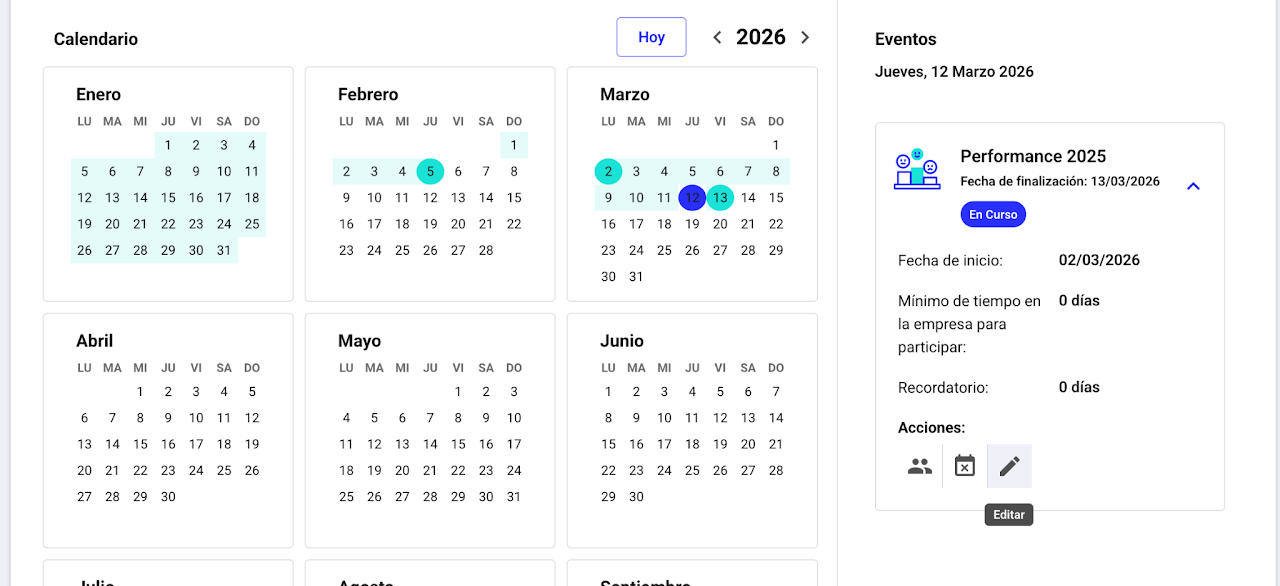
If it is a scheduled process, select the date on the calendar. Open the process card and click the 👥 Participation icon.
If the process is ongoing, do the same from the current view.
If you are creating a new process, you will see it in the last step of the creation flow.
A window with the participation scheme will open.
Click on “Customize participation.”
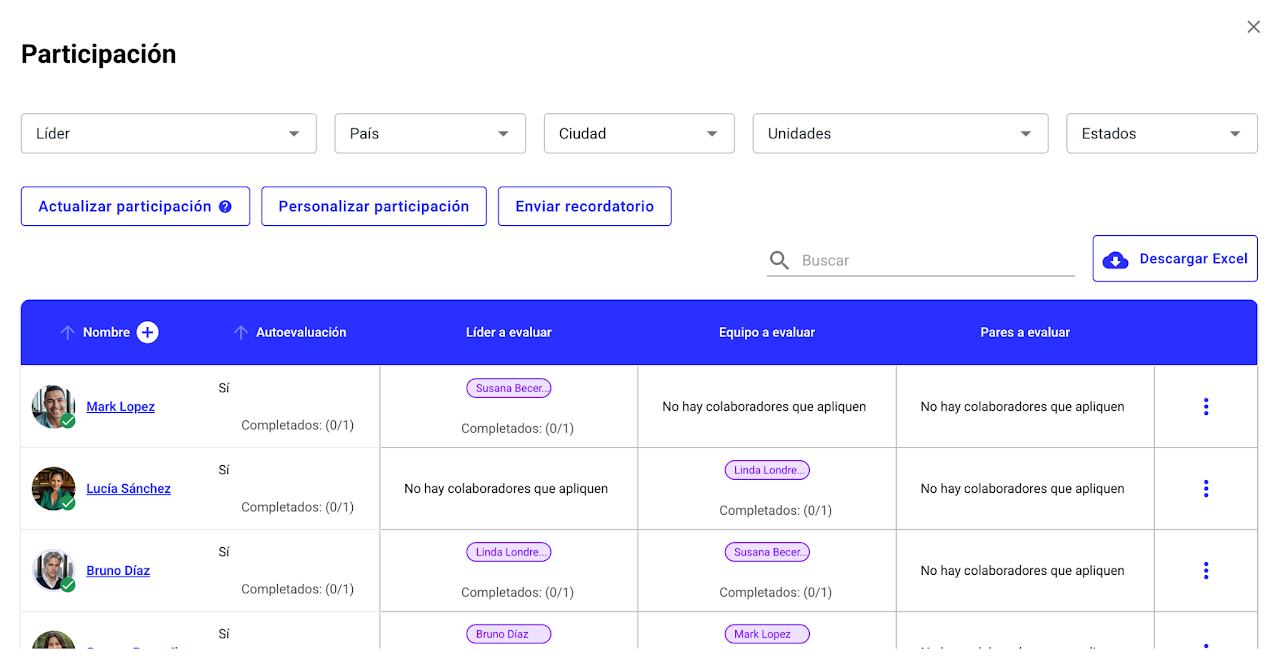
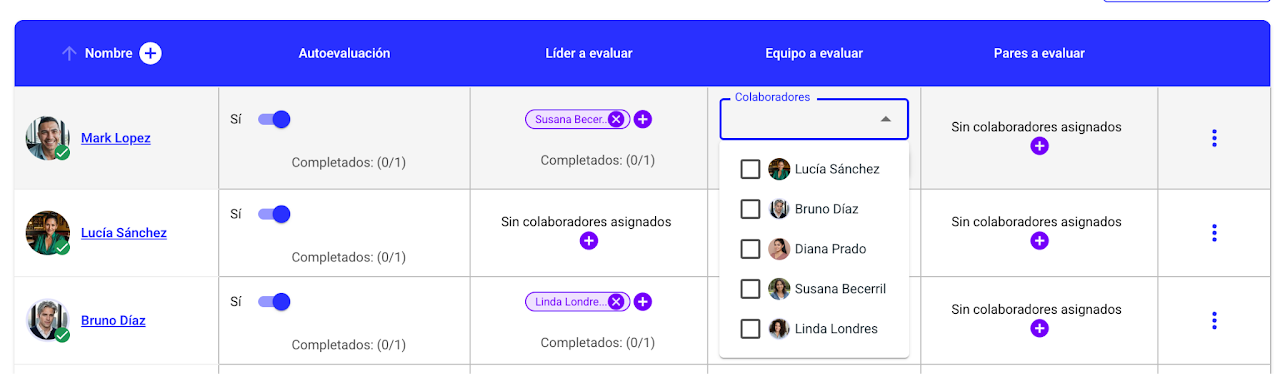
4. When participation reloads, you can:
You can disable self-evaluation or general evaluation (in climate surveys) using the switch.
Remove people with the “x.”
Add people with the “+.” You can type or select the name from the dropdown.
5. Don’t forget to save.
Manage ongoing processes
How to change the evaluation period when the process is already underway?
Go to the Planning section
Select the ongoing process
Click the pencil icon to edit
Go to Performance Planning/Good Leader/Potential/Climate Thermometer
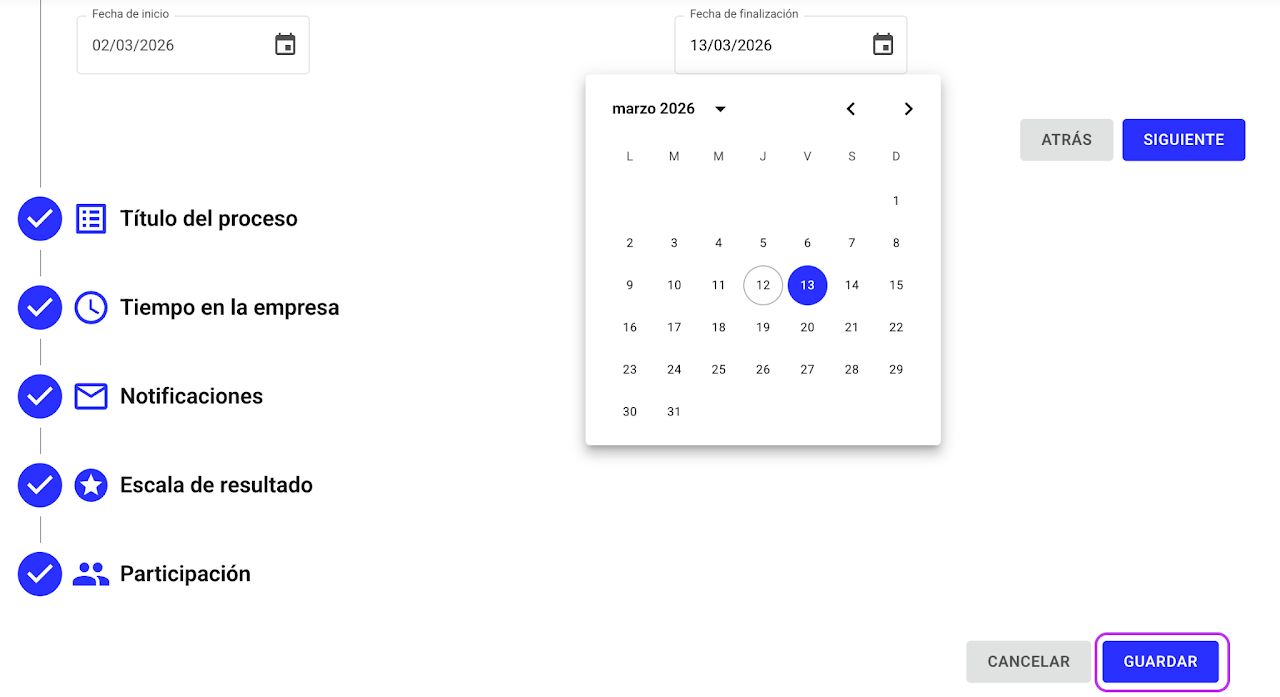
Change the end date
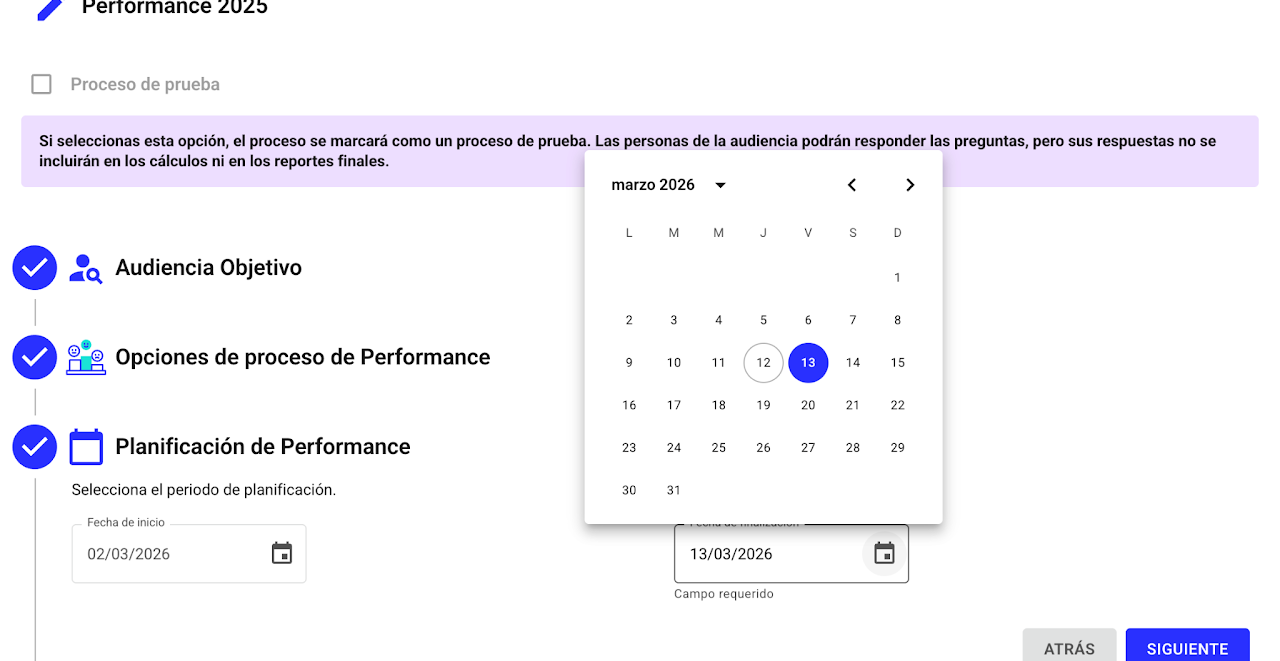
Save the changes
How to return an evaluation so an employee can modify their answers
For an employee to review or change their answers, the evaluation must be in “In Progress”.
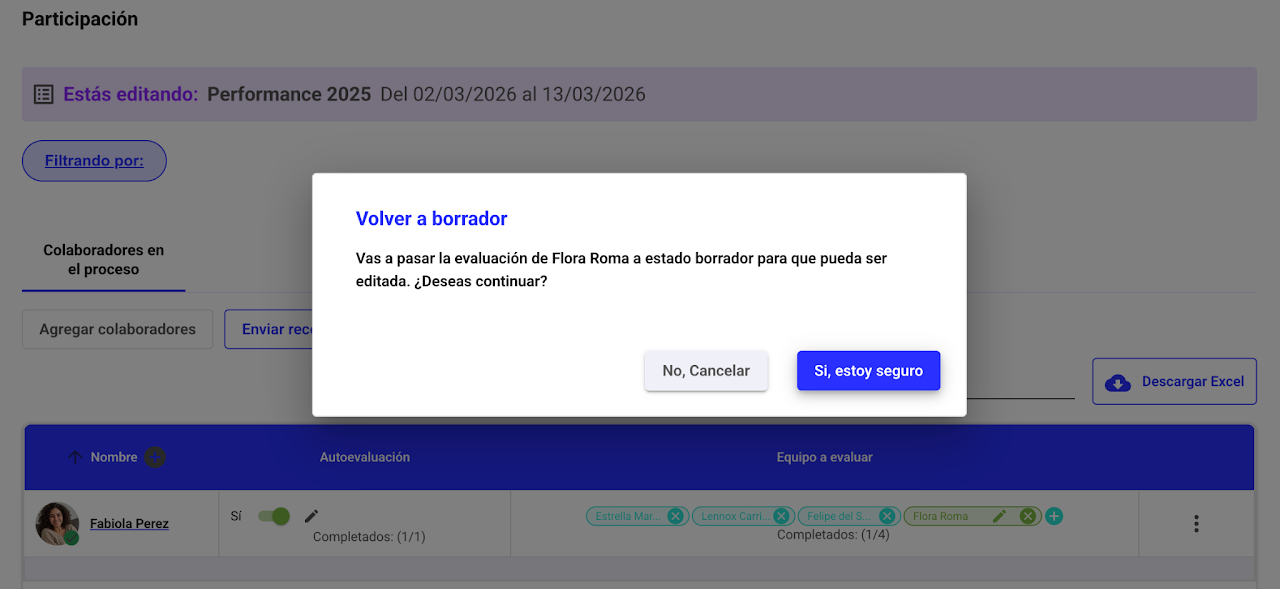
When you return an evaluation, it reverts to draft. This does not delete submitted answers, but allows the employee to re-enter and edit or review their responses.
Steps to return an evaluation
1️⃣ Go to the Planning.
2️⃣ Find the evaluation process card and select the 👥 (preview participation) icon.
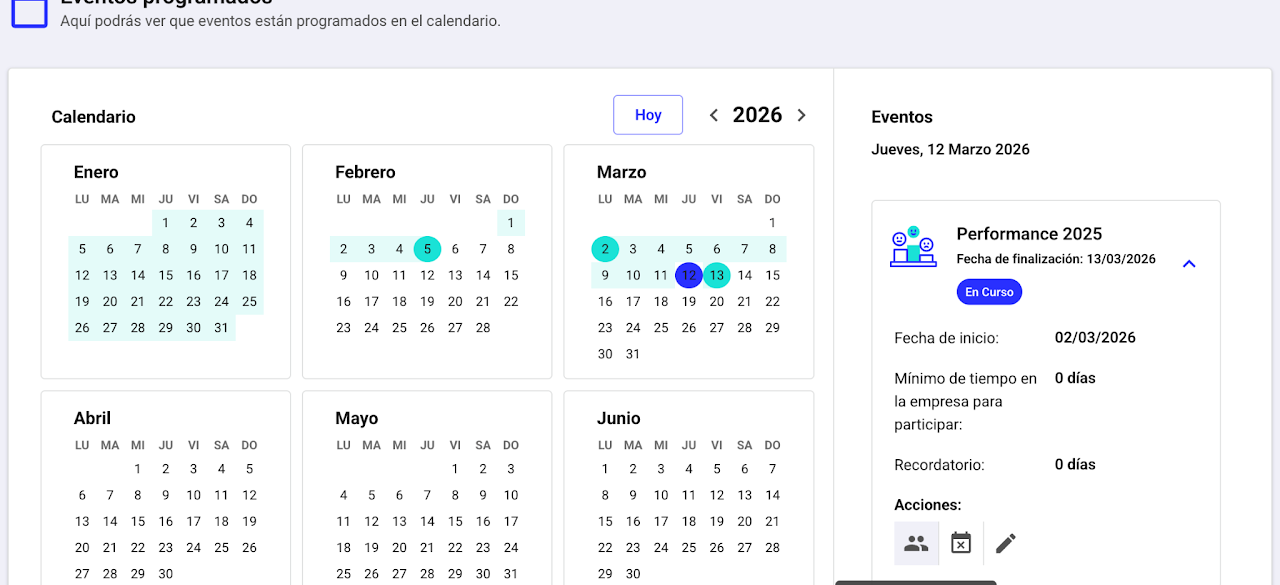
3️⃣ Find the employee whose evaluation you want to return.
4️⃣ Click the pencil icon ✏️ next to their name.
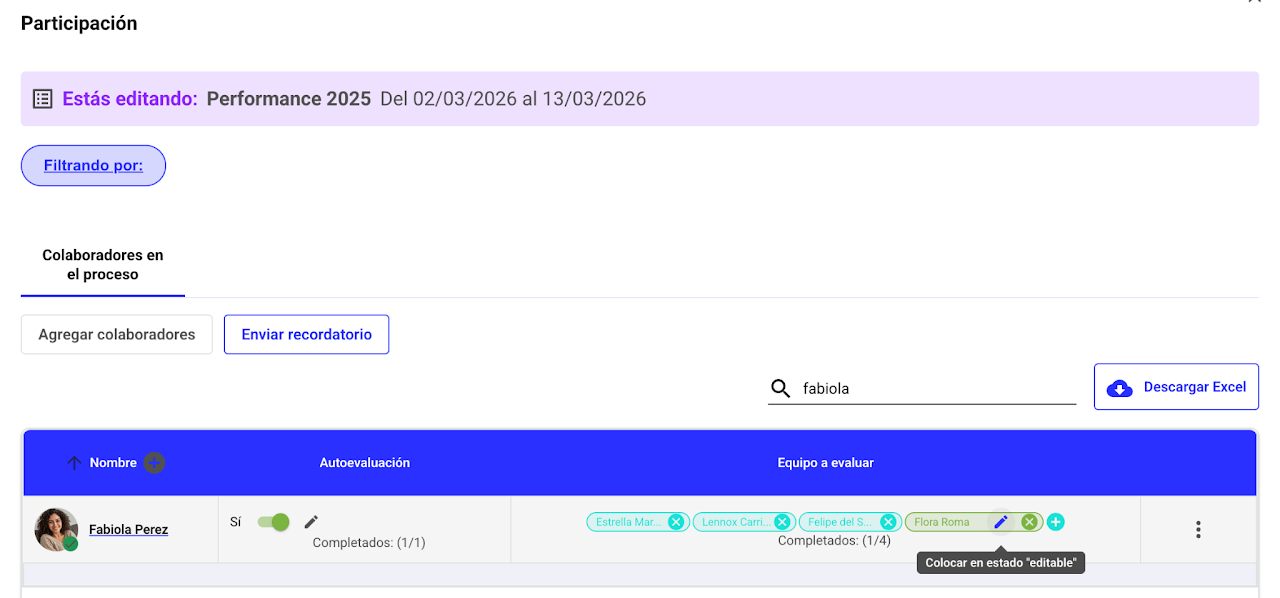
5️⃣ Confirm by selecting “Yes, I’m sure”.
What happens next?
Once this change is made:
✅ The evaluation will stop showing green (submitted).
✅ It will revert to an editable status.
✅ The employee can log in to Nala again from their homepage to review or change their answers.