Employees
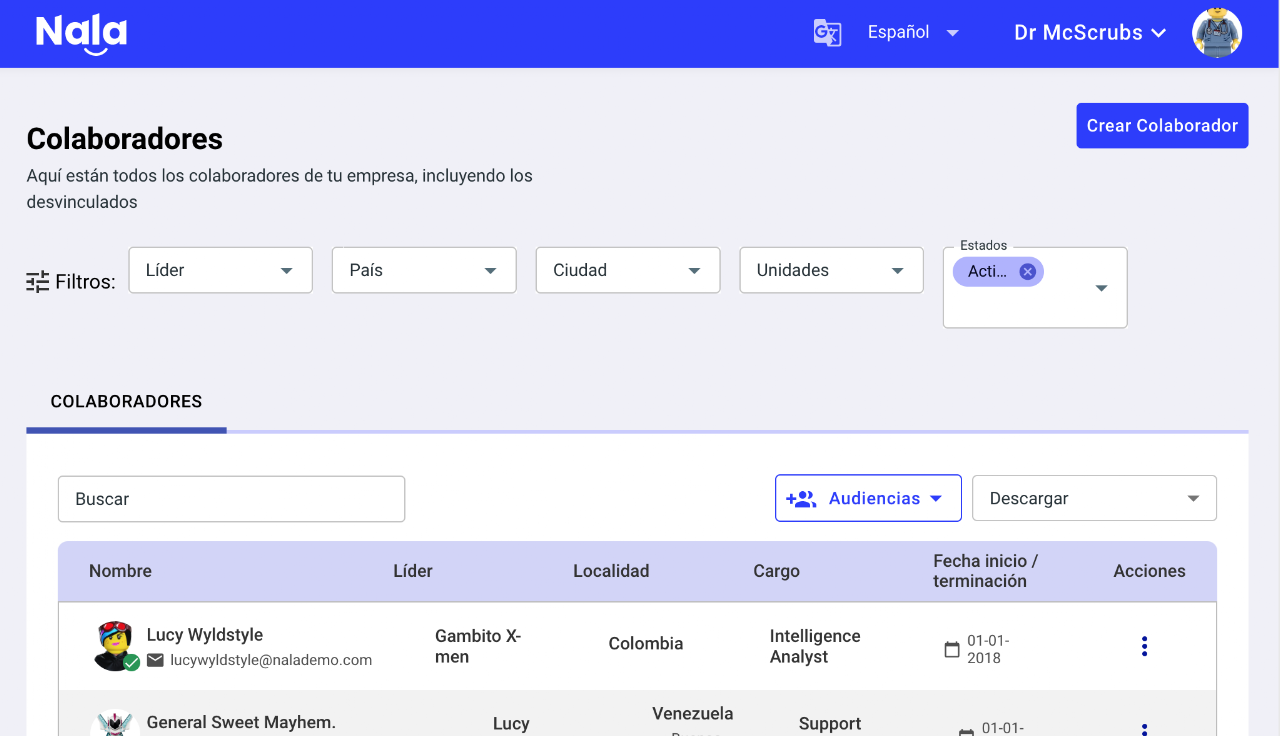
In the employees module, you can view the entire list of users created in Nala and additionally manually create employees. For bulk creations, use the bulk upload system.
Additionally, you can create audiences and download employee reports or feedback and recognition data.
To do this, click on the dropdown menu "download" and select the desired report. Your .XLS file download will start shortly.
Quick Videos
How to record changes for an employee?
Download personal databases
How to create an employee?
Difference between movements and editing employees?
What types of actions are there?
✅ View profile: Access their information.
✅ Edit profile: Go to the selected employee's profile and modify information such as area, leader, contact.
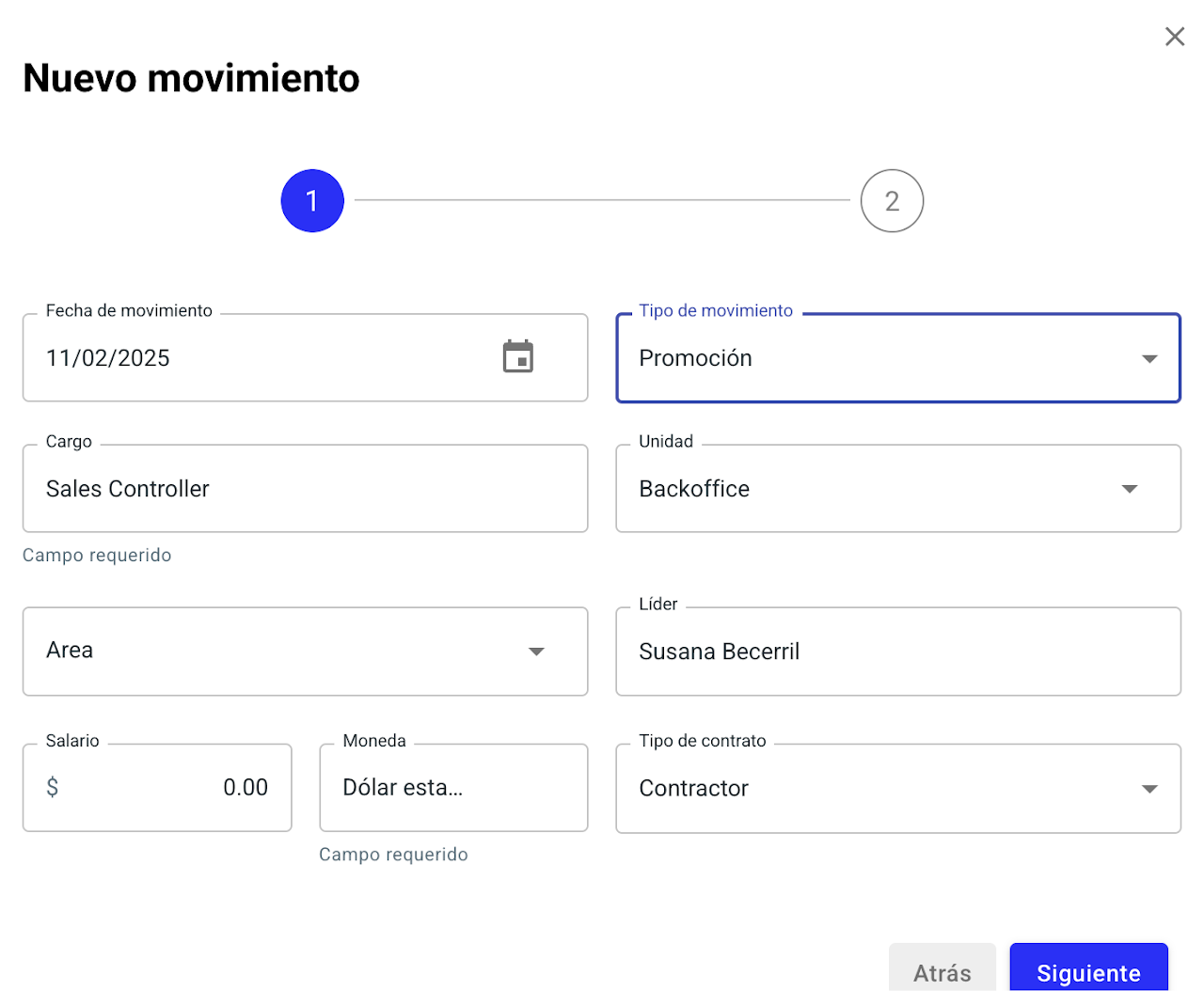
✅ Promotion: Change their position and salary.
✅ Lateral movement: Modify their position, unit, or leader.
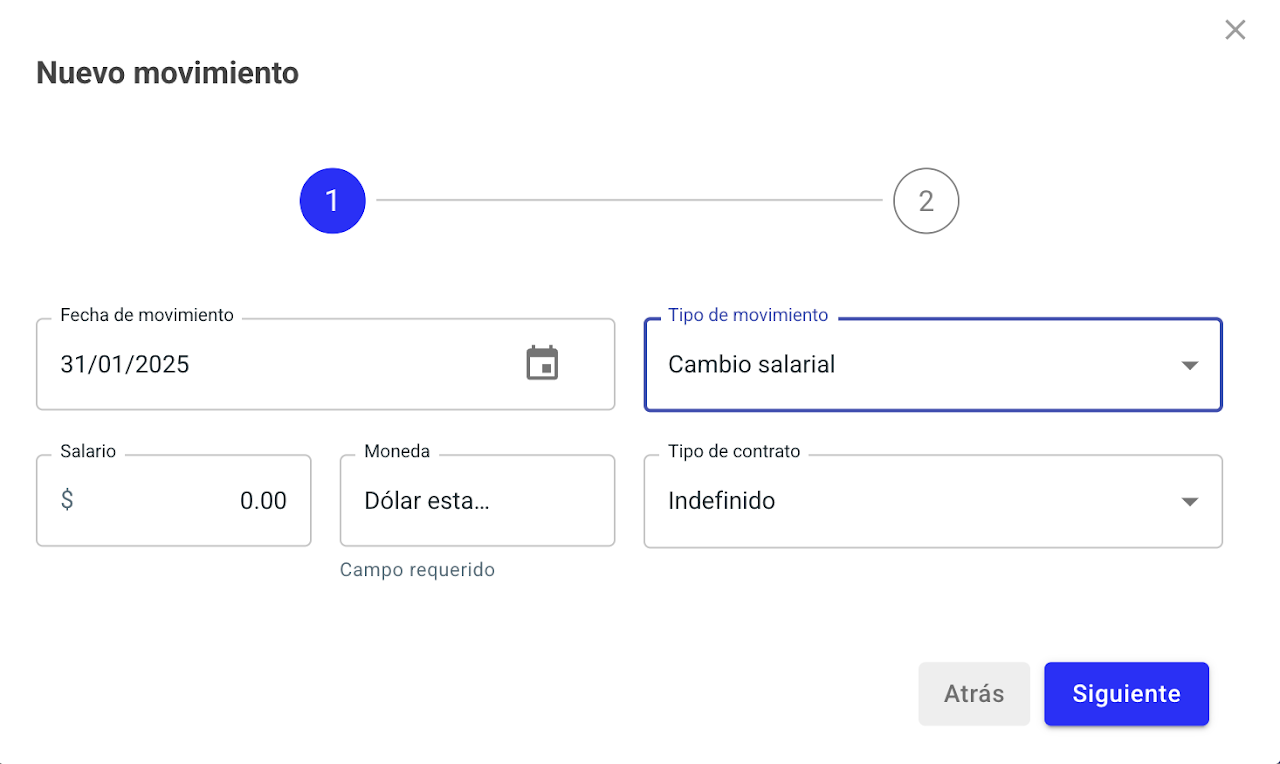
✅ Merit-based salary increase: Update their salary.
✅ Deregister: Remove the employee from Nala.
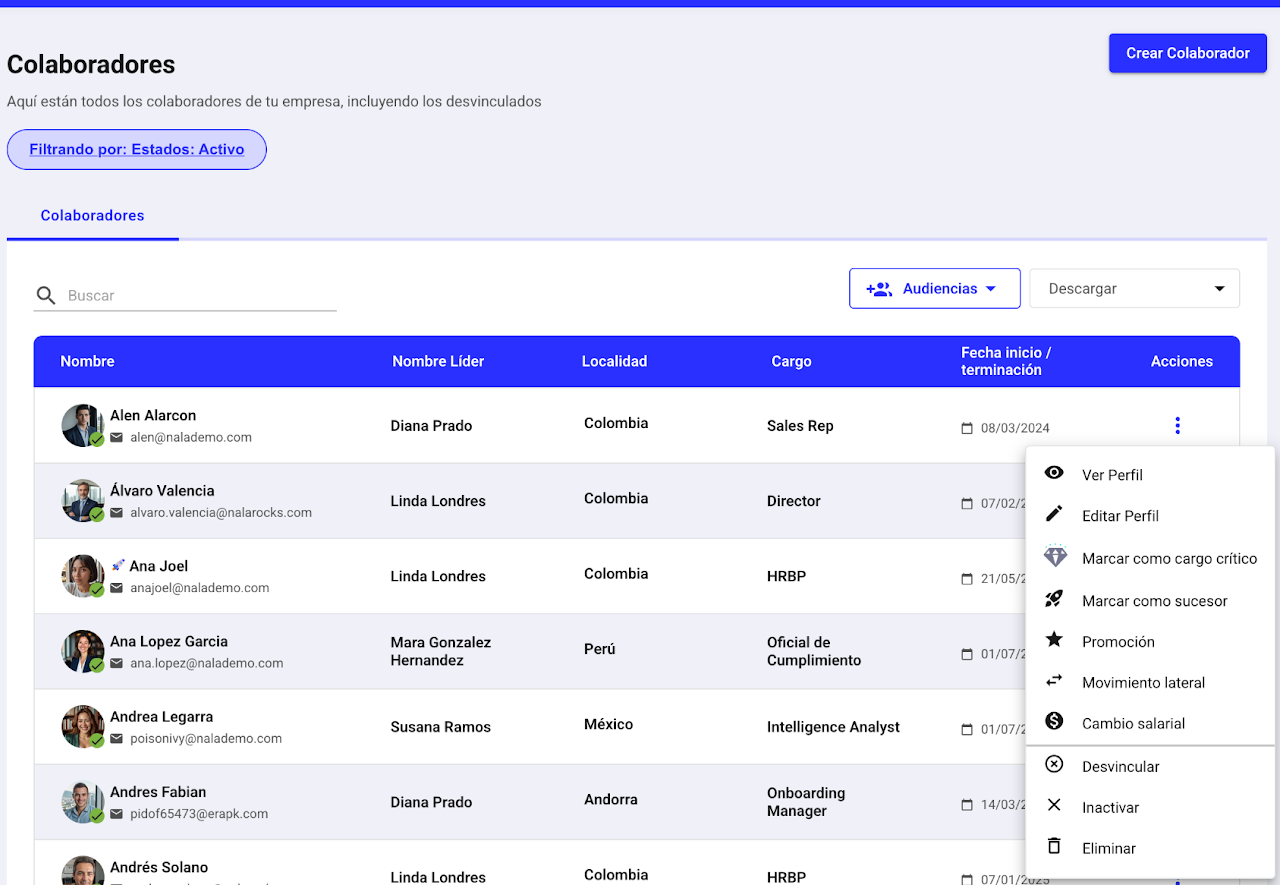
❌ Delete: You can delete an employee's information if you created it by mistake. Only if they haven't participated in any process. Otherwise, you must deregister them.
Inactivate: the person remains in the system, but Nala stops treating them as an active employee. This is especially useful for employees on long-term leave, maternity/paternity leave, or other special situations. Main effects:
Loses access to Nala: they can no longer log in.
No longer counted as active in many views, filters, reports, and automations.
Usually excluded from new processes and reminders considering only active employees.
Their history is not deleted: their profile, results, and previous data remain saved.
If they were a leader, their team may remain associated with an inactive leader until reassigned.
How can I move employees in Nala?
In the employees module, find the employee
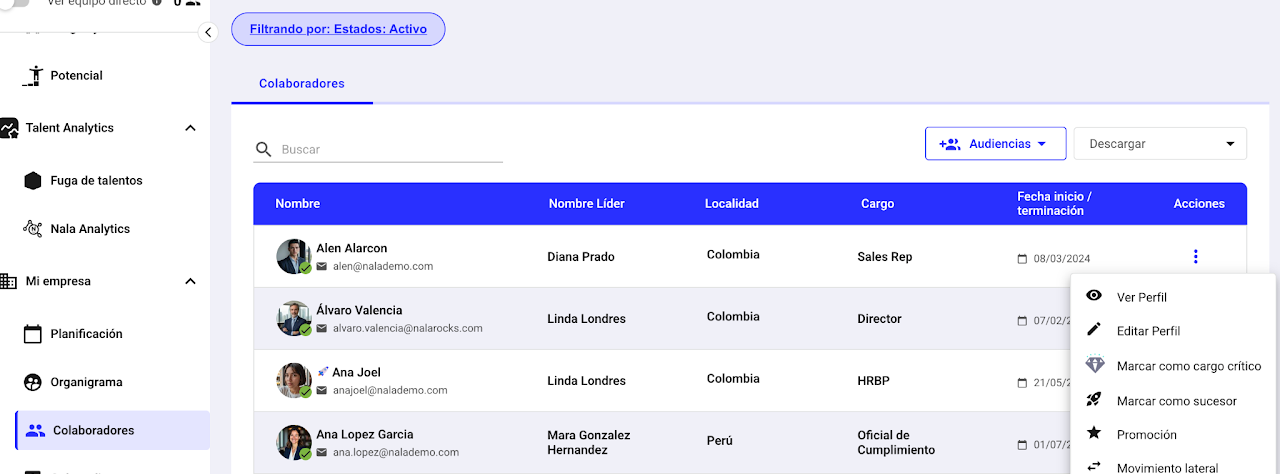
Then in actions, the three dots, select the action you want to complete.
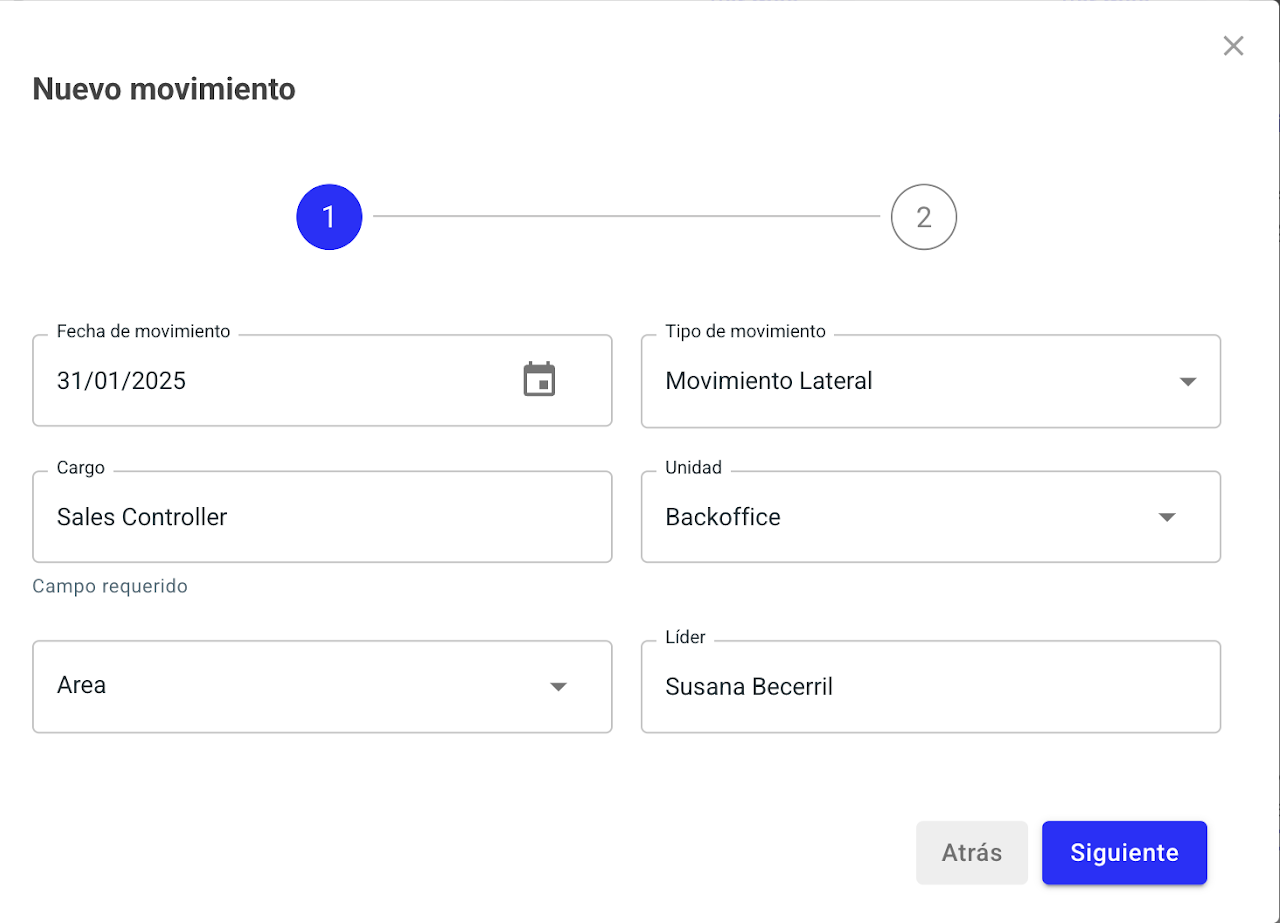
Lateral movement
Occurs when a person changes department, direction, or area, but maintains their same hierarchical level.
Promotion
Happens when an employee is promoted to a higher hierarchical level, takes on new responsibilities, and generally receives better compensation.
Salary Change
In this case, the salary of an employee is adjusted without changing their position. This may be due to a market adjustment, a performance recognition, or other reasons.
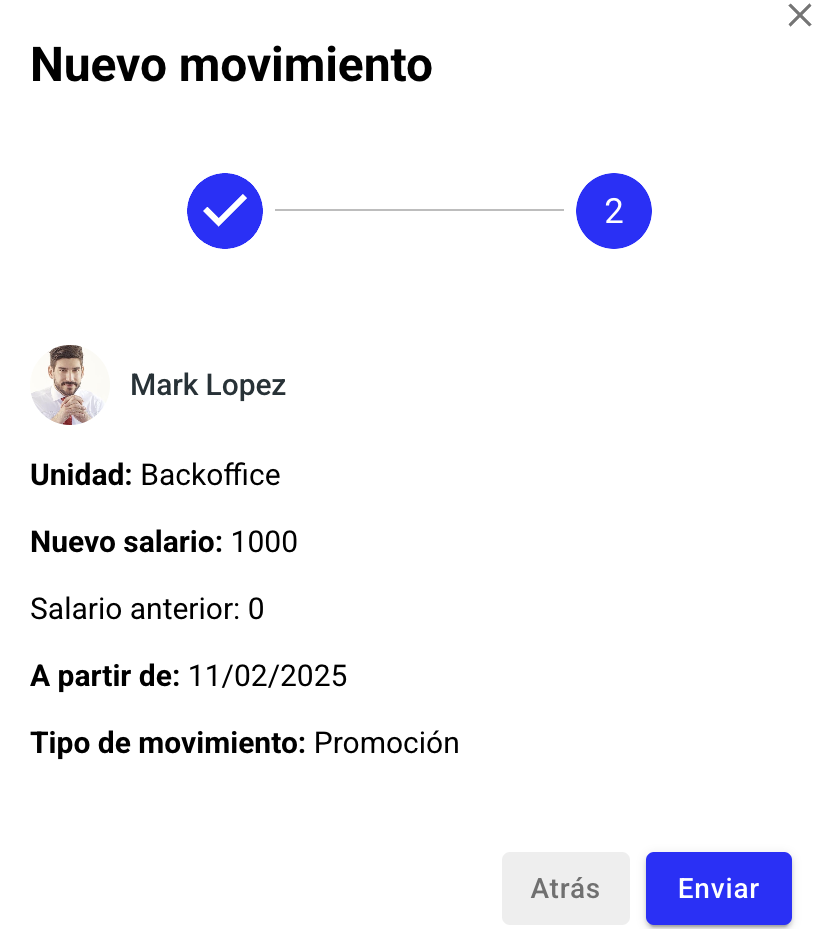
Select next and review the information before submitting
How do I edit an employee's information?
You can edit an employee's work information if necessary, for example, to correct an error. However, note that these changes do not create a historical record in the platform.
🔍 What does this mean?
🚨‼️ If you edit data like leader, unit, position, salary, among others, the employee's information will update immediately, but this will also affect previous reports. ‼️🚨
Example:
If you change an employee's unit their results in performance, potential, climate, or leadership evaluations will be reflected in the new unit, even in reports from previous periods.
Make these changes cautiously and only when strictly necessary to avoid inconsistencies in reports.
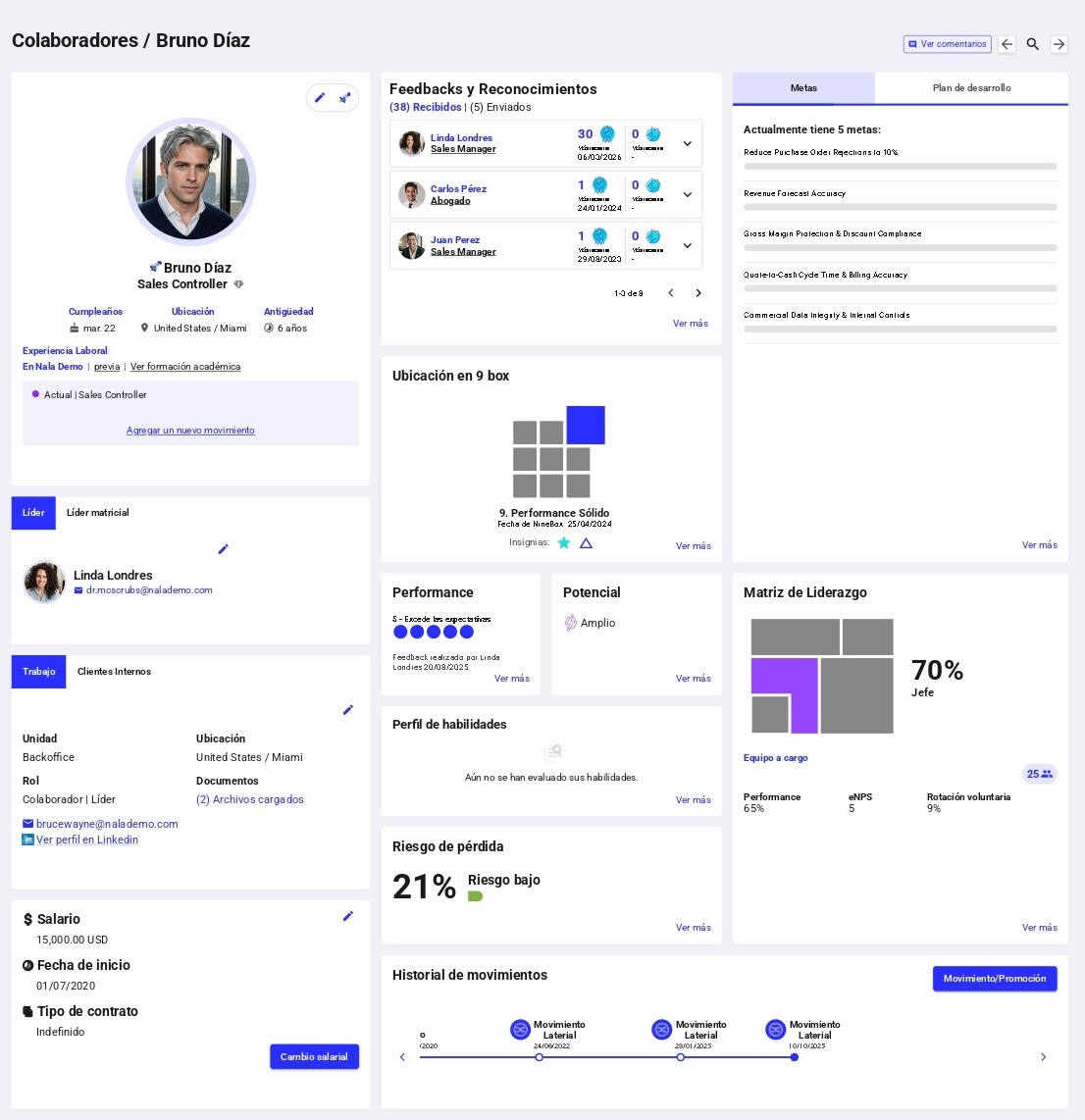
Open the employees module and open the employee’s profile from actions. Here you can:
Directly edit personal information, work information, leader, and salary by selecting the ✏️ icon on each card.
How to create an employee manually?

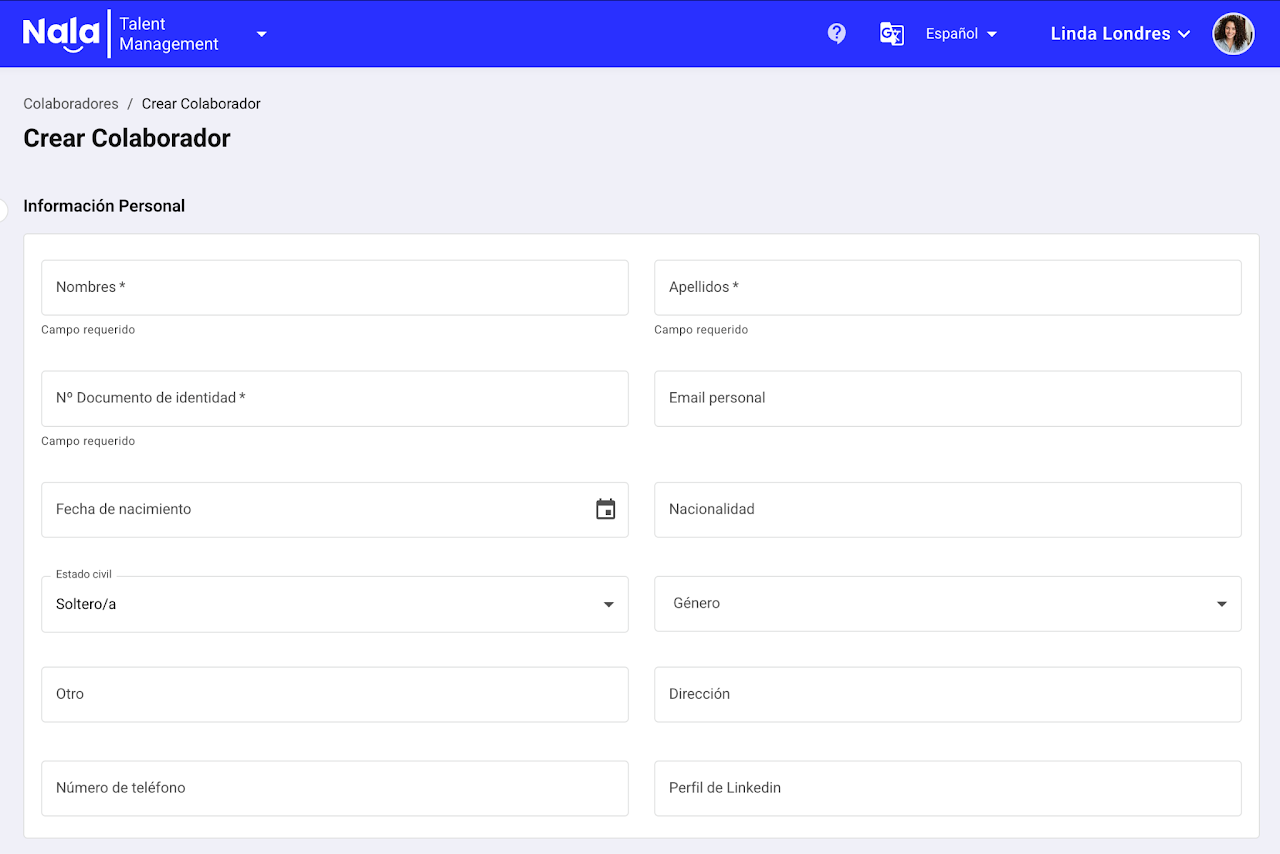
In Nala, you can create individual users directly or through the bulk upload system.
When creating a user directly in the employees module, the Preboarding process you defined will not be applied.
To start, click the "create employee" button and then begin filling in the information Nala requests.
Personal information
Fill in the employee's information (name, ID number, email, nationality, gender, address, phone number)
Keep in mind the assigned ID number must be unique on the platform, so you cannot create multiple users with the same number.
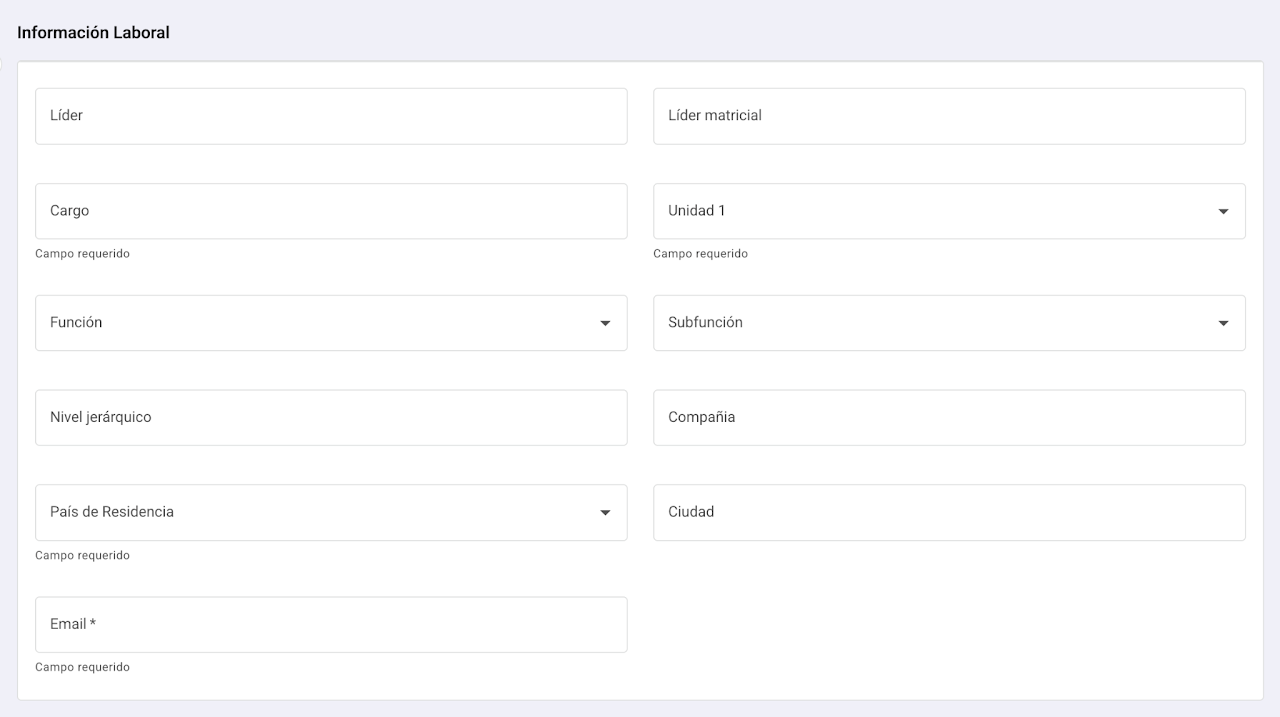
Work information
Continue to the work information section, indicating leader, position, department, area, hierarchical level, and company.
Assign a country of residence, city, and a corporate email address. (This email is different from the personal one requested above)
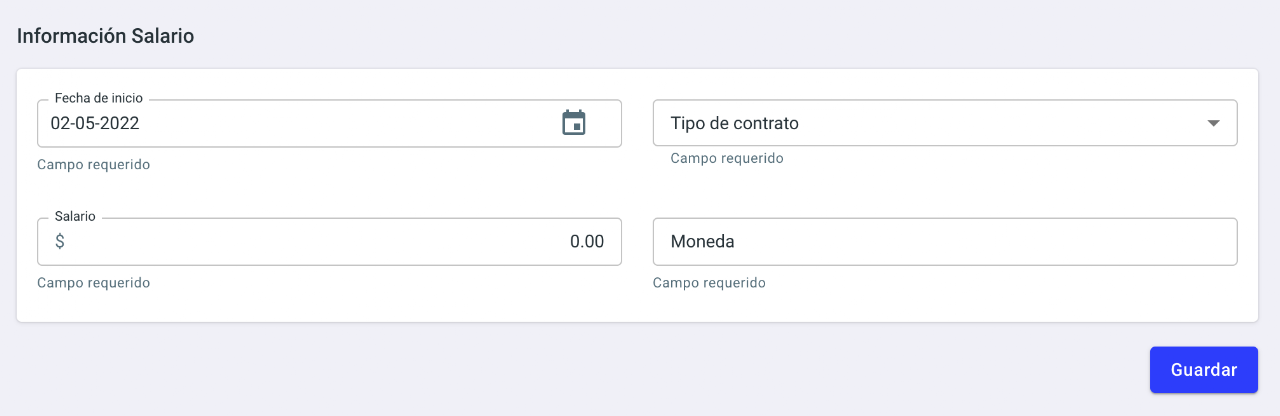
Finally, confirm the contract start date, contract type, salary amount, and currency for payment.
You can create and edit units, positions, contract types, and cities in the general administration module.
Which additional fields can I activate in Nala?
Nala allows enabling some additional fields to better reflect the structure and relationships within your organization.
If your company needs it, you can activate the following fields:
Matrix leader
Allows identifying matrix relationships within the organization.
This field is usually used in more complex structures, where an employee may functionally report to a different person than their direct leader.
Function and sub-function
These fields help differentiate roles beyond the hierarchical level.
They’re useful when there are different types of roles within the same organizational level or area.
Internal client
Allows associating employees who receive services from other teams within the organization.
When activated, you can also include these internal clients as evaluators in evaluation processes you define.
💡 Want to activate any of these fields?
You can request it from the Nala team at no cost by writing to customersuccess@nalarocks.com.
You can request it from the Nala team at no cost by writing to customersuccess@nalarocks.com.
What are audiences for in Nala?
Audiences let you group employees by specific criteria, such as position, hierarchical level, or any other relevant category, enabling you to send surveys, evaluations, or communications to specific groups.
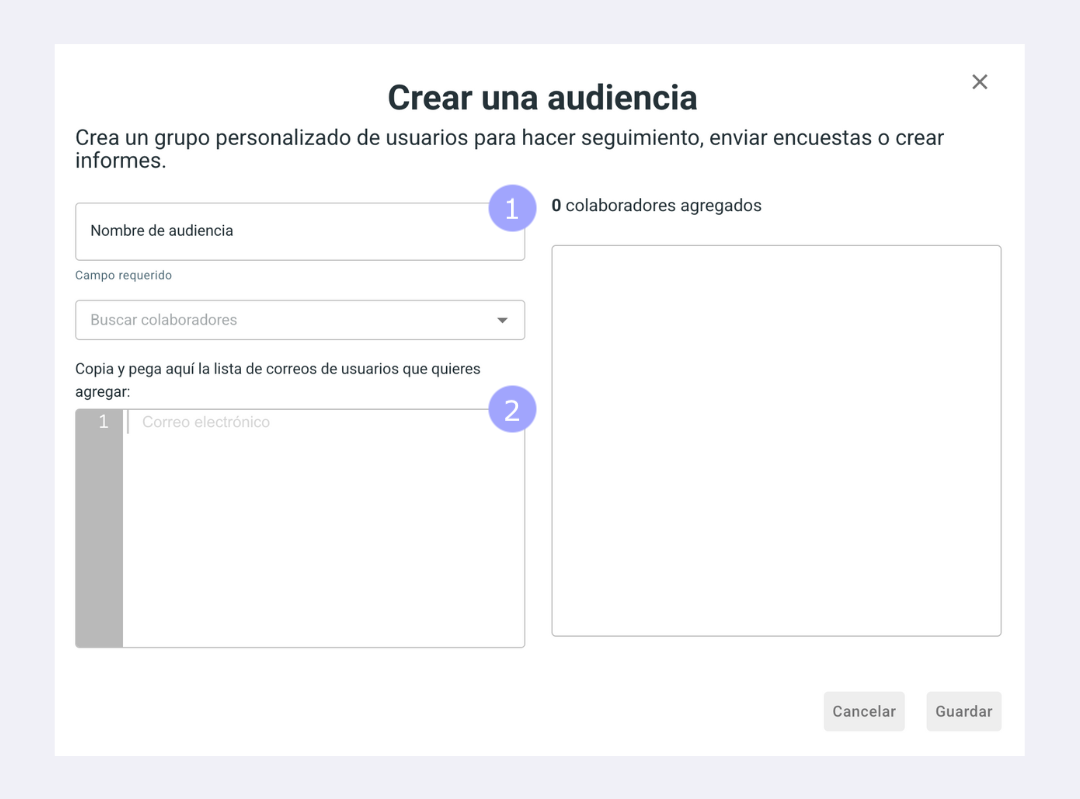
How to create an audience
Click "Audiences" in the Employees module.
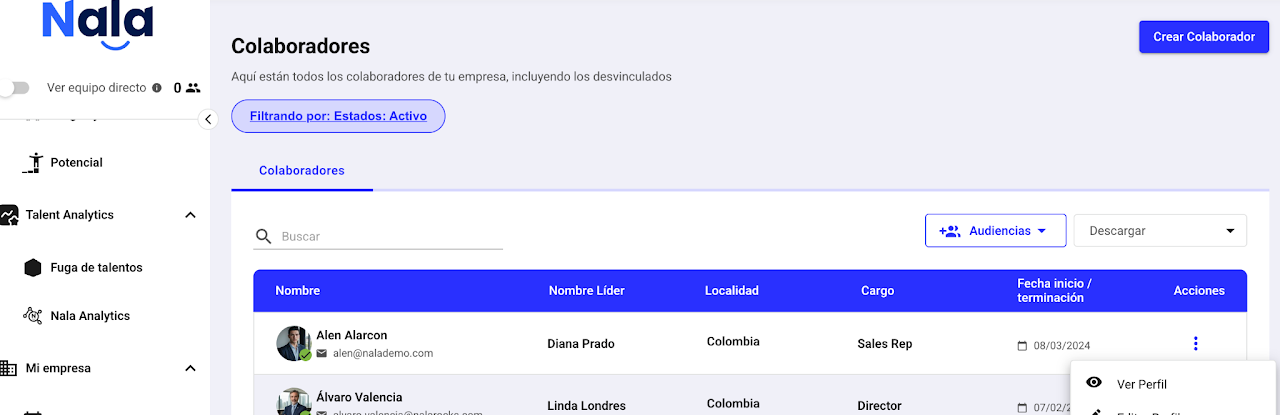

Define a title. We recommend a short, easy-to-remember title.

Copy and paste the emails. Nala will mark with a ❌ the emails that do not exist in Nala and with a ✅ those that do.
You can also search for each employee and select them from the search bar.
Download your employees' reports
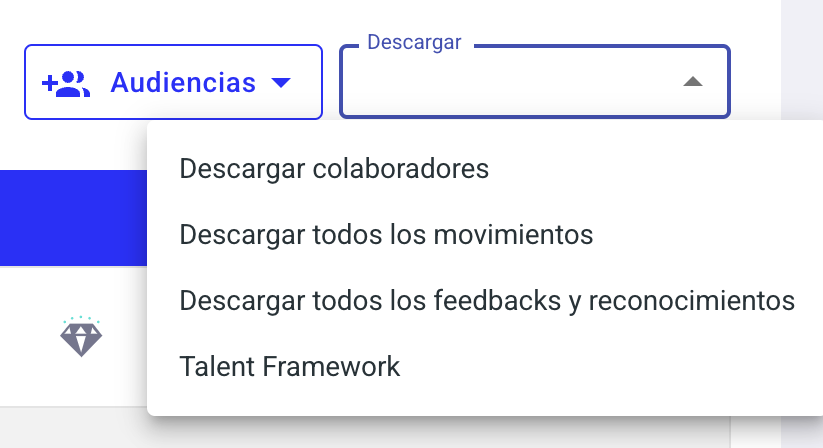
Click the "Download" menu, choose the report you need, and the .XLS file will download automatically.
Download information on employees, movements, feedback, and recognitions or the Talent Framework to see the most current results of evaluations recorded in Nala. In one place, find the results for leadership, performance, and achievements.
Download employees
This report contains all payroll information registered on the platform.
Includes data of employees loaded into Nala (name, position, unit, leader, start date, among other available fields).
You can download:
Only active employees
Only inactive employees
Both if you apply no filters.
This is the most complete report to review or update the organization's employee database.
Movements
Allows downloading the historical organizational movements of employees.
You can select specific time periods.
Movements are shown classified by type, for example:
promotions
unit changes
position changes
terminations
other organizational structure updates.
This report is useful for analyzing changes in employee structure or career path over time.
Feedback and recognitions
Download all feedback and recognitions registered on the platform.
Includes comments and recognitions employees have given each other.
Includes all information since Nala was implemented in the organization.
This report is ideal for analyzing recognition culture, participation, and continuous feedback.
Talent Framework
Contains the summary of the latest talent processes for each employee.
Includes results from processes such as:
performance evaluations
potential evaluations
talent maps or other associated processes.
This report provides an overview of the current talent status in the organization.